
In the context of our platform, an object refers to any entity or item that can be managed, tracked, or interacted with in the system through a tracking device configured with the object. Objects typically represent physical devices, such as person or IoT hardware.
To efficiently upload vehicle records, whether individually or in bulk, please follow these outlined steps.
In the context of our platform, an object refers to any entity or item that can be managed, tracked, or interacted with in the system through a tracking device configured with the object. Objects typically represent physical devices, such as person or IoT hardware.
To efficiently upload vehicle records, whether individually or in bulk, please follow these outlined steps.
To Get Started
- Log in to your account.
- Go to Settings > General > Object > Object.
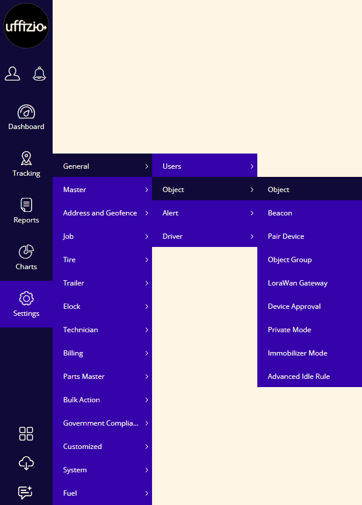
Upon clicking on the object, users will be directed to the Object Overview page, where they can easily view and manage all object records.
To Edit Object Individually
- Double click on on the Object you want to edit from the Overview screen.
Navigate to General
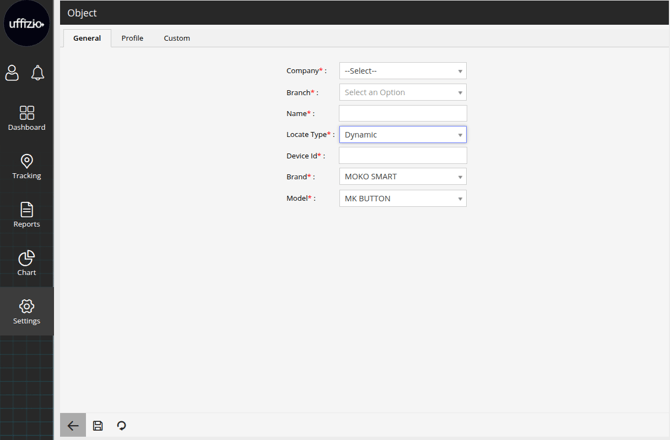
- From the dropdown menus, You can the Company, and Branch under which you want the object.
- Edit: You can Edit the name of the Object.
- Locate Type: You can edit the Locate Type for your object from the dropdown list.
- Dynamic: This option allows to add objects that are going to be in motion.
- Static: This option allows to add objects that are going to be stationary at given position.
- Device Id: You can edit Device Id for the device. (Mac ID)
- you can edit the Brand & Model of the device.
- Floor: You can edit the floor in which the device is located.
- X,mo & Y,mo : You can edit the X axis & Y axis details for the static device.
Please Note: Floor, X,mo & Y,mo will be visible when Static Locate Type is selected
Note: The X and Y axis are based on the Floor plan and the position the object is placed. The Device ID is the IMEI/MAC ID of the device.
Navigate to Profile
- Choose the appropriate Object Type of your vehicle by clicking on the corresponding icon.
- You can specify the Color and Size of the object that you wish to see on the map.
- You can choose a Track Color to see where the object has moved.
- Mention the Tx Power of the object with a router/transmitter.
Note: Tx Power should be calculated for every object from router/ transmitter with a distance of 1 meter, to know the calculation parameter.
To Add Object, Click Here