
Layer configuration screen allows users to set up and manage indoor tracking using a visual layout. Users can add and position transmitters, create different zones, and define restricted areas within the indoor space. It helps in accurately mapping indoor locations, monitoring movement, and controlling access to specific areas.
To efficiently configure Layers records, please follow these outlined steps.
To Get Started
- Log in to your account.
- Go to Settings > Master> Layers.
Please Note: Upon clicking on Layers, users will be directed to the Layers Overview page, where they can easily view and manage all Layers records.
To Add Layers
- Click on the ➕ button on the taskbar.
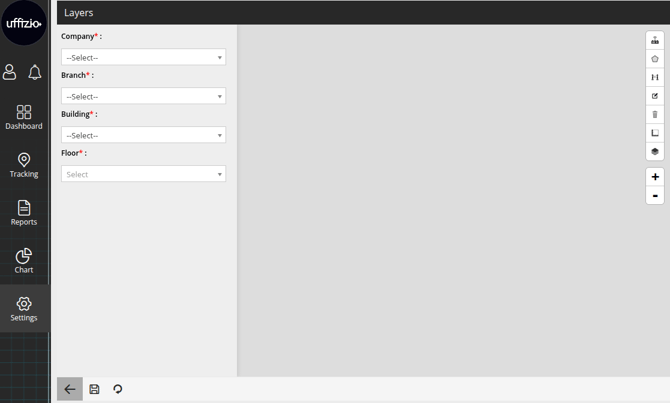
- Select the Company under which the floor plan is located.
- Select the Branch under which the floor plan is located.
- Select the Building under which the floor plan is located.
- Select the Floor of the building to load the floor plan.
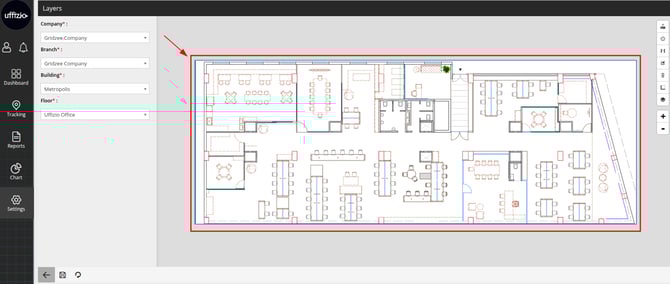
Please Note: Once details are selected the floor plan will load up on the screen.
Overview of the Layer icons.
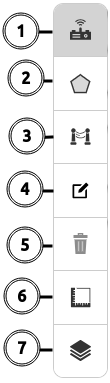
- Draw Transmitter : Click on this icon to add the transmitter to the Layer.
- Draw Zone: Click on the icon to add a Zone.
- Draw Barrier: Click on the icon to add a barrier.
- Edit: Click on the icon to edit the flooer map.
- Delete: Click on the icon to delete any details drawn on floor map.
- Click on the delete
 icon.
icon. - Click on any Zone, barrier or transmitter you want to delete.
- Click on the delete
- Measure Width: Click on the icon to measure the any width on the Floor Map.
- Click on the measure width
 icon.
icon. - Click on the screen to select a start point, then click again to set the end point. The system will calculate and display the width between the selected points.
- Click on the measure width
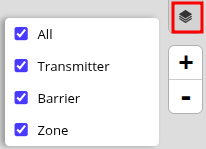
- Layers: The Layers option allows users to control the visibility of different elements on the floor map. You can enable or disable each layer as needed for better clarity and focus.
-
-
All: Shows or hides all map elements at once.
-
Transmitter: Displays the transmitters placed on the floor map.
-
Barrier: Shows the drawn barriers used to restrict or control movement.
-
Zone: Displays the defined zones used for tracking, alerts, and monitoring.
-
- Click on the Save 💾 icon to save the configuration.