
The dashboard is the screen that allows users to see all the performance information and important data for all the vehicles in one place.
The Dashboard is divided into 2 screen.
- Dashboard.
- Control Center.
Dashboard
To open dashboard, click on Menu > Dashboard > Dashboard in the application, the following screen will open as highlighted in the below given image.
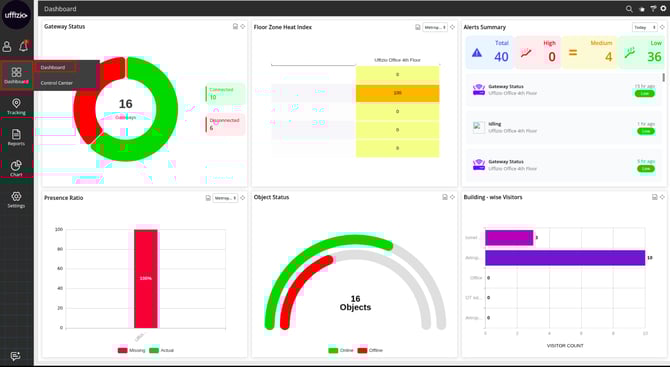
These dashboards can be customised, in which the users can select the widgets that they want to view on the screen as per their requirements.
Go to Dashboard >  to customise the widgets users want to view on the dashboard.
While observing the dashboard, the widgets can easily be moved by using the 
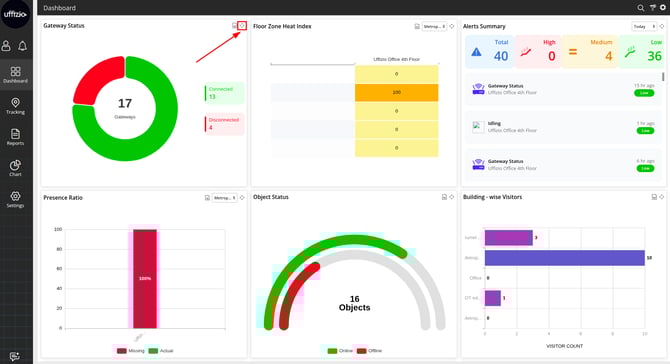
For seeing the widget information in tabular format, this icon 
Example
- Click on the icon.
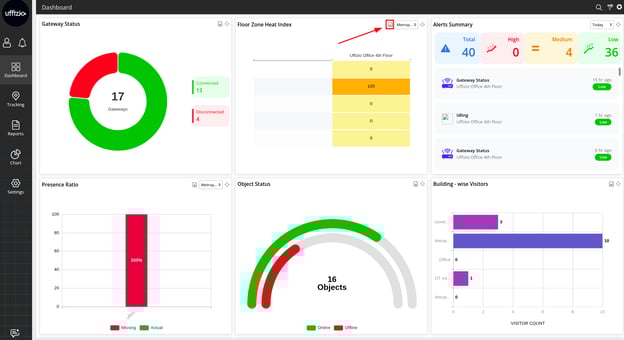
- The tabular formation detail would be shown in this format.
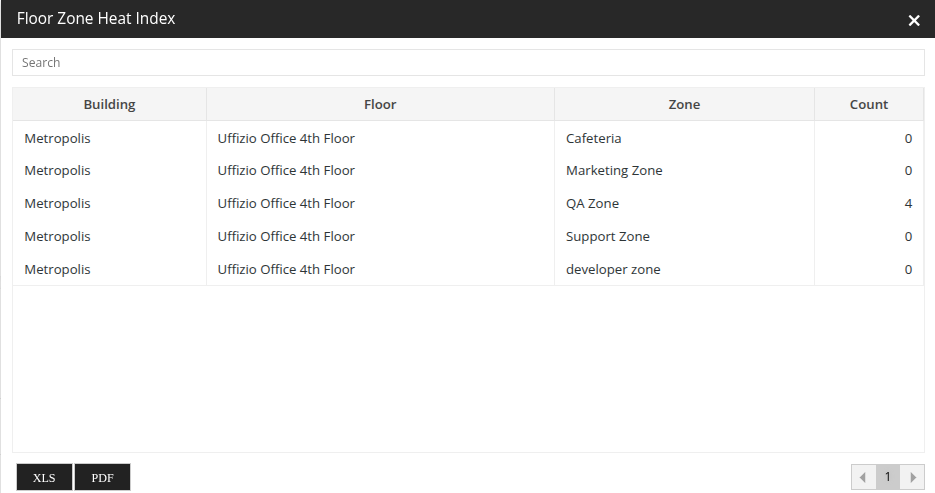
- You can also download this by clicking on the XLS & PDF button.
Control Center
To open dashboard, click on Menu > Dashboard > Control Cente in the application, the following screen will open as highlighted in the below given image.
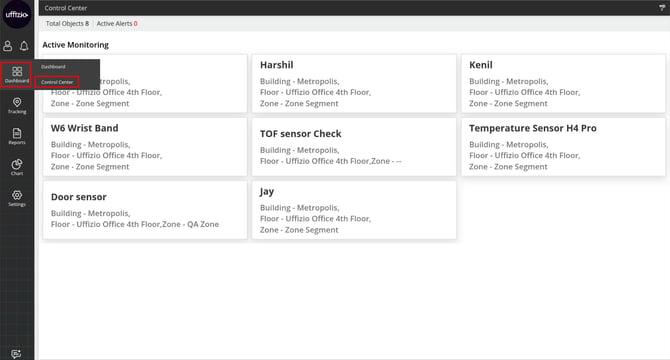
This Screen is designed for SOS alert, if any person has triggered the SOS that person card will flash in RED colour.