The Vehicle Activation screen is used to activate a VLTD (Vehicle Location Tracking Device) by mapping the device, SIM details, vehicle information, and owner details. This process ensures that the device is validated, health-checked, and officially activated against a vehicle and owner.
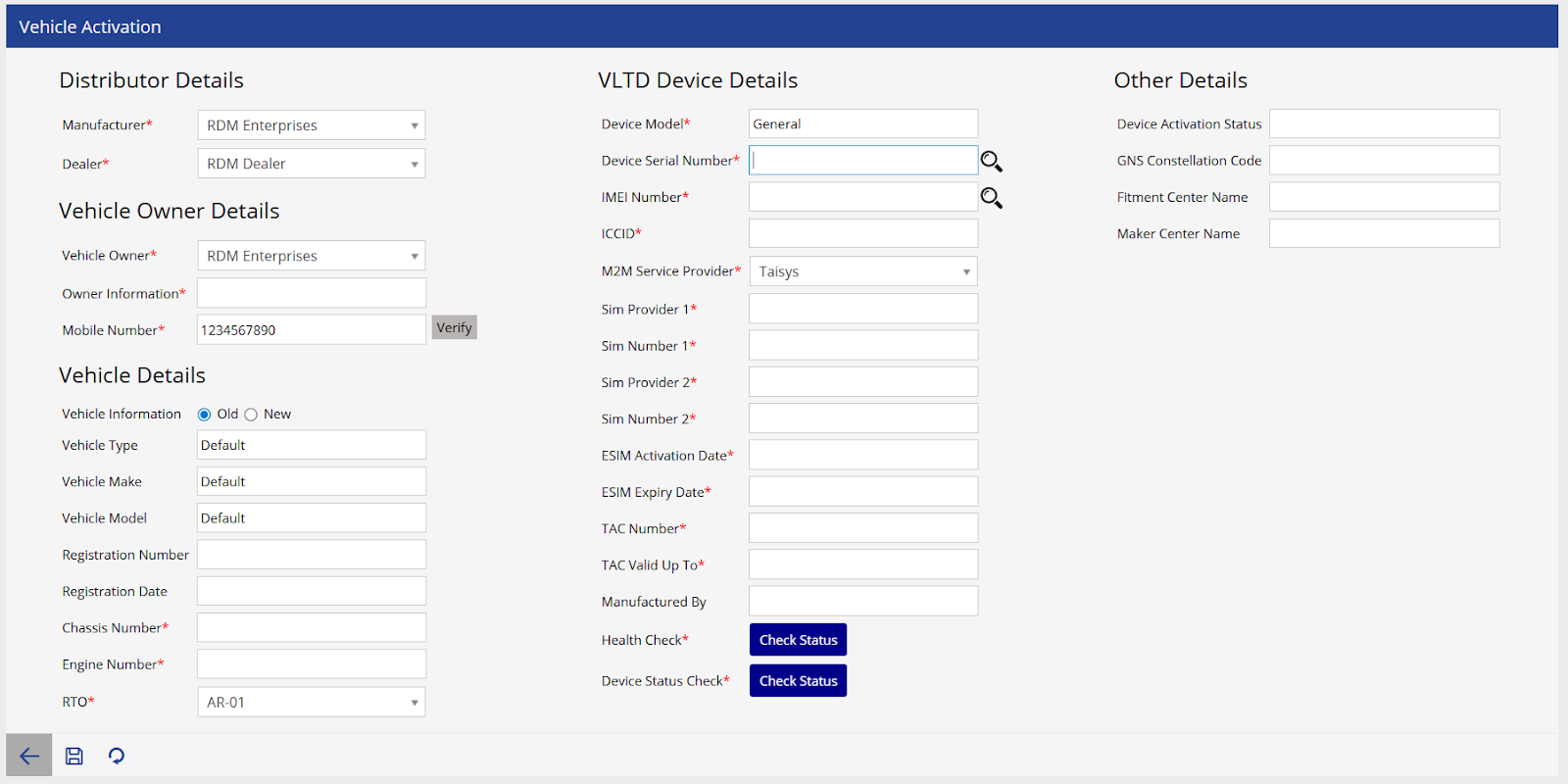
Screen Decription
This screen is divided into the following sections:
- Distributor Details – Selects the manufacturer and dealer associated with the device.
- VLTD Device Details – Captures and auto-fetches device, SIM, and eSIM-related information.
- Vehicle Owner Details – Stores owner information and verifies the mobile number via OTP.
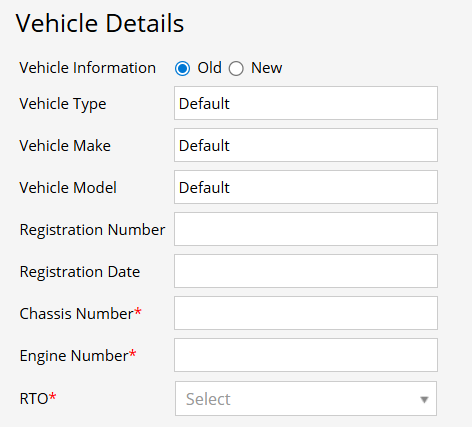
- Vehicle Details – Registers vehicle-specific details such as registration, chassis, engine number, and RTO.
- Other Details – Displays activation-related system information.
To get started
- Login to your Manufacturer account.
- Go to Settings > Master> Vehicle Activation
- Click on the ➕ icon on the taskbar below.

To activate vehicle
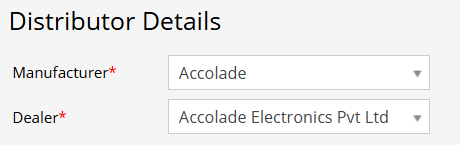
- Choose the Manufacturer from the dropdown.
- Select the corresponding Dealer.
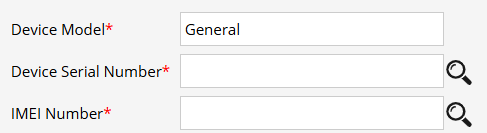
- Enter the Device Serial Number.
- Enter the IMEI Number.
- Click the Search (🔍) icon.
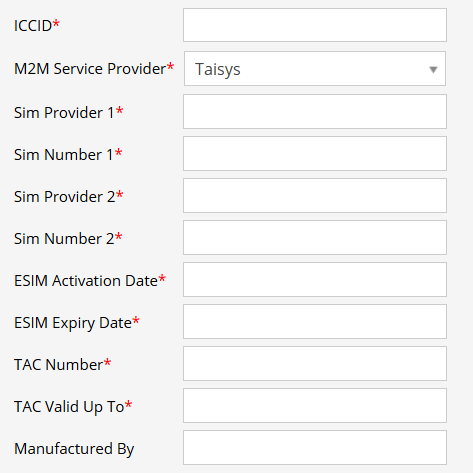
- Once searched successfully, the system automatically fetches and populates:
- ICCID
- SIM Provider details
- eSIM Activation & Expiry dates
- TAC details
- Manufacturer information
- Click Health Check and wait for a successful response.
- After a successful health check, click Device Status Check.
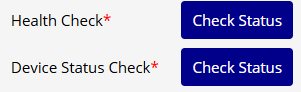
- Both checks must be successful before proceeding further. These validations ensure the device is active, compliant, and ready for vehicle installation.
- Enter Owner Information.
- Enter Mobile Number and click Verify.
- Enter the OTP received on the registered mobile number.
- Select Vehicle Information type (Old / New).
- Fill in vehicle details such as:
- Vehicle Type, Make, Model
- Registration Number & Date
- Chassis Number
- Engine Number
- RTO
- Select the
 save button.