
The Authentication Tab is integrated into the platform to provide an extra layer of security through two-step verification (2FA). This feature is crucial for safeguarding user accounts and sensitive actions like login by requiring OTP (One-Time Password) verification.
To Get Started
- Login to your account.
- Go to Settings > General > Manufacturer > Manufacturer Subuser
- Double-click on the Manufacturer subuser record for which you want to authenticate the user.
To Manage Authentication
- Navigate to the Authentication Tab.
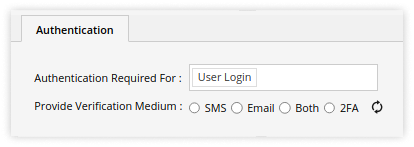
- Select the Authentication Required For from the predefined list.
- Provide Verification Medium: Select from the mentioned options by which the OTP will be received for verification.
Two-step authentication (2FA) for logging into the platform is achieved through OTPs sent via SMS or email, or by using Authenticator apps like Google Authenticator, Authy, or Chrome’s Authenticator extension.
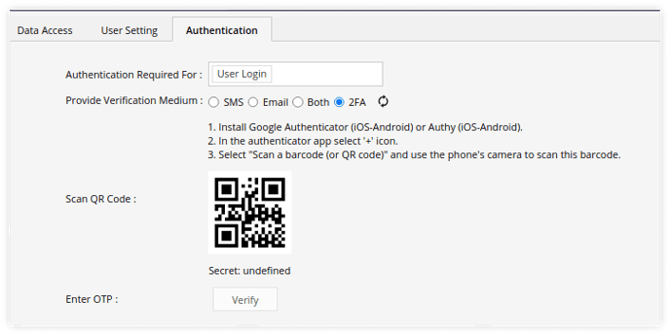
- Click on Verify after completing the process mentioned in the above image.
- Click on Save 💾 icon.