
Manufacturer can provide access to either all objects or a select group of objects to the Manufacturer sub-user, customized to align with their specific roles and responsibilities.
To Get Started
- Login to your Manufacturer account.
- Go to Settings > General > Manufacturer.
- Double-click on the account for which you want to provide data access to the Manufacturer sub-user.
- Navigate to the Manufacturer Subuser tab.

To Grant Permissions
- Click on Add New (to create a new account) or Edit (to edit the existing account), and the Manufacturer Subuser window will open.
- Navigate to the Data Access tab.
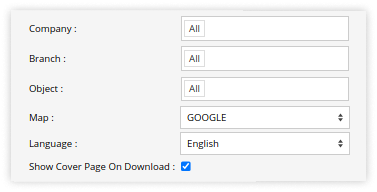
- Select the Vehicle Owner for which you would like to grant the sub-user access to the relevant object data.
- Select the Branch of the selected Vehicle Owner from which you want the sub-user to have object data access.
- Select the Object that you want the sub-user to view. Sub-user will have access to all the details of the selected objects.
- If the Map API key is configured on Manufacturer account and you want to specify which map service would be given access to the sub-user, then you can choose the option from the drop-down list.
Note: The map field will be accessible only if a Map API Key has been configured on the Manufacturer account.
- Choose the preferred Language from the drop-down list. This selection will determine the language in which the Manufacturer sub-user will access the data.
- If you want to have the cover page (Title Page) when you download the reports, then click on the checkbox to enable Show Cover Page on Download.
Please Note: The sub-user will have access to analytics for the selected objects only, according to the screen rights assigned to them.
- Save the settings by clicking on the Save 💾 icon.