
Geofences represent virtual boundaries established around designated geographical areas. These areas can include various locations, such as Parking, Farm house, territories, or restricted area, among others.
Uses of Geofence Feature:
- Users can be notified when a vehicle enters or exits these designated geofence.
Geofences are created by specifying GPS coordinates and defining a radius around them. They can be categorized as area, stay-in, or stay-away zones.
To Add Geofence from Mobile Application
- Log in to your account.
- Go to Profile > Geofence.
Upon clicking on Geofence, you will be directed to the Geofence Overview page, where you can view and manage all the Geofence records.
To Create Geofence Individually
- Click on the
 button on the top right corner.
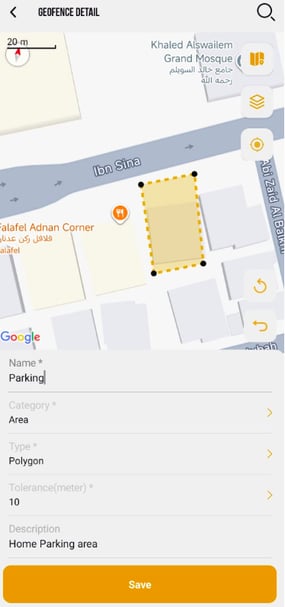
- The Geofence configuration screen will open.
-
- Provide the Name of the Geofence.
- Select the Category of the geofence from the drop-down list.
- Select Area, for Geofence with no condition.
- Select Stay in Zone, for creating a geofence where needs to stay inside the created geofence.
- Select Stay Away from Zone, for creating a geofence where needs to stay away the created geofence.
-
- Select the Type of Geofence from the drop-down list.
-
-
- Select Circle for round shaped Geofence.
- Select Square for rectangle or square shaped geofence.
- Select Polygon if you want to create your custom shape geofence.
- Choose the Tolerance from the dropdown list, as this setting will assist in defining a radius. This will ensure accurate tracking of geofence entries and exits.
- To create a geofence on map: you have 3 options.
- Tap on the desired location on the Map to create a geofence.
- click on
 search and choose the desired location, you will redirected to that location on the Map, now you can create the geofence on that location.
 - Click on the
 icon it will show your current location on the map, now you can create the geofence on that location.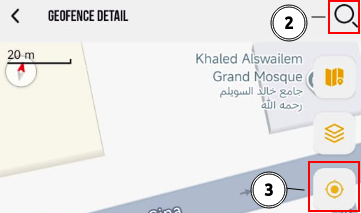
- Provide a Description if necessary.
-
Please Note: While using the 3rd option to add location, you need to grant the location permission for the device.
- Click on the Save button.
Add Geofence from Live Tracking screen.
- Go to
 Home page and tap on the Tracking Widget.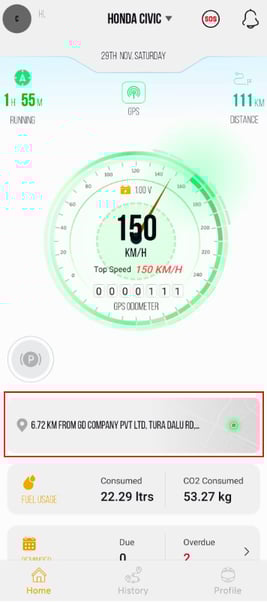
- Once you click on the Tracking Widget, the live tracking screen will open.
- Click on the
 add geofence icon.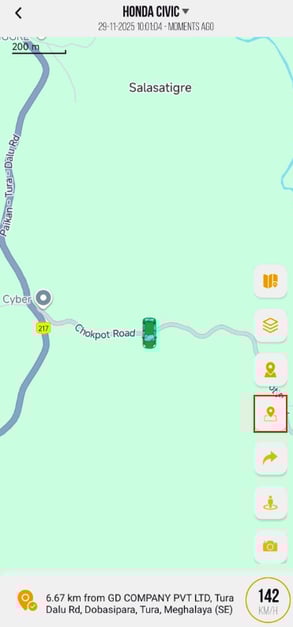
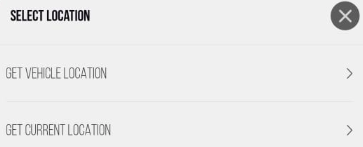
- Once you click on add geofence the following screen will slide up.
- click on Get Vehicle Location, to add vehicle current location as geofence.
- click on Get Current Location, to add your current location as geofence.
- Provide the Name of the Geofence.
- Select the Category of the geofence from the drop-down list.
- Select Area, for Geofence with no condition.
- Select Stay in Zone, for creating a geofence where needs to stay inside the created geofence.
- Select Stay Away from Zone, for creating a geofence where needs to stay away the created geofence.
- Select the Type of Geofence from the drop-down list.
-
- Select Circle for round shaped Geofence.
- Select Square for rectangle or square shaped geofence.
- Select Polygon if you want to create your custom shape geofence.
- Choose the Tolerance from the dropdown list, as this setting will assist in defining a radius. This will ensure accurate tracking of geofence entries and exits.
- You can also adjust/change the location using the following method.
- click on search and choose the desired location, you will redirected to that location on the Map, now you can create the geofence on that location.
- Click on the icon it will show your current location on the map, now you can create the geofence on that location.
- click on
- Provide a Description if necessary.
Please Note: While using the 3rd option to add location, you need to grant the location permission for the device.
- Click on the Save button.