
The Consumer Profile displays key information related to a specific consumer, such as their name, contact details, and other basic account information. This section helps you quickly review and manage profile details. Users can edit the profile whenever needed to keep the information accurate and up to date. Any changes made in the profile are saved instantly and reflected across the system
To Get Started
- Log in to your account.
- Go to Profile > Profile.
- Click on the
 icon available on the bottom panel of the screen.
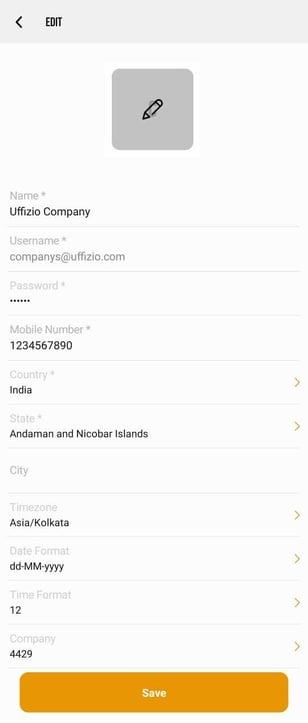
Once you click on the edit icon the Edit page will open, now you can edit the available details.
- To Add/Edit Profile Photo.
-
- Tap on the
 icon to edit/upload profile image, following screen will slide up.
- Select Camera, if you want to click a photo through mobile's camera.
- Select Gallery, if you want to upload image from your phone's gallery.

- To delete the profile image click on the
 icon available on the photo.
- Tap on the
- Tap on Name, to edit your name.
- you cannot edit Username.
- To Change Password
- Tap on password, the following screen will slide up.
- Enter your Old Password.
- Enter your New Password.
- In Confirm password, enter your new password again.
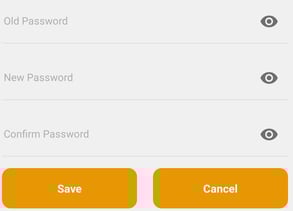
- Tap on password, the following screen will slide up.
- Tap on Mobile Number, to edit the Mobile number.
- Tap on Country, to change the country.
- Tap On State, to change the state.
Please Note: The state lsit will load up based on the selected Conutry.
- Tap on City, to add/edit city details.
- Tap on Timezone, to change the timezone.
- Tap on Date Format, to change the date format based on your preference.
- Tap on Time Format, To change time format to either 12 or 24 hr format.
- Click on Save button, to save the changes.