
An Alert serves as a notification that is activated in response to a specific event or condition, such as when a vehicle exceeds the established speed limit or any other condition, facilitating prompt action on potential issues.
To efficiently edit alert for vehicle, please follow these outlined steps.
To Get Started
- Log in to your account.
- Go to Profile > Alerts.
Upon clicking on the Alerts, users will be directed to the Alerts Overview page, where they can easily view and manage all Alerts records.
To Edit Alert.
- Click on the alert you want to edit from the overview page.
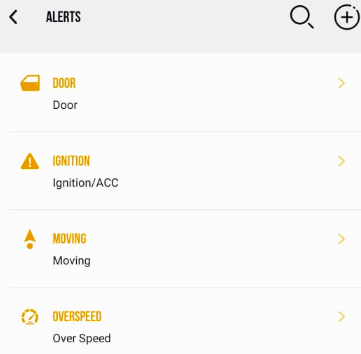
- Once you Tap on the alert the following page will open, you now need to edit the alert details.

- Vehicle: You can add or remove vehicles for this alert.
- Alert Name: You can edit the alert name to easily identify it.
- Alert Type: You can edit the alert type as needed.
- Text: You can edit the default alert heading to better match your alert’s purpose.
- Notification Sound: You can edit the notification sound to choose a specific tone for the alert.
- Click on the Save icon.