
With this feature, users can easily track and view the number of vehicles that have entered or exited a geofenced area over a selected period of time. This feature is designed to address the challenge users faced in identifying the number of vehicles passing through a specific geofence. This ensures better visibility and control, streamlining operational efficiency.
Before You Get Started
You have two convenient options for accessing this feature:
1. Via the Live Tracking screen
2. Through the Reports section
To Get Started
Via the Live Tracking Screen
The "Who Was Here" feature can be easily accessed via the Map Operational Panel on the live tracking screen.
-
Log in to your account.
-
Go to Live tracking > Map Operational Panel.
.png?width=74&height=579&name=Frame%20654%20(9).png)
-
Click on Add Address and Geofence Mode to enable the option.
-
To access the feature, simply click on the Map at your desired location.
-
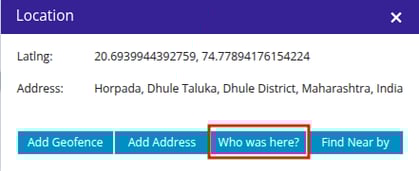
A popup will then appear, providing you the option Who was Here?
-
Click on Who was Here? A Popup window will appear.
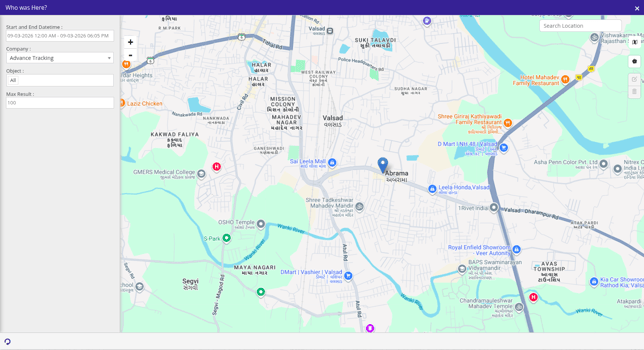
- Start and End Datetime: select the date & time range for which you want to search the data.
- Company: Select the company from the drop-down.
- Object: Select the list of object which you want to search the data.
- Max Result: select the maximum no of result you want to view.
- Geofence: Click on
 Polygon icon and select points on the map to draw the geofence. To complete the geofence, ensure the first and last points connect to form a closed shape.
 - Click on
 to find the data.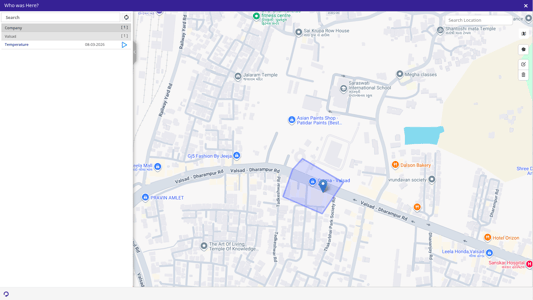
- The List of objects that have passed through the designated geofence area will be displayed, accompanied by the Playback of each vehicle's movement.
- This feature makes tracking and monitoring geofence activity efficient and user-friendly!
Reports Section
The "Who Was Here" feature can also be accessed via the Reports.
-
Log in to your account.
-
Go to Reports > Geofence > Who was Here?
-
Once selected, follow the same steps outlined earlier for Map operation Panel:
-
Select the time and geofence area (in Polygon).
-
Specify the maximum number of objects (optional).
-
Click "Find Object in Polygon Area" to view the list of objects and their playback.
-
-
Please Note:
-
The Geofence can be created with a maximum radius of 2 KM.
-
You have the option to select a specific date to filter the vehicle data, with a maximum range of up to 7 days.