The Vehicle Timeline feature in the mobile application provides a complete chronological view of a vehicle’s activities for a selected time period. Instead of ignition details, it displays the vehicle status such as moving, stopped, idle, or offline, giving users a clear understanding of the vehicle’s behavior throughout the day.
To Get Started
- Log in to your account.
- Go to Live Tracking > Tap on three dots
 icon > View Timeline.
.gif?width=290&height=625&name=WhatsAppVideo2026-04-01at11.53.06AM-ezgif.com-video-to-gif-converter%20(1).gif)
- The Select Vehicle screen will appear. Choose the vehicle for which you want to view the timeline.
- The user will be redirected to the Timeline screen, where the current day’s timeline is loaded by default.
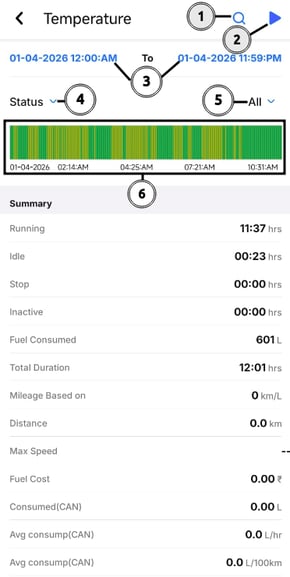
- Search: Users can change the vehicle by clicking on this icon.
- Playback: Users can view the playback of the selected vehicle by clicking on this button. It allows replaying the vehicle’s movement for a specific time period.
- Date Selection: Users can select the desired date to view the vehicle timeline for that specific day.
- Status: Users can select from Status or Sensor options, based on which the graph will be displayed.
- Status/Sensor selection: Users can choose a condition from the list based on the selected Status or Sensor to load data for that specific condition on the timeline graph.
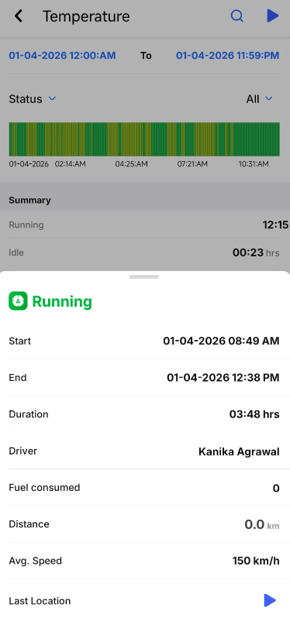
- Timeline Graph: The graph is displayed based on the selected status. Users can tap on any section of the graph to view data for that specific segment.