
By utilizing the Set Subuser feature, users can conveniently access and view only the vehicles associated with a specific subuser, all without the need to log into that subuser's account or the use can Login into anyother use account as well.
For example,
if a user has a subuser named ABC and wants to view only the vehicles assigned to ABC, they can simply select ABC from the list in the Select Subuser menu.
If the use wants to Login into ABC user directly the user can click on Login as User option.
To Set Subuser:
- Log in to your account.
- On the Left-side Panel below the logo, find User.
- Click on User > Set Subuser.
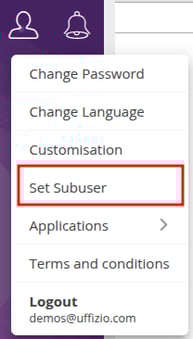
-
- The following popup will appear:
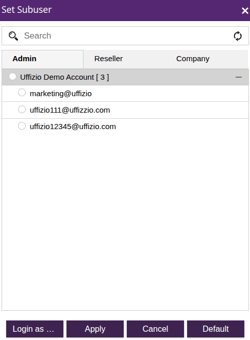
- Select the user from the list.
- Click on the Apply button if you want to see the vehicles of the selected user.
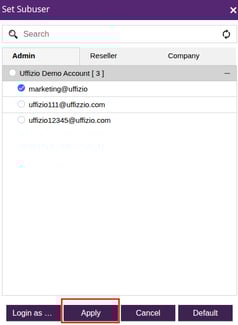
- Click on the Apply button if you want to see the vehicles of the selected user.
- To return to the default view for the logged-in user and reset the subuser selection:
- Click on the Default button.
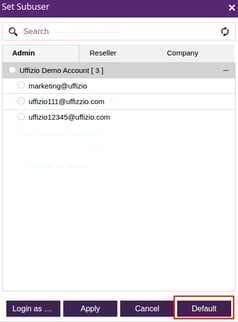
- Click on the Default button.
- Select the user from the list.
- The following popup will appear:
Please Note: If clicked Apply the Live Tracking screen of the particular use will load rest all module will remain the same.
-
-
- Click on the Login as user button if you want to directly login into the selected user accont.
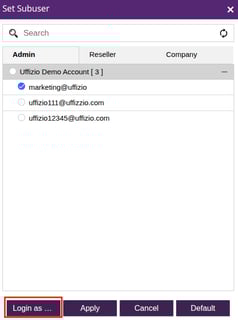
- Click on the Login as user button if you want to directly login into the selected user accont.
-
Please Note: Once you login as user, you would have to logout & Login to get back to the main account.