
The Fuel Fill-Drain Report provides an overview of fuel filling and draining events recorded for selected vehicles or objects during the selected period. It helps fleet managers monitor fuel consumption, fuel filling, fuel draining, slow drain events, fuel levels, mileage, and fuel-related costs.
The report provides a summary of vehicle activity and fuel statistics, with the option to drill down into individual fill-drain events. It also includes a fuel level chart on Layer 1, allowing users to visualize changes in fuel levels over time and review recorded fuel events.
Benefits
- Monitor fuel filling and draining events for selected vehicles or objects.
- Identify potential fuel theft, unauthorized draining, or unexpected fuel loss.
- Review fuel consumption during running and idling.
- Track fuel levels before and after individual events.
- Analyze distance travelled, mileage, and average fuel consumption.
- Identify possible slow fuel drain events.
- Visualize fuel level changes through the fuel fill-drain chart.
- Review event locations, timestamps, and odometer readings for further investigation.
How to Access
Path:
Reports → Fuel → Fuel Fill-Drain
Use the available filters to select the required company, branch, date range, vehicle details, and objects. Generate the report to review fuel activity for the selected period.
Filters
Use the available filters to generate the report:
- Company: Select the required company.
- Branch: Select the required branch.
- Date Selection: Select the reporting period for which fuel activity must be reviewed.
- Vehicle Group: Select the required vehicle group.
- Vehicle Type: Filter objects by vehicle type.
- Vehicle Brand: Filter objects by vehicle brand.
- Vehicle Model: Filter objects by vehicle model.
- Object Selection: Select the required vehicles or tracked objects from the object hierarchy.
Additional options include Save Filter, Delete Filter, Apply, XLS, PDF, and CSV.
Report Layers
The Fuel Fill-Drain Report has two levels of information: Fuel Fill-Drain Summary → Fuel Fill-Drain Detail. The summary layer also includes a fuel level chart.
Layer 1 – Fuel Fill-Drain Summary
Provides an overview of vehicle activity, fuel consumption, fuel costs, mileage, fill-drain events, and fuel levels.
The summary includes the following fields:
- Company
- Branch
- Object
- Object Brand
- Object Model
- Running
- Idle
- Inactive
- Stop (HH:MM:SS)
- Distance
- Max Stoppages
- Fuel Consumed — Running, Idling, and Total
- Avg Consumption / 100
- Fuel Overconsumption
- Fuel Cost — Idling and Total
- Mileage
- Fill
- Drain
- Slow Drain
- Start Fuel Level
- Last Fuel Level
- Fill-Drain Chart
Fuel Fill-Drain Chart
The chart displays fuel level changes over time and helps users visualize fuel filling and consumption patterns. The chart includes options to display different data series, such as Fuel Algorithm, Fuel Raw Data, Ignition, Speed, Power, GPS, Distance, Over-Consumption, and Slow Drain.
Users can review the plotted fuel levels alongside the recorded fill events to understand changes in fuel levels throughout the selected period.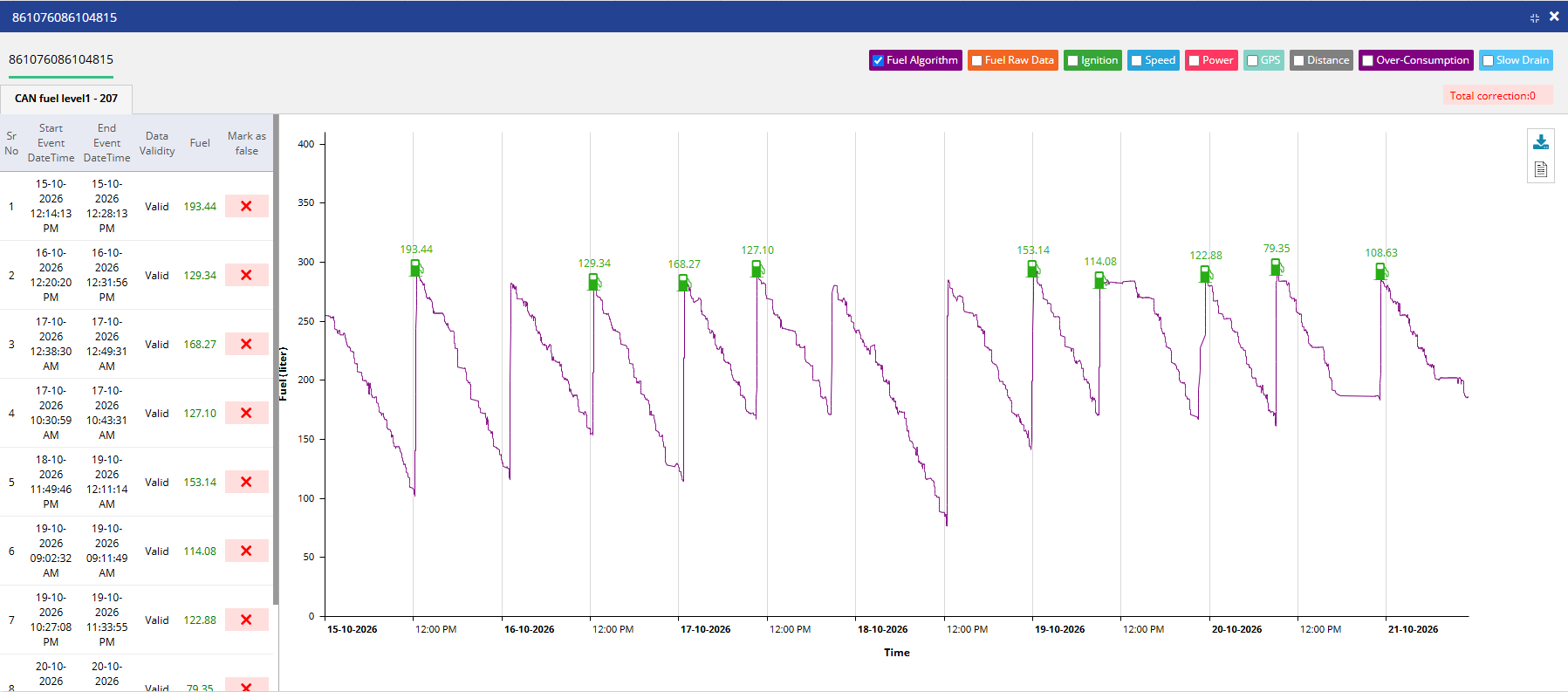
Layer 2 – Fuel Fill-Drain Detail
Displays individual fuel fill or drain events for the selected object, including the event timestamps, fuel levels, location, and related distance and mileage information.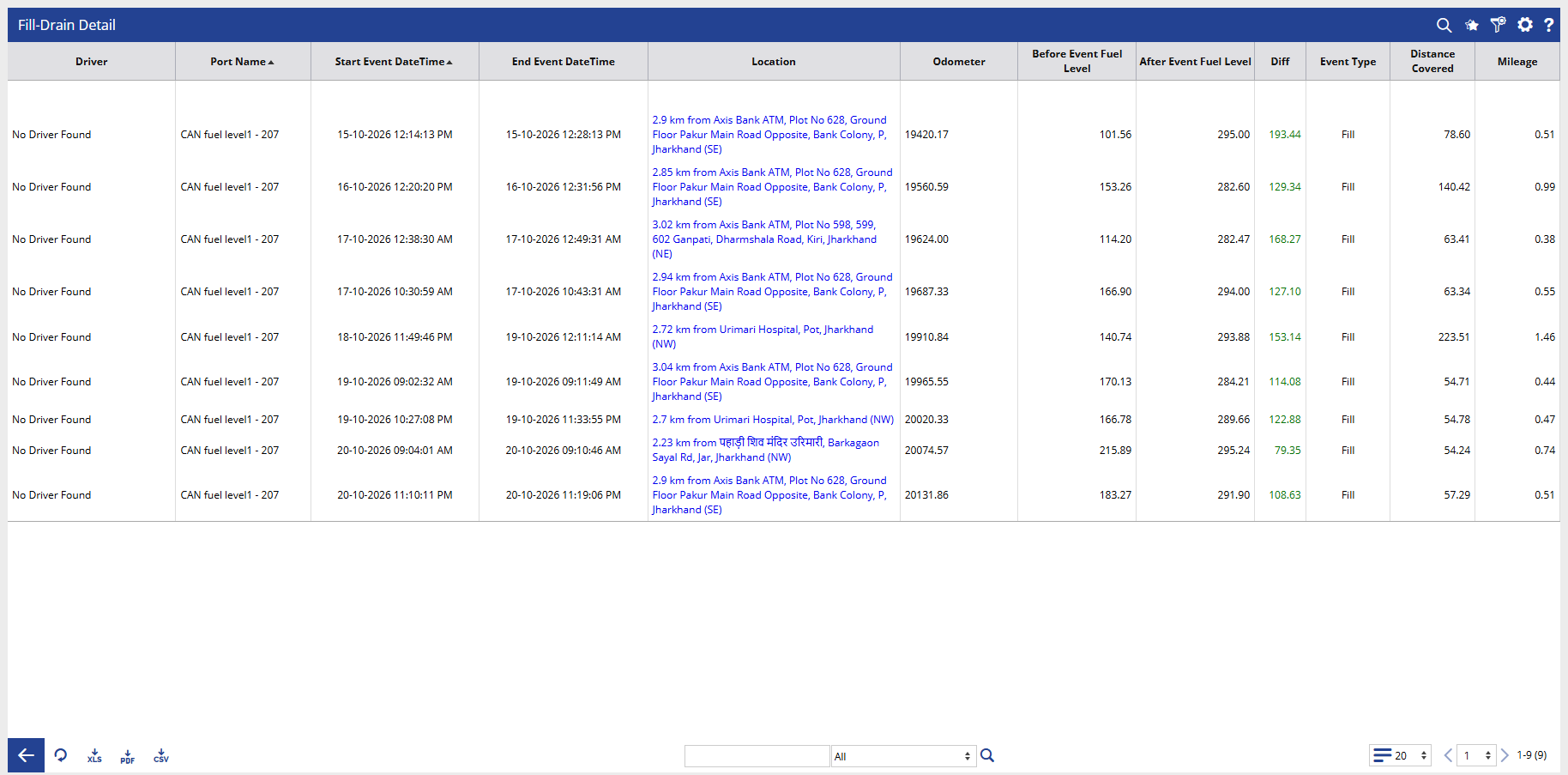
The detail layer includes:
- Driver
- Port Name
- Start Event DateTime
- End Event DateTime
- Location
- Odometer
- Before Event Fuel Level
- After Event Fuel Level
- Diff
- Event Type
- Distance Covered
- Mileage
How to Read
Fuel Fill-Drain Summary
- Company / Branch identifies the company and branch associated with the object.
- Object identifies the vehicle or tracked object.
- Object Brand / Object Model displays the object's brand and model.
- Running shows the total running duration recorded during the selected period.
- Idle shows the total idling duration.
- Inactive displays the recorded inactive duration.
- Stop (HH:MM:SS) shows the total stopping duration.
- Distance displays the distance travelled during the selected period.
- Max Stoppages indicates the maximum stoppage duration shown in the report.
- Fuel Consumed – Running shows the fuel consumed while the object was running.
- Fuel Consumed – Idling shows the fuel consumed while the object was idling.
- Fuel Consumed – Total displays the total fuel consumption reported for running and idling.
- Avg Consumption / 100 shows the average fuel consumption per 100 distance units, according to the system's configured measurement units.
- Fuel Overconsumption displays the reported fuel overconsumption value.
- Fuel Cost – Idling / Total displays the fuel cost associated with idling and the total reported fuel cost.
- Mileage displays the mileage value calculated by the system.
- Fill shows the reported fuel filling quantity or value.
- Drain shows the reported fuel draining quantity or value.
- Slow Drain displays the reported slow drain value.
- Start Fuel Level shows the fuel level at the beginning of the reporting period or recorded activity.
- Last Fuel Level shows the last recorded fuel level.
- Fill-Drain Chart opens the chart view for reviewing fuel level changes and recorded events.
Fuel Fill-Drain Detail
- Driver identifies the driver associated with the event, where available.
- Port Name identifies the fuel sensor or port associated with the event.
- Start Event DateTime shows when the event started.
- End Event DateTime shows when the event ended.
- Location displays the recorded location of the event.
- Odometer shows the odometer reading associated with the event.
- Before Event Fuel Level displays the fuel level before the event.
- After Event Fuel Level displays the fuel level after the event.
- Diff shows the difference between the fuel levels before and after the event.
- Event Type identifies whether the event is a Fill or Drain.
- Distance Covered shows the distance associated with the event.
- Mileage displays the mileage value associated with the event.
Take Action
- Select the required company, branch, date range, vehicle details, and objects to generate the report.
- Review Fuel Consumed – Running, Idling, and Total to understand fuel usage patterns.
- Compare Fill, Drain, and Slow Drain values to identify events that may require investigation.
- Check Start Fuel Level and Last Fuel Level to review changes in fuel levels.
- Use the Fill-Drain Chart to visualize fuel level changes and compare them with the available data series.
- Click the + icon beside an object to view its individual fill-drain event records.
- Review Before Event Fuel Level, After Event Fuel Level, and Diff to understand the change associated with each event.
- Check the event timestamps, location, and odometer readings to investigate unexpected fuel changes.
- Export the report in XLS, PDF, or CSV format for further analysis or sharing.
Notes
- The report is generated according to the selected company, branch, date range, vehicle filters, and object selection.
- The availability and accuracy of fuel information depend on the installed fuel sensor or device, received data, and configured fuel calculation settings.
- Fuel filling and draining events are identified according to the system's configured event detection logic.
- The fuel chart provides a visual representation of the available fuel-related data. The displayed series depend on the available data and selected chart options.
- Fuel Overconsumption and Slow Drain values should be reviewed in the context of the configured rules and recorded vehicle activity.
- Missing or inaccurate sensor data may affect fuel levels, consumption calculations, and event detection.
- Fuel cost calculations depend on the fuel cost settings configured in the system.
- A detected fuel drain or unusual fuel level change may require further investigation and should not automatically be treated as confirmed fuel theft.