
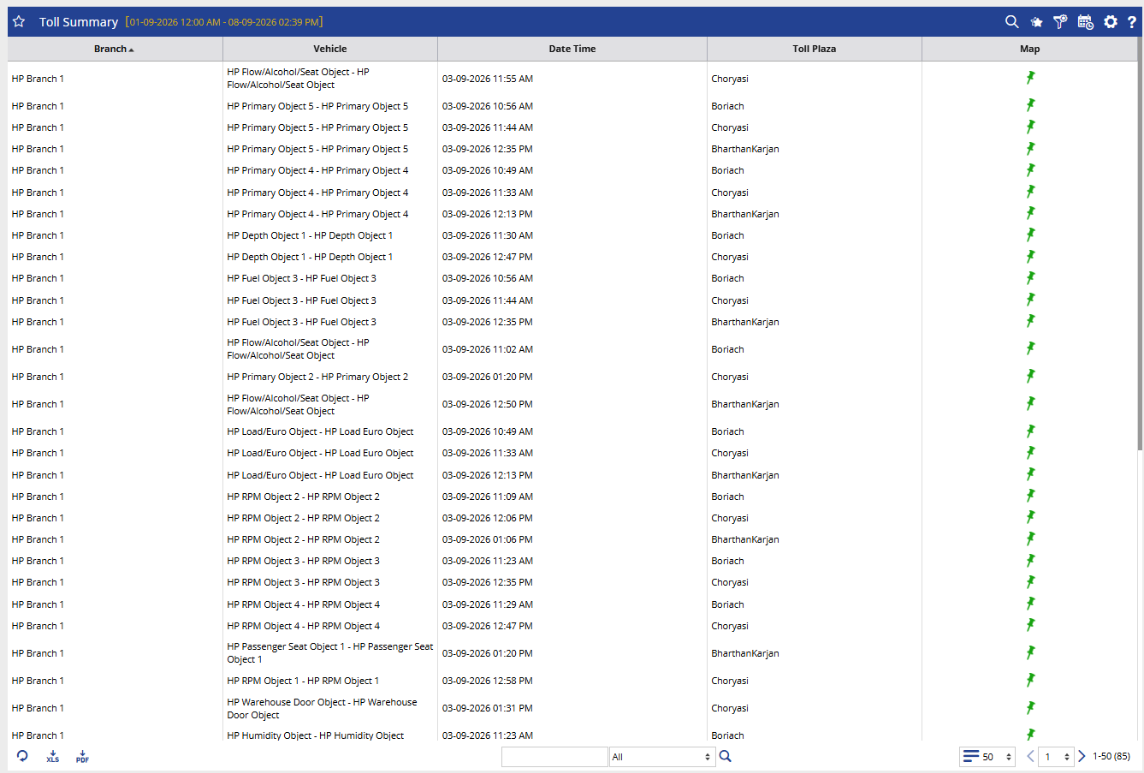
The Toll Summary Report provides details of toll plaza visits made by selected vehicles during a specific period.
It helps you:
- Track toll plaza visits.
- Check which vehicle passed through a toll plaza.
- Identify when the vehicle passed.
- View the toll location on the map.
Benefits
- Track toll movements of vehicles.
- Verify vehicle travel activity at toll plazas.
- Improve route visibility with location details.
- Support trip and movement verification.
- Quickly review toll activity for selected vehicles and periods.
How to Access
- Reports-->Toll-->Toll Summary
Filters
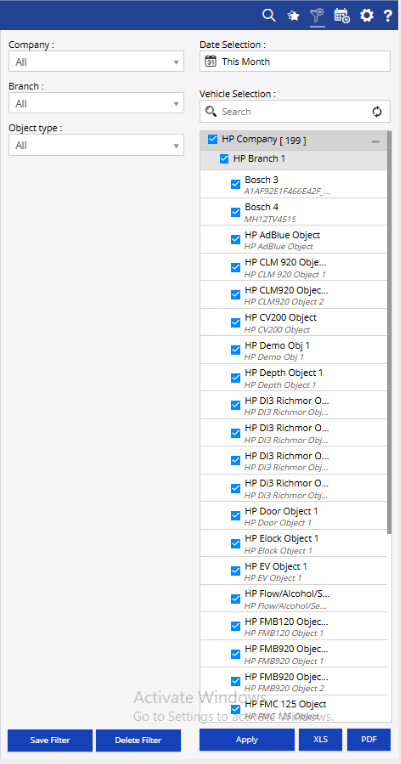
- Company: Select the required company.
- Branch: Select the required branch.
- Object Type: Select the required vehicle/object type.
- Date Selection: Select the required date range or predefined period.
- Vehicle Selection: Select one or more vehicles/objects to include in the report.
- Click Apply to generate the report.
Additional options:
-
- Save Filter: Save frequently used filter combinations.
- Delete Filter: Remove a saved filter.
- XLS: Export the report to Excel.
- PDF: Export the report to PDF.
How to Read
Read the report from a vehicle and trip perspective:
- Branch + Vehicle: Identify which vehicle from which branch made the toll visit.
- Date & Time: Check when the vehicle passed the toll plaza.
- Toll Plaza: Identify the toll plaza visited.
- Map: View the toll location.
Example:
To verify a vehicle's toll movement, select the required vehicle and date range, then review the Date Time and Toll Plaza details to understand where and when the vehicle passed.
Take Action
- Verify toll movement for a vehicle.
- Review vehicle travel activity.
- Check toll visits for a specific period.
- Investigate unexpected toll plaza visits.
- Use the map location for further verification.
Important Notes
- Report data depends on the selected filters and date range.
- Multiple vehicles can be selected when required.
- Use the Map option to view the toll plaza location.