
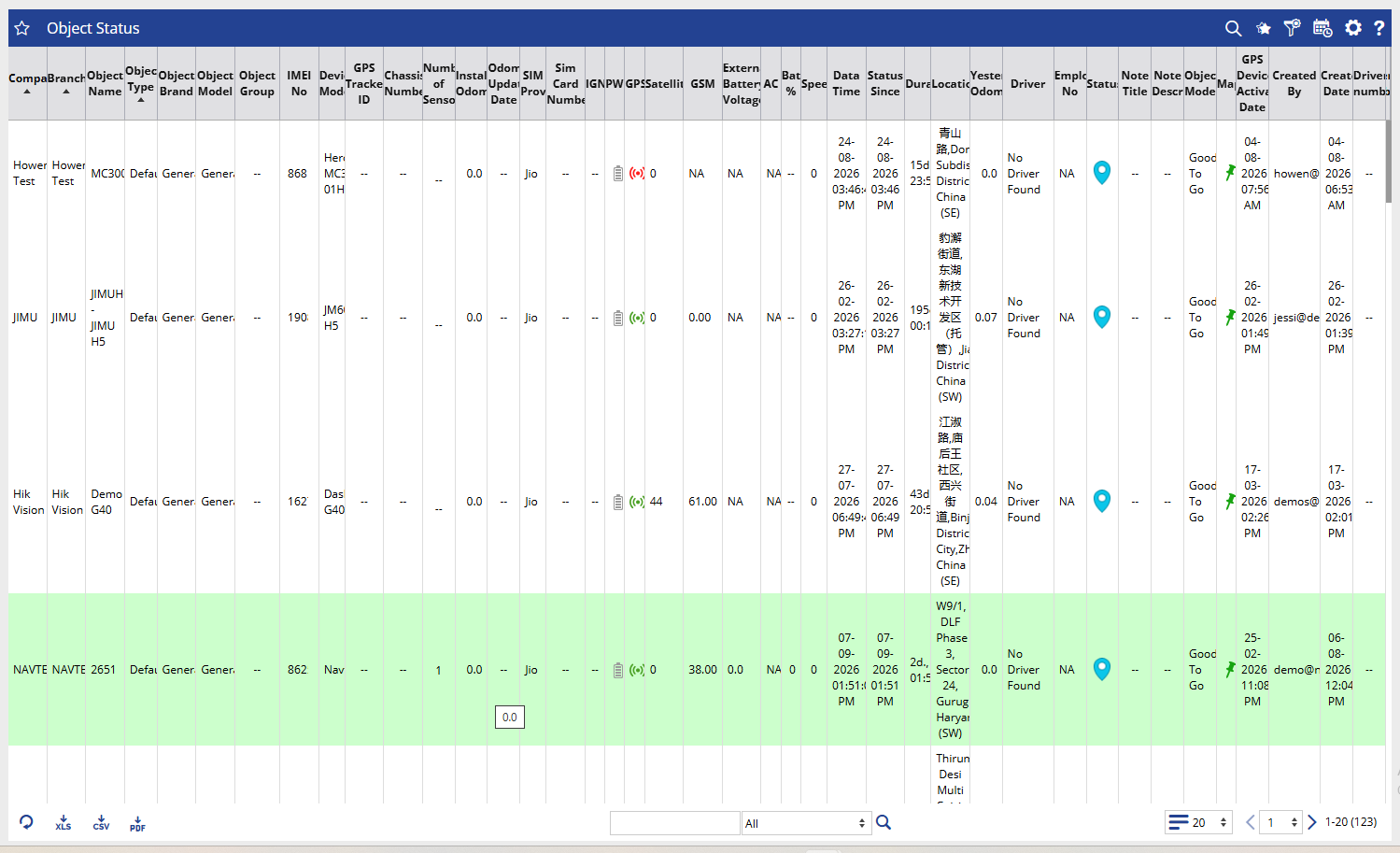
The Object Status Report provides a detailed view of the current and configured status information of vehicles/objects.
It helps you check whether an object is active, when its status was last updated, its latest GPS/data information, and key device and vehicle details from a single report.
Benefits
- Monitor object status across the fleet.
- Identify objects that may require attention based on their current status.
- Check the latest GPS and data information received from the device.
- Review device and object details from one place.
- Support troubleshooting and fleet monitoring using the latest available information.
How to Access
- Report-->Activity-->Object Status
Filters
Use the available filters to generate the report:
- Reseller: Select the required reseller.
- Company: Select the required company.
- Branch: Select the required branch.
- Vehicle Group: Select the required vehicle group.
- Vehicle Type: Select the required vehicle type.
- Vehicle Brand: Select the required vehicle brand.
- Vehicle Model: Select the required vehicle model.
- Status: Select the required object status.
- Status Since: Filter objects based on the period from which the selected status has been applicable.
- Object Selection: Select one or more objects/vehicles to include in the report.
Click Apply to generate the report.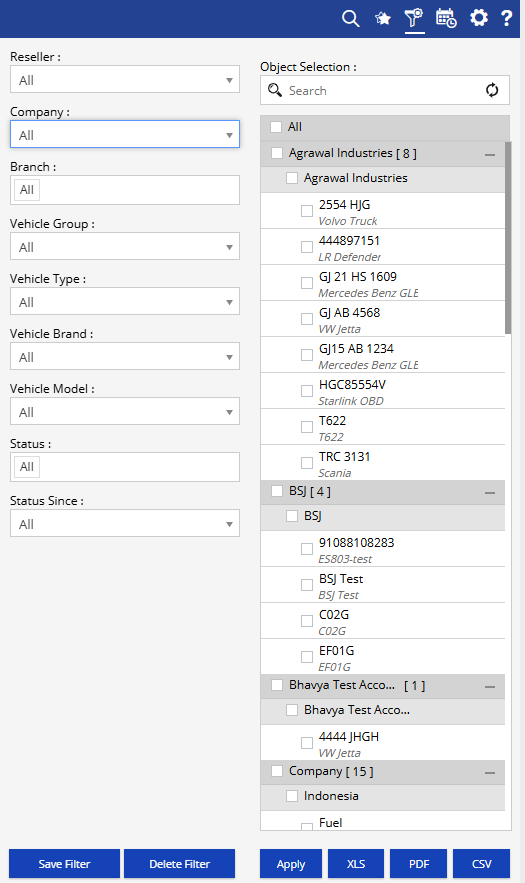
Additional options:
- Save Filter: Save the selected filter combination for future use.
- Delete Filter: Delete the saved filter.
- XLS: Export the report to Excel.
- PDF: Export the report to PDF.
- CSV: Export the report to CSV.
How to Read
The report contains detailed information about each selected object. Instead of reviewing every column individually, use it based on the business requirement:
For checking object status
- Check the Status and Status Since information to understand the object's current status and how long it has remained in that status.
For checking device communication
- Review GPS/Data Time and related device communication information to determine whether the latest data is being received.
- Check the device-related information when investigating communication or tracking concerns.
For checking vehicle/device configuration
- Review the Object Name, Object Type, Brand, Model, IMEI No., Device Model, and other configuration details to verify that the correct information is associated with the object.
For checking the latest vehicle information
- Review the location, speed, GPS activity, odometer, battery and other available parameters to understand the latest reported vehicle/device condition.
Example:
If a client reports that a vehicle is not updating, first locate the vehicle in the report and check its Status, Status Since, GPS/Data Time, and latest location information. This can help determine whether the issue is related to the vehicle status, device communication, or the last received data.
Take Action
- Identify objects that have remained in a particular status for a long period.
- Check the latest data time when investigating tracking or communication issues.
- Verify device and object information when configuration needs to be confirmed.
- Review the latest location and available parameters for operational checks.
- Export the report when the information needs to be shared or reviewed offline.
Important Notes
- The report provides object-level information in a single detailed view.
- The number of available columns may vary depending on the system configuration and available device data.
- Some fields may display NA, --, or blank when the information is not available or not configured.
- The information shown is based on the latest data available from the respective object/device.
- The displayed results depend on the selected Reseller, Company, Branch, Vehicle Group, Vehicle Type, Vehicle Brand, Vehicle Model, Status, Status Since, and Object Selection.