
The Object Rating Report helps you evaluate vehicle driving performance by showing the rating, driving violations, and driving behavior of each selected vehicle.
It provides an overall view in the first layer and allows you to open a vehicle to see the individual violations and penalty points behind its rating.
Benefits
- Monitor driving performance across vehicles.
- Identify vehicles with driving violations that need attention.
- Understand driver behavior based on the vehicle's rating.
- Review individual violations and penalty points.
- Support safer driving and driver coaching.
How to Access
-
Report-->Activity-->Object rating
Filters
Use the available filters to generate the report:
- Company: Select the required company.
- Branch: Select the required branch.
- Rating: Select a specific rating to focus on vehicles with the required rating.
- Date Selection: Select the required date or reporting period.
- Object Selection: Select one or more vehicles/objects.
Click Apply to generate the report.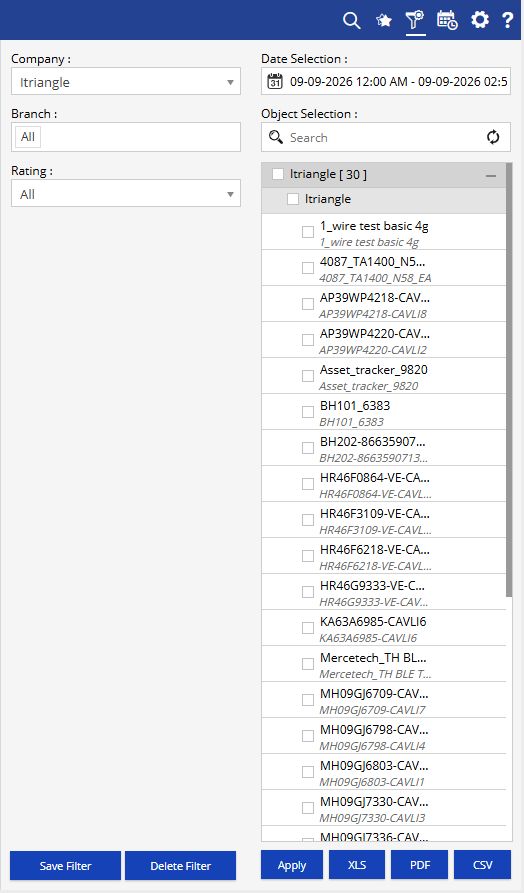
Additional options:
- Save Filter: Save the selected filter combination for future use.
- Delete Filter: Delete the saved filter.
- XLS: Export the report to Excel.
- PDF: Export the report to PDF.
- CSV: Export the report to CSV.
Report Layers
The Object Rating Report has two layers:
Layer 1 – Object Rating
Provides an overall view of each selected vehicle's driving performance.
You can review:
- Distance: Distance covered by the vehicle.
- Running: Vehicle running duration.
- No. of Speeding: Number of speeding events.
- No. of Harsh Driving: Number of harsh driving events.
- No. of Idling: Number of idling events.
- ADAS: ADAS-related violations/events.
- DMS: DMS-related violations/events.
- Total Violations: Total violations recorded.
- Rating: Overall vehicle rating.
- Behavior: Driving behavior based on the rating.
Click the + icon against a vehicle to view its detailed violations.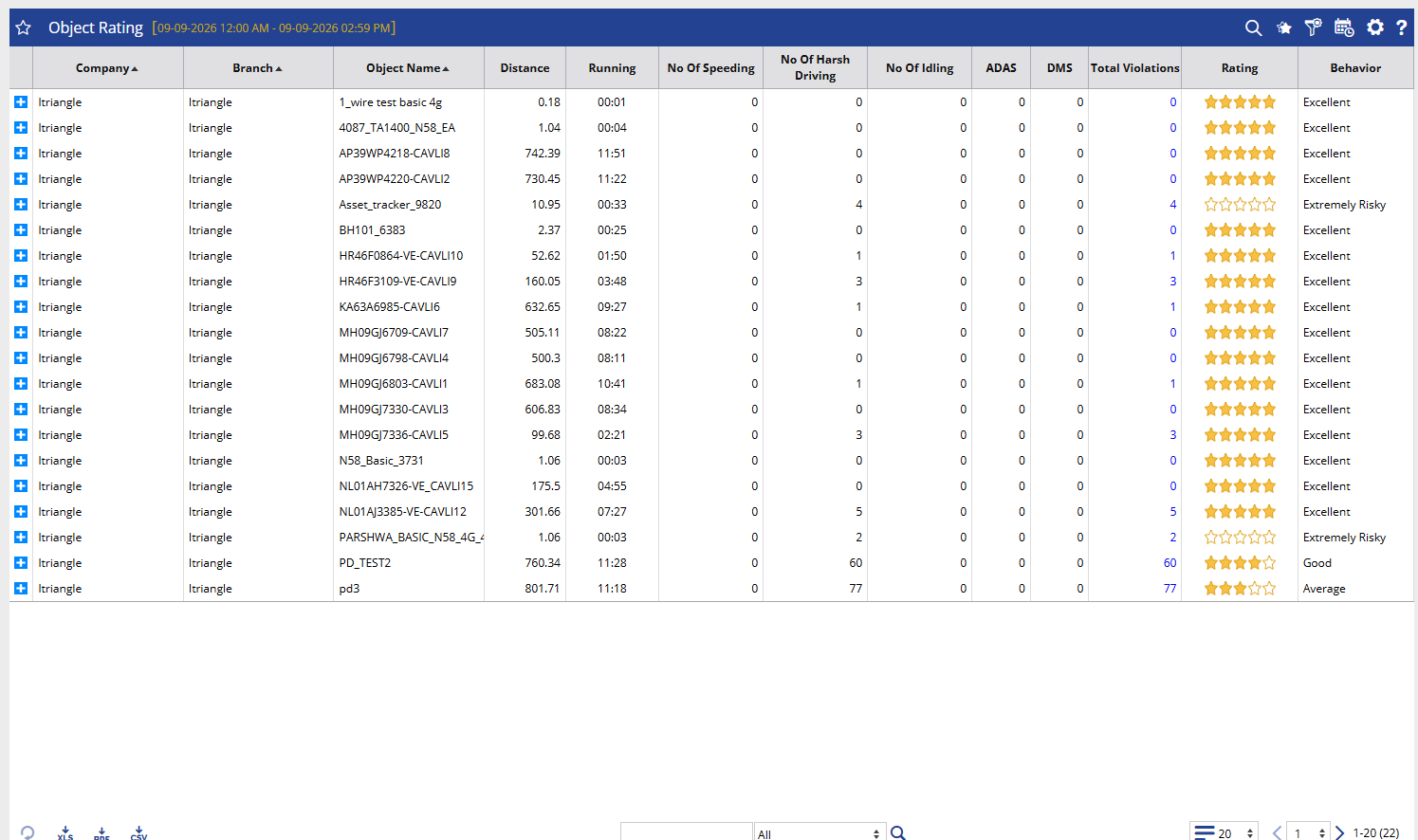
Layer 2 – Object Rating Detail
Shows the individual events contributing to the vehicle's driving performance.
You can review:
- DateTime: When the violation occurred.
- Driver Name: Driver associated with the event, where available.
- Location: Where the event occurred.
- Violation: Category of the driving violation.
- Type: Specific type of violation.
- Duration: Duration of the event.
- Penalty Points: Points assigned to the violation.
- Map: View the event location on the map.
Use the back arrow to return to the Object Rating summary.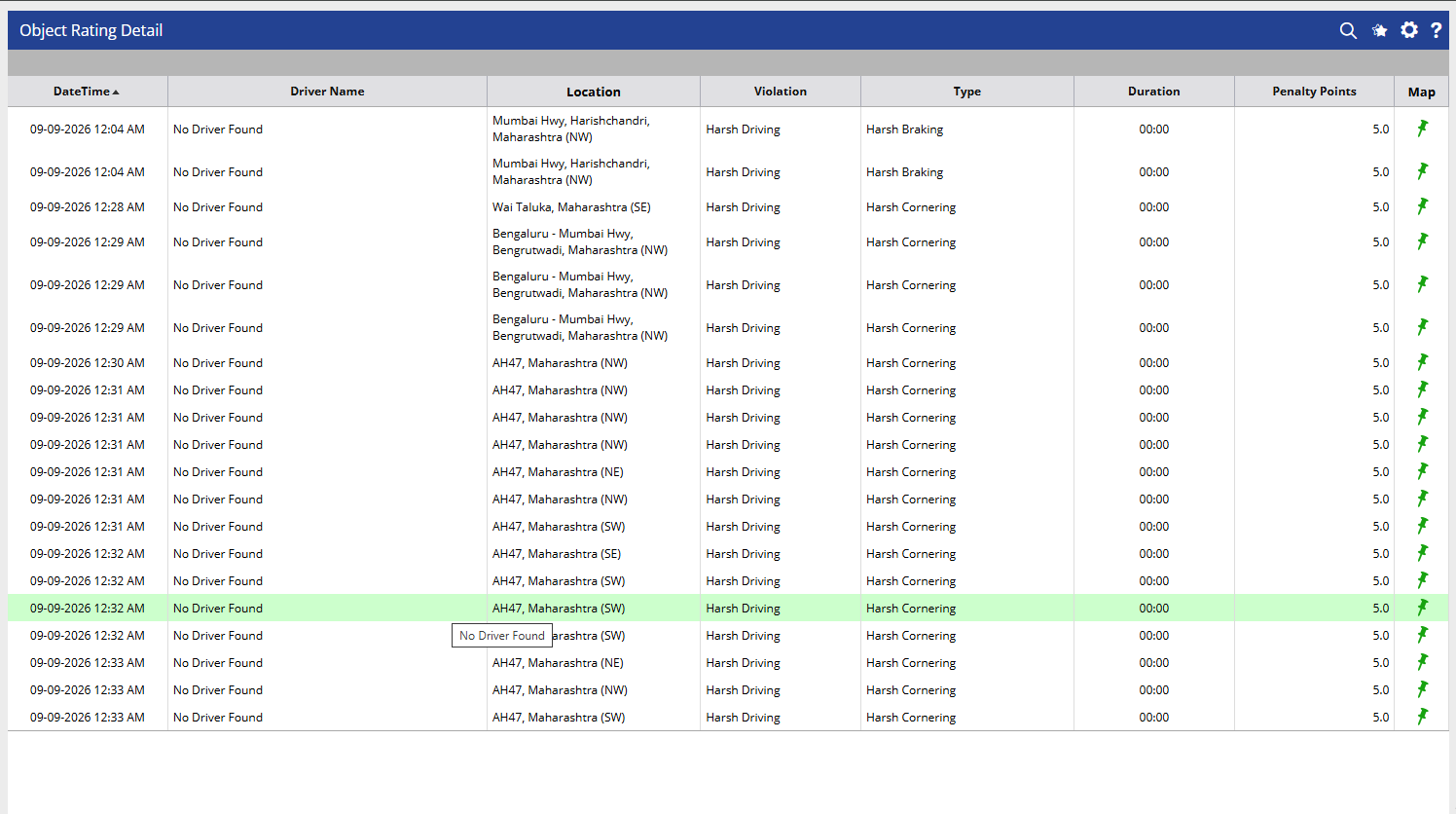
How to Read
Read the report from overall driving performance → individual violations.
Layer 1 – Object Rating
- Start with the Rating and Behavior to understand the vehicle's overall driving performance.
- Check Total Violations to see the overall number of recorded violations.
- Review the individual violation categories such as Speeding, Harsh Driving, ADAS, and DMS to understand what is affecting the vehicle's performance.
- Compare vehicles to identify those requiring additional attention.
Layer 2 – Object Rating Detail
- Click + against a vehicle to investigate its violations.
- Check Violation and Type to understand what happened.
- Check DateTime and Location to understand when and where the event occurred.
- Review Penalty Points to understand the points associated with the violation.
- Use the Map option when the event location needs to be reviewed.
Example:
If a vehicle has a lower rating and a higher number of violations, open the Object Rating Detail to identify the specific driving events responsible. The team can then use this information for driver feedback or corrective action.
Take Action
- Identify vehicles with lower ratings or higher violations.
- Review the specific violation types affecting driving performance.
- Use violation details for driver coaching and feedback.
- Monitor recurring driving behaviors.
- Use the rating trends to support safe-driving initiatives.
Important Notes
- The report contains two layers: Object Rating → Object Rating Detail.
- The rating and behavior displayed in the report are based on the recorded driving events and configured rating logic.
- Detailed violations can be reviewed by clicking the + icon against the vehicle.
- The available information depends on the data received from the vehicle/device and the applicable ADAS/DMS data, where configured.