
The Object Location Duration Wise Report shows the locations visited by selected vehicles and their location-wise movement at regular time intervals.
It helps you understand where a vehicle started, where it ended, and how its location changed throughout the selected period.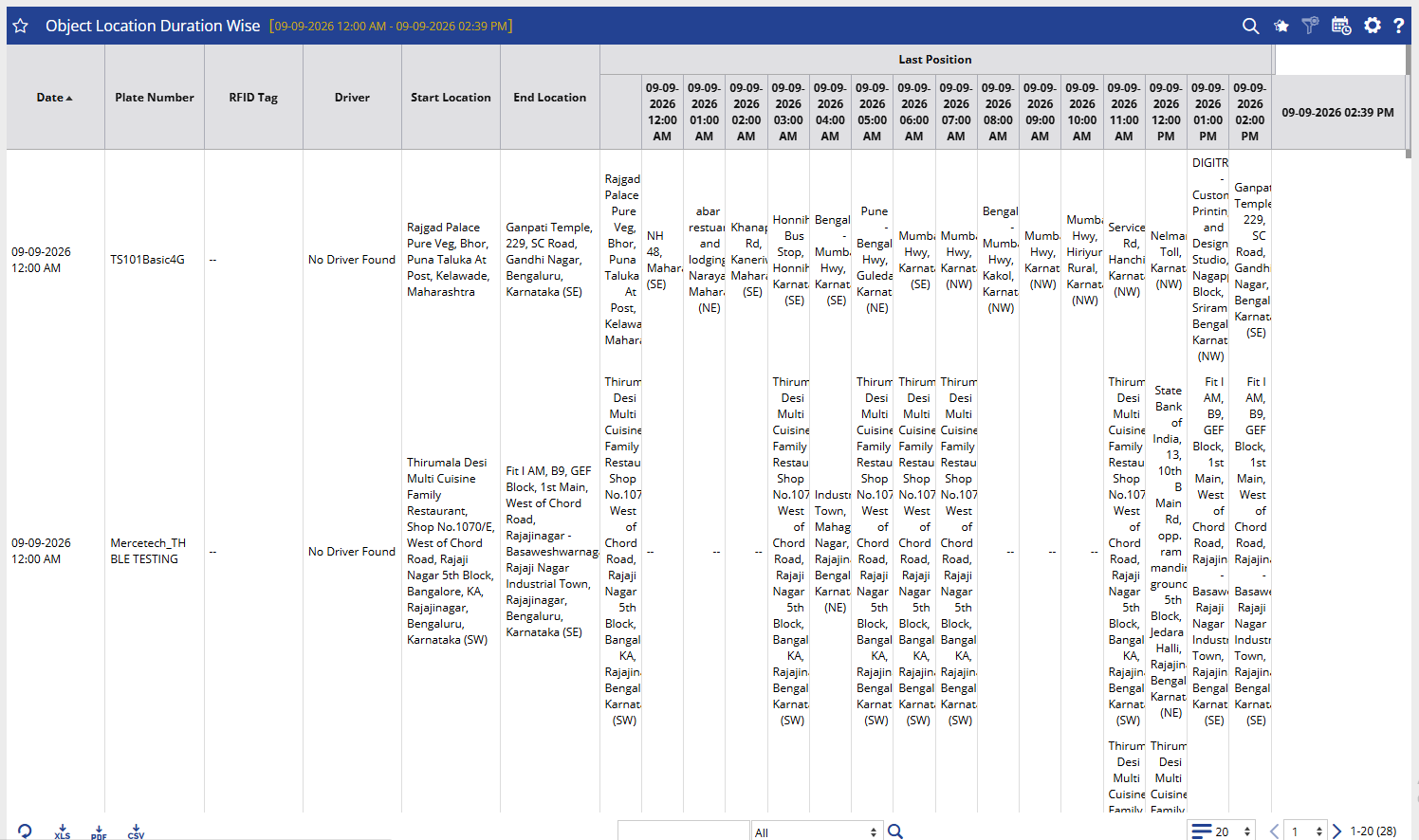
Benefits
- Track vehicle movement across different locations.
- Understand the vehicle's movement pattern during the selected period.
- Identify the start and end locations of a journey.
- Review location changes at specific time intervals.
- Support route and movement analysis when investigating vehicle activity.
How to Access
Path:Reports → Activity → Object Location Duration Wise
Filters
Use the available filters to generate the report:
- Company: Select the required company.
- Branch: Select the required branch.
- Vehicle Group: Select the required vehicle group.
- Vehicle Type: Select the required vehicle type.
- Date Selection: Select the required date or reporting period.
- X Hours: Select the time interval at which the vehicle's location should be displayed.
- Object Selection: Select one or more vehicles/objects.
Click Apply to generate the report.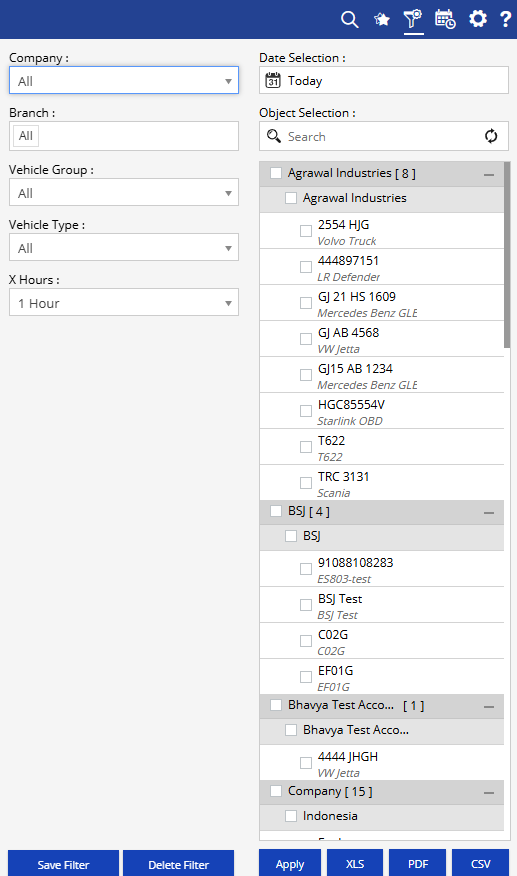
Additional options:
- Save Filter: Save the selected filter combination for future use.
- Delete Filter: Delete the saved filter.
- XLS: Export the report to Excel.
- PDF: Export the report to PDF.
- CSV: Export the report to CSV.
How to Read
Read the report from Vehicle → Journey Locations → Time-wise Location.
- Date: Identifies the date for which the movement is displayed.
- Plate Number: Identifies the vehicle.
- RFID Tag: Displays the RFID information, where available.
- Driver: Shows the driver associated with the vehicle, where available.
- Start Location: Shows the location from which the vehicle's movement started.
- End Location: Shows the destination/end location.
- Last Position: Shows the vehicle's recorded location at each selected time interval.
The Last Position section is divided into time-based columns according to the selected X Hours interval.
Example:
If X Hours = 1 Hour, the report shows the vehicle's recorded location at hourly intervals such as 12:00 AM, 01:00 AM, 02:00 AM, and so on.
This allows you to follow the vehicle's movement through the day rather than reviewing only the starting and ending locations.
Take Action
- Review the vehicle's movement during a specific period.
- Check the locations recorded at different time intervals.
- Compare the Start Location and End Location to understand the journey.
- Investigate unexpected or unusual location changes.
- Use the time-wise location information when reviewing route or movement-related queries.
Important Notes
- The X Hours setting determines the time interval displayed under Last Position.
- The report displays the last recorded position available for each selected interval.
- Location information depends on the GPS data received from the vehicle/device.
- The results depend on the selected Company, Branch, Vehicle Group, Vehicle Type, Date Selection, X Hours, and Object Selection.