
The Object Alert Report helps fleet managers monitor and analyze alerts generated for vehicles or other tracked objects during a selected period. It provides an object-wise summary of alert types, severity, alert duration, and number of alerts, allowing users to quickly identify objects with frequent or significant alert occurrences.
The report also allows users to drill down into individual alert events for a selected object. The detailed view provides information such as event start and end time, alert location, associated driver, alert information, alert duration, notification status, and video availability. This helps users investigate specific events, understand recurring alerts, and take appropriate operational or corrective action.
Benefits
- Monitor alerts generated for individual objects.
- Identify objects with frequent alert occurrences.
- Understand the type and severity of alerts.
- Review alert duration and event frequency.
- Identify where specific alerts were generated.
- Review the driver associated with an alert, where available.
- Support investigation of vehicle and operational events.
- Review available notification and video information.
How to Access
Path:Reports → Alert → Object Alert
Filters
Use the available filters to generate the report:
- Company: Select the required company.
- Branch: Select the required branch.
- Date Selection: Select the required date or reporting period.
- Time Range: Enable this option to apply a specific time range.
- Alert Type: Select one or more alert types to include in the report.
- Severity: Select the required alert severity.
- Object Selection: Select one or more objects/vehicles from the available company and branch hierarchy.
Click Apply to generate the report.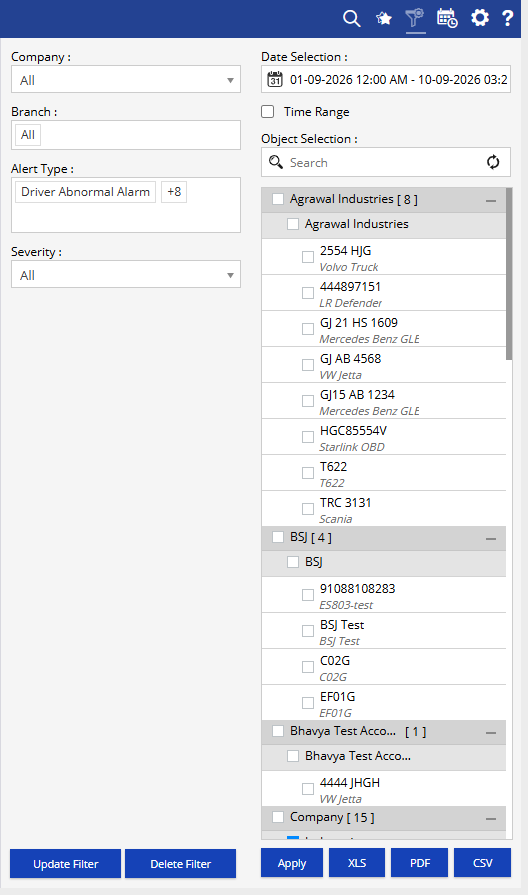
Additional options:
- Update Filter: Update the existing filter configuration.
- Delete Filter: Delete the saved filter.
- XLS: Export the report to Excel.
- PDF: Export the report to PDF.
- CSV: Export the report to CSV.
Report Layers
The Object Alert Report has two layers:
Layer 1 – Object Alert Summary
Provides a summary of alerts generated for each object, including the branch, object, alert type, severity, alert duration, and number of alerts.
Click the + icon against an object and alert type to view the individual alert events.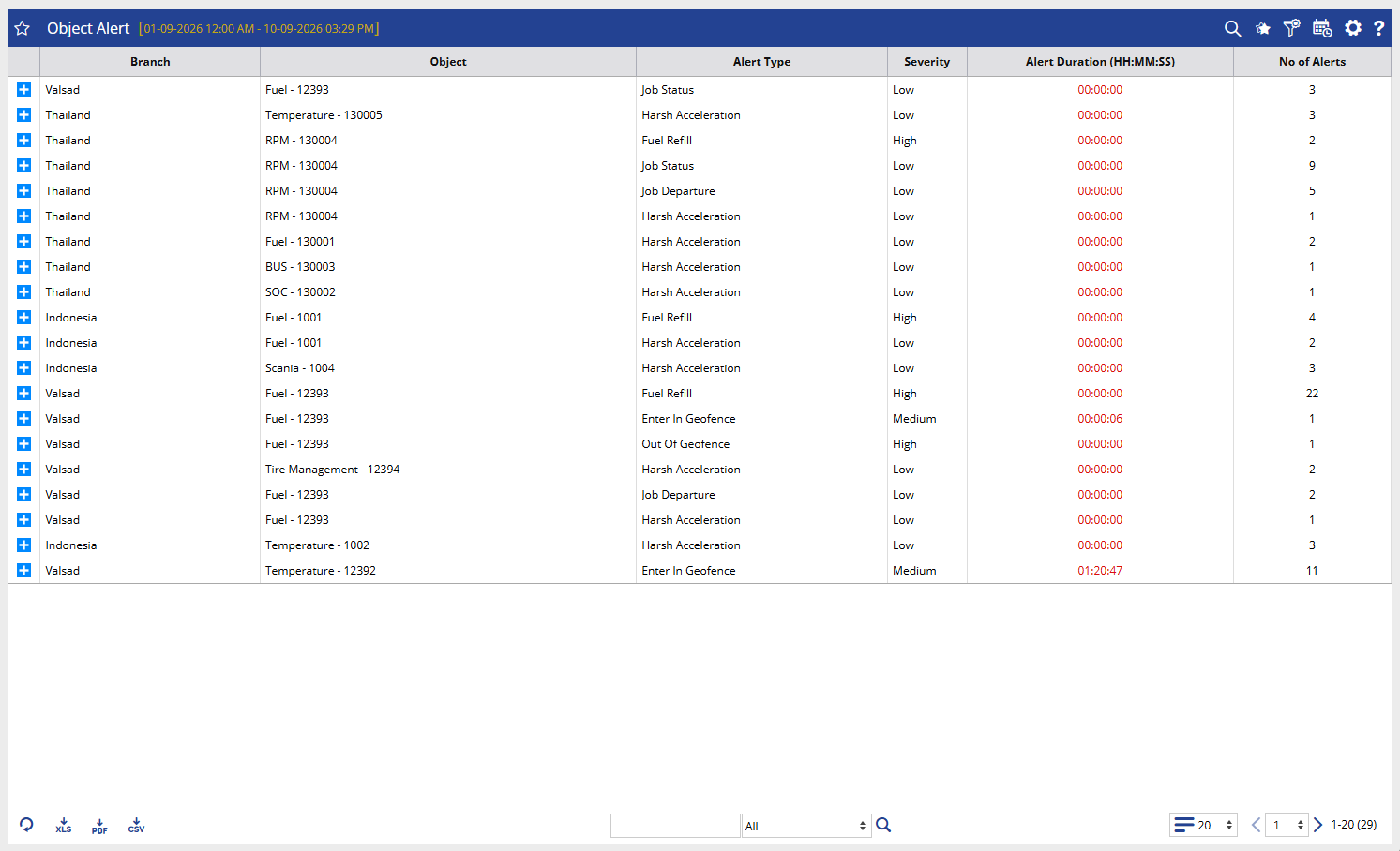
Layer 2 – Object Alert Detail
Shows the individual alert events for the selected object, including the event start time, event end time, location, driver, contact number, employee number, alert, alert information, alert duration, SMS status, email status, and video availability.
Use the back arrow to return to the Object Alert Summary.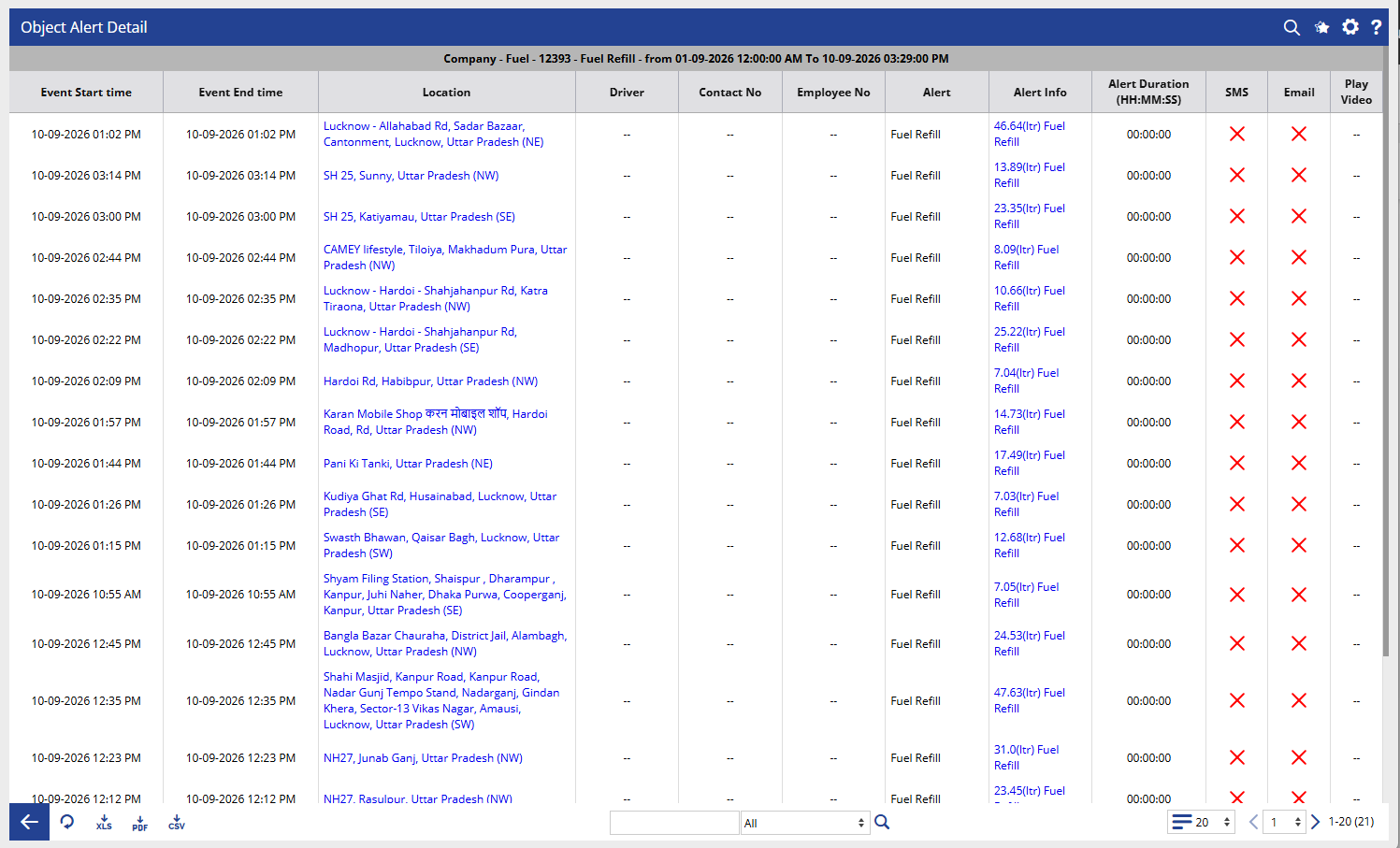
How to Read
Read the report from overall object alert summary → individual alert events.
Layer 1 – Object Alert Summary
- Check Branch to identify where the object is associated.
- Check Object to identify the vehicle or tracked object.
- Check Alert Type to understand what type of alert was generated.
- Check Severity to determine the seriousness of the alert.
- Check Alert Duration to understand the duration associated with the alert.
- Check No of Alerts to identify objects with repeated alert occurrences.
- Click the + icon to investigate individual alert events.
Layer 2 – Object Alert Detail
- Check Event Start Time to identify when the alert event started.
- Check Event End Time to identify when the alert event ended.
- Review Location to understand where the alert was generated.
- Check Driver to identify the driver associated with the event, where available.
- Review Alert and Alert Info to understand the alert and its associated information.
- Check Alert Duration for the duration of the individual event.
- Review SMS and Email to check the notification status.
- Use Play Video when video is available for the selected alert.
Example:
If an object shows a high No of Alerts for a particular alert type, open the detail layer to identify when and where the alerts occurred, the associated driver, and the information recorded for each event.
Take Action
- Review objects with a high number of alerts.
- Investigate repeated alerts of the same type.
- Prioritize alerts with higher severity.
- Review alert locations to identify recurring problem areas.
- Check alert information to understand the cause or nature of the event.
- Review the associated driver where available.
- Check available video evidence for further investigation.
- Take appropriate corrective or preventive action for recurring alerts.
Important Notes
- The report contains two layers: Object Alert Summary → Object Alert Detail.
- The report results depend on the selected Company, Branch, Date Selection, Time Range, Alert Type, Severity, and Object Selection.
- No of Alerts represents the number of alert occurrences for the respective object and alert type.
- Alert Duration represents the duration associated with the alert.
- Alert Info may provide additional information related to the generated alert, such as fuel quantity in case of a Fuel Refill alert.
- Driver, Contact No, and Employee No may not be available for every alert event.
- SMS and Email indicators show the notification status for the alert event.
- Video availability depends on whether video data is available for the selected alert.