
The Live Matrix Report provides a map view of multiple selected vehicles/objects at the same time.
It helps you monitor the current location of vehicles, view multiple vehicles together, and quickly understand where each selected vehicle is located.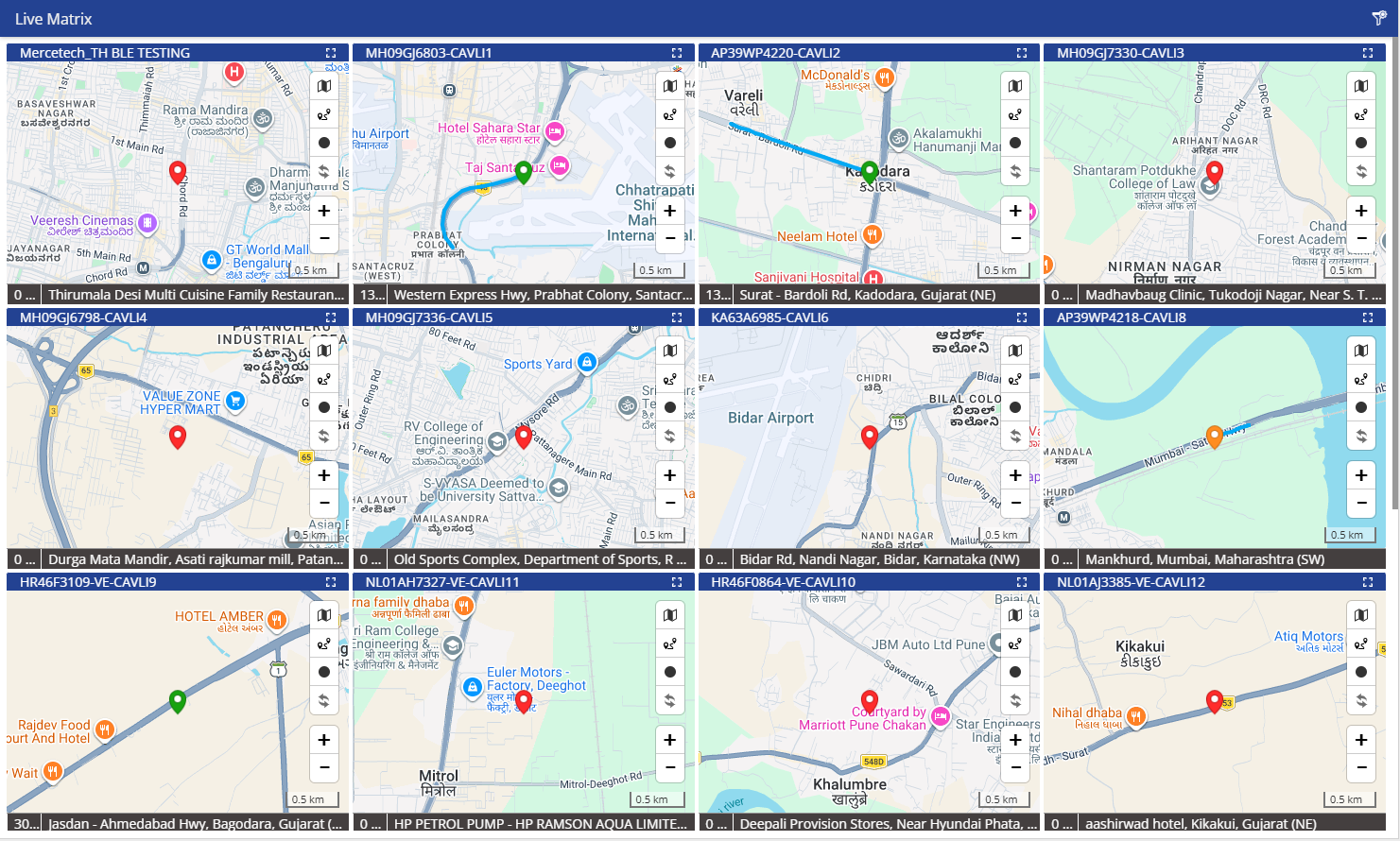
Benefits
- Monitor multiple vehicles at once from a single screen.
- View vehicle locations on individual map panels.
- Get a quick fleet overview without checking vehicles one by one.
- Identify the current location of selected vehicles for operational monitoring.
- Support quick fleet coordination and tracking.
How to Access
- Report-->Activity-->Live Matrix
Filters
Use the available filters to select the vehicles you want to monitor:
- Company: Select the required company.
- Branch: Select the required branch.
- Vehicle Group: Select the required vehicle group.
- Vehicle Type: Select the required vehicle type.
- Object Selection: Select the vehicles/objects you want to display in the Live Matrix.
Click Apply to view the selected vehicles.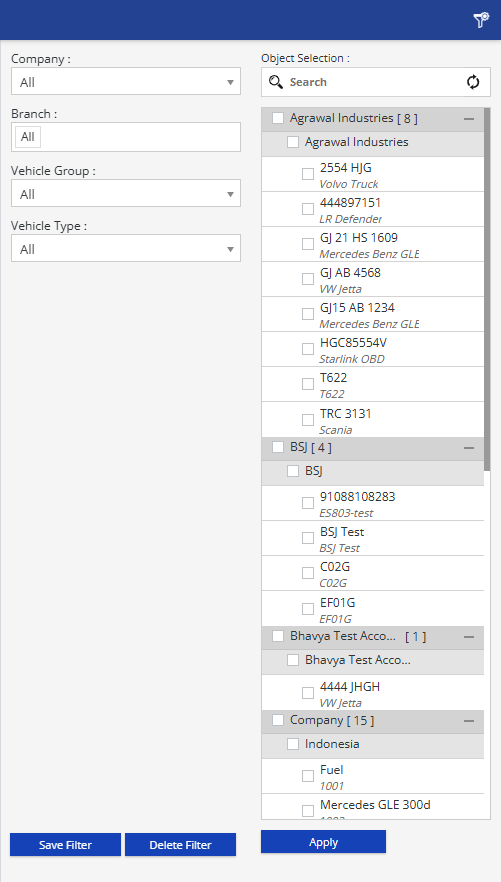
How to Read
The report displays each selected vehicle/object in a separate map panel.
- Vehicle Name: Identify which vehicle is displayed in each panel.
- Map Location: Check the vehicle's current location on the map.
- Location Details: Use the information displayed at the bottom of the map to understand the vehicle's location.
- Map Controls: Use the available map controls to zoom or view the location as required.
- Multiple Panels: Compare the locations of multiple vehicles from the same screen.
Example:
If the operations team wants to monitor vehicles working in different locations, select the required vehicles and open the Live Matrix. Each vehicle will appear in its own map panel, allowing the team to quickly check their locations together.
Take Action
- Check the current location of selected vehicles.
- Monitor vehicles working across different locations.
- Quickly identify a vehicle's location when required.
- Compare the locations of multiple vehicles.
- Use the location information for operational coordination.
Important Notes
- A maximum of 20 objects/vehicles can be selected in the Live Matrix.
- The vehicles displayed depend on the selected Company, Branch, Vehicle Group, Vehicle Type, and Object Selection.
- Location information depends on the data received from the respective vehicle/device.