
The Idle Summary Report shows the idle activity of selected vehicles during the selected period.
It helps you understand how much time vehicles remain idle, how frequently they go idle, and which vehicles have higher idle time. You can also open a vehicle to view the detailed idle events and locations.
Benefits
- Monitor vehicle idle time and identify vehicles with excessive idling.
- Identify frequent idle events for further investigation.
- Reduce unnecessary idle time and improve vehicle efficiency.
- Understand where and when vehicles remain idle.
- Support better fleet and driver management.
How to Access
-
Report-->Activity-->Idle
Filters
Use the available filters to generate the report:
- Company: Select the required company.
- Branch: Select the required branch.
- Vehicle Group: Select the required vehicle group.
- Vehicle Type: Select the required vehicle type.
- Vehicle Brand: Select the required vehicle brand.
- Vehicle Model: Select the required vehicle model.
- Date Selection: Select the required date or date range.
- Time Range: Enable this option when you want to check idle activity within a specific time period.
- Object Selection: Select one or more vehicles/objects.
- Duration: Select a condition such as Greater Than and enter the required duration in minutes to focus on idle events meeting that condition.
Click Apply to generate the report.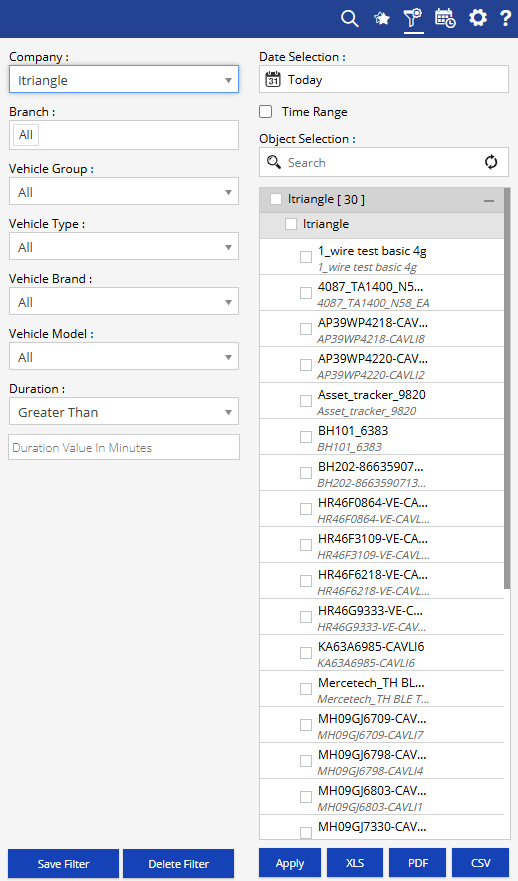
Additional options:
- Save Filter: Save the selected filter combination for future use.
- Delete Filter: Delete the saved filter.
- XLS: Export the report to Excel.
- PDF: Export the report to PDF.
- CSV: Export the report to CSV.
Report Layers
The Idle Report has two layers:
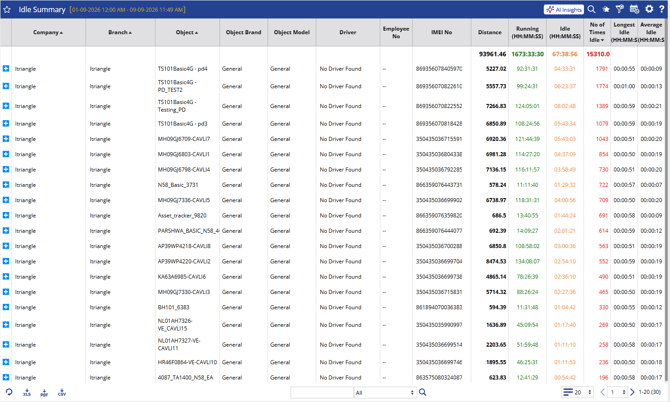
Layer 1 – Idle Summary
Provides an overview of idle activity for each vehicle, including:
- Distance
- Running time
- Total idle time
- Number of idle events
- Longest idle duration
- Average idle duration
Click the + icon against a vehicle to view its detailed idle records.
Layer 2 – Idle Detail
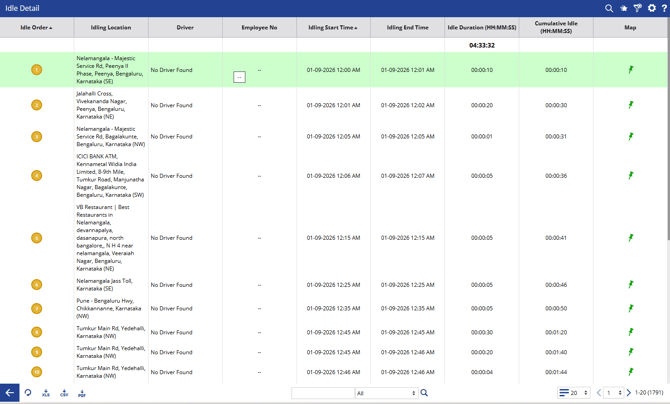
Shows the individual idle events for the selected vehicle, including:
- Idle sequence/order
- Idling location
- Driver
- Idle start and end time
- Idle duration
- Cumulative idle time
- Map location
Use the back arrow to return to the Idle Summary.
How to Read
Read the report from overall idle activity → individual idle events.
Layer 1 – Idle Summary
- Total Idle: Check how much time the vehicle remained idle during the selected period.
- No. of Times Idle: Check how frequently the vehicle went into an idle state.
- Longest Idle: Identify the longest single idle event.
- Average Idle: Understand the typical duration of an idle event.
- Compare vehicles to identify those with higher idle activity.
Layer 2 – Idle Detail
- Open the vehicle using the + icon.
- Check Idling Location to understand where the vehicle was idle.
- Check Start Time, End Time, and Duration to understand the individual event.
- Use Cumulative Idle to see the total idle time as you move through the events.
- Use Map to view the idle location.
Example:
If a vehicle has a high total idle time and a large number of idle events, open the Idle Detail to identify where and when the vehicle was idling. This can help determine whether the idle time is operationally necessary or requires corrective action.
Take Action
- Review vehicles with high total or average idle time.
- Investigate unusually long idle events.
- Check locations where frequent idling occurs.
- Discuss recurring idle patterns with the driver or operations team.
- Use the findings to reduce unnecessary idling and improve fleet efficiency.
Important Notes
- The report contains two layers: Idle Summary → Idle Detail.
- The Duration filter can be used to focus on idle events above or below a specified duration, based on the selected condition.
- Idle information depends on the activity data received from the vehicle/device.
- The displayed results depend on the selected date, time, vehicle, and other filters.