
The Expense Report provides a consolidated view of expenses associated with individual vehicles or tracking objects during the selected period. It helps users understand how expenses are distributed across different categories and the total expense incurred for each vehicle.
The report is useful for monitoring vehicle-related costs and identifying major expense categories such as fuel, maintenance, drivers, insurance, toll roads, and other operational expenses.
Benefits
- Monitor total expenses for each vehicle or object.
- Analyze expenses across different cost categories.
- Identify major expense areas such as fuel, maintenance, drivers, and insurance.
- Compare expenses between vehicles, branches, or companies.
- Support fleet cost tracking and operational expense analysis.
How to Access
- Report-->Expense-->Expense
Filters
Use the available filters to generate the report: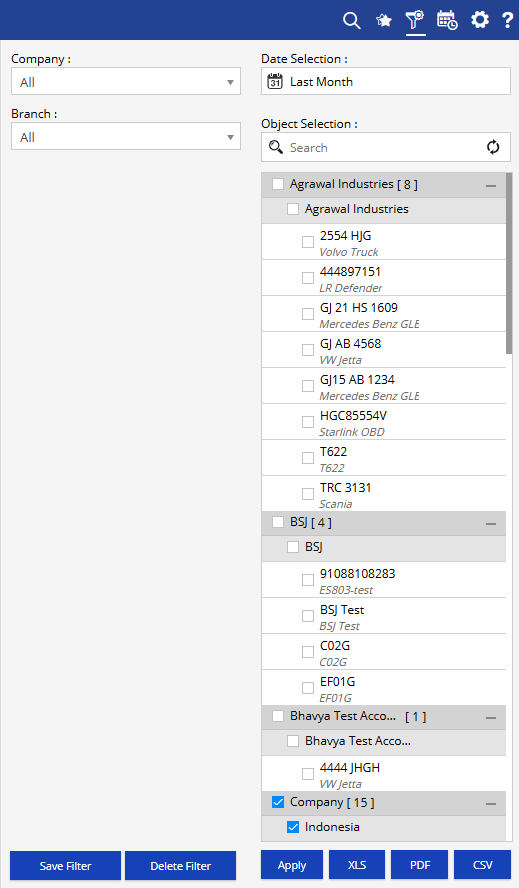
- Company: Select the required company.
- Date Selection: Select the required date or date range.
- Branch: Select the required branch.
- Object Selection: Select one or more vehicles or tracking objects for which expense information is required.
Additional options include Save Filter, Delete Filter, Apply, XLS, PDF, and CSV.
Report Layers
The Expense Report provides a single summary level of expense information for the selected vehicles or objects.
Expense Summary
Displays the expense amount recorded under each expense category along with the total expense for the selected object.
How to Read
Expense Report
- Company identifies the company associated with the expense record.
- Branch shows the branch associated with the vehicle or object.
- Object identifies the vehicle or tracking object for which expenses are displayed.
- Fuel shows the expense recorded for fuel.
- Tyre shows expenses related to tyres.
- Maintenance displays maintenance-related expenses.
- Breakdown shows expenses incurred due to vehicle breakdowns.
- Accidents displays expenses associated with accidents.
- Fines shows fines recorded for the vehicle.
- Toll Roads displays expenses incurred on toll roads.
- Substance shows expenses recorded under the substance category.
- Bonuses displays bonus-related expenses.
- Depreciation shows the depreciation expense associated with the vehicle.
- Financing displays financing-related expenses.
- Drivers shows expenses associated with drivers.
- Insurance displays insurance-related expenses.
- Taxes Rates shows expenses recorded for taxes or applicable tax rates.
- Cease displays expenses recorded under the cease category.
- Others shows expenses that do not fall under the other available categories.
- Total Expense displays the combined expense amount across the applicable expense categories for the selected object.
Take Action
- Apply Company, Branch, and Object Selection filters to focus on specific vehicles or business units.
- Use Date Selection to review expenses for a particular period.
- Compare expense categories to identify where the majority of vehicle costs are incurred.
- Review Fuel, Tyre, Maintenance, and Breakdown expenses to understand vehicle operating costs.
- Check Fines, Toll Roads, Insurance, Taxes Rates, and Financing for additional operational and ownership costs.
- Use Total Expense to understand the overall expense recorded for each vehicle.
- Export the report in XLS, PDF, or CSV format for further analysis, accounting, or sharing.
Important Notes
- The report is generated according to the selected date, company, branch, and object filters.
- Expense values depend on the expense data recorded for the selected vehicle or object.
- Categories with no recorded expense may display 0.0.
- Total Expense represents the combined value of the applicable expense categories shown for the object.
- Expense categories available in the report may depend on the expense information configured and recorded in the system.
- The report is intended to provide a consolidated view of expenses and can be exported for further financial analysis.