
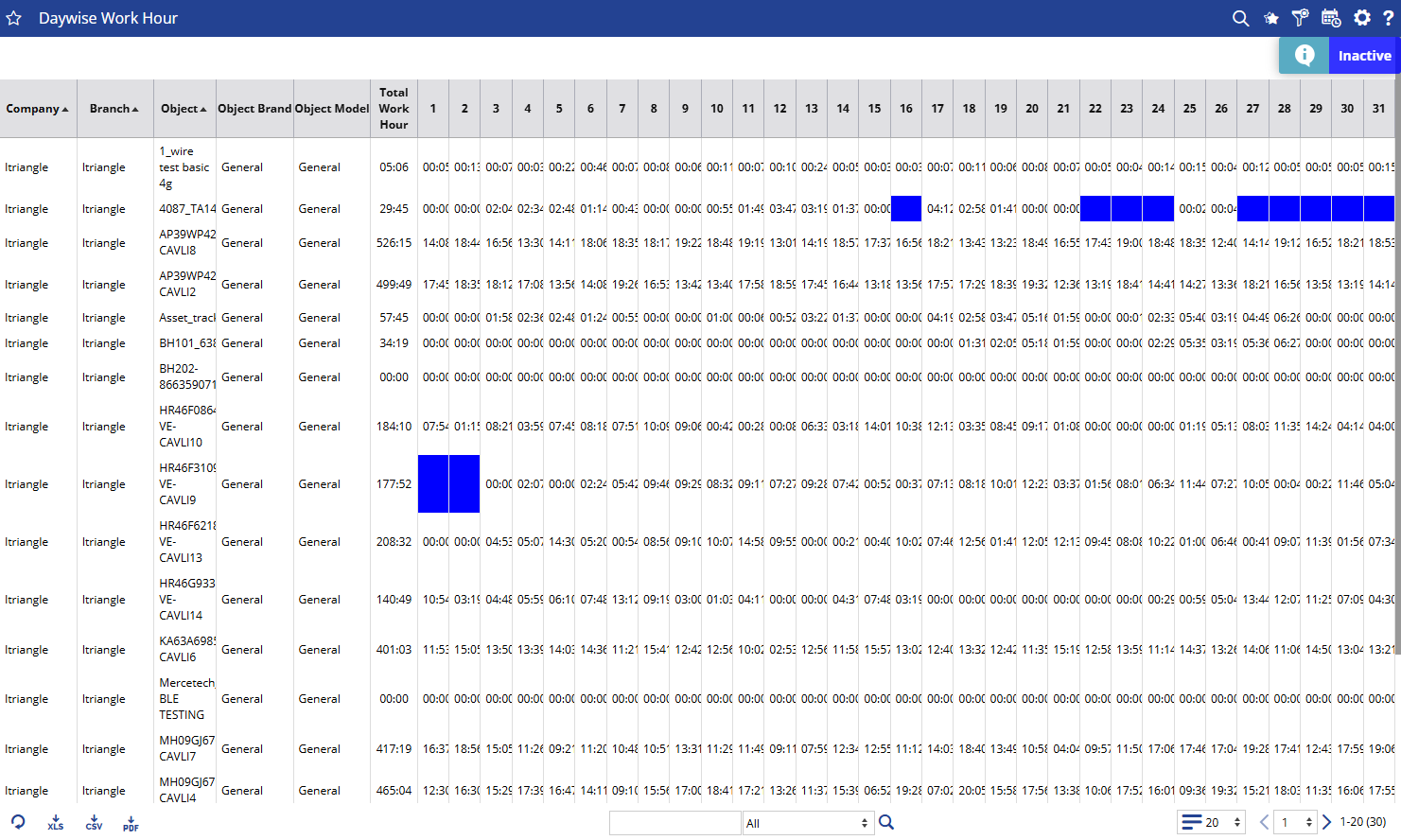
The Daywise Work Hour Report shows the total working hours of selected vehicles for each day of the selected period.
It helps you understand how many hours each vehicle worked each day, identify low or high working hours, and compare vehicle activity across different days.
Benefits
- Monitor daily working hours of vehicles.
- Compare vehicle activity across different days.
- Identify underutilized vehicles with low working hours.
- Identify vehicles with high working hours for better workload planning.
- Support fleet scheduling and resource planning.
How to Access
- Report-->Activity-->Daywise Work Hour
Filters
Use the available filters to generate the report based on your requirement:
- Company: Select the required company.
- Branch: Select the required branch.
- Vehicle Group: Select the required vehicle group.
- Vehicle Type: Select the required vehicle type.
- Vehicle Brand: Select the required vehicle brand.
- Vehicle Model: Select the required vehicle model.
- Date Selection: Select the required month or reporting period.
- Days: Use this option when you want to generate the report for specific days.
- Time Range: Use this option when you want to check working hours within a specific time period.
- Object Selection: Select one or more vehicles/objects to include in the report.
Click Apply to generate the report.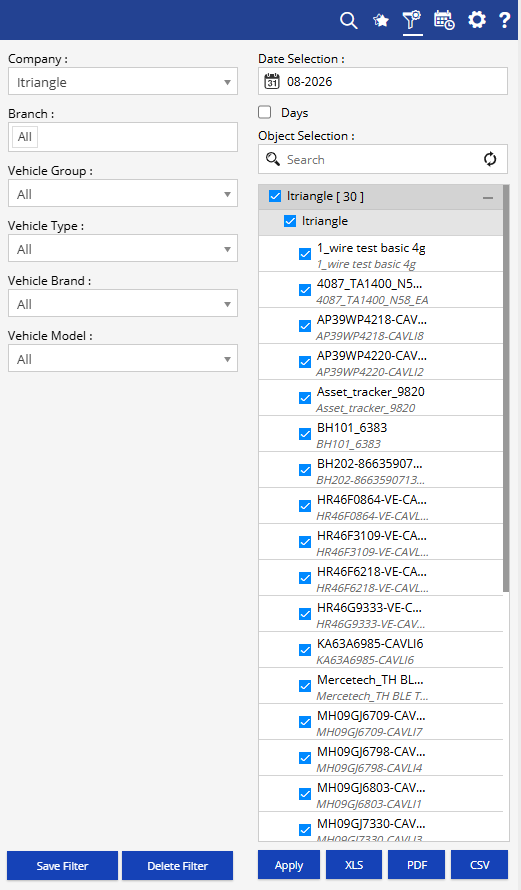
Additional options:
- Save Filter: Save the selected filter combination for future use.
- Delete Filter: Delete the saved filter.
- XLS: Export the report to Excel.
- PDF: Export the report to PDF.
- CSV: Export the report to CSV.
How to Read
Read the report from Vehicle → Total Work Hour → Daily Work Hour:
- Vehicle: Identify the vehicle you want to review.
- Total Work Hour: Check the total working hours during the selected period.
- Daily Columns (1–31): Check the working hours recorded for each day.
- Higher Work Hours: Indicates that the vehicle was active for a longer period on that day.
- Low or 00:00 Work Hour: Indicates limited or no recorded working activity.
Example:
If a vehicle shows 10:30 hours on Day 5 and 00:00 on Day 6, you can identify a significant difference in its activity between the two days and investigate the reason if required.
Take Action
- Identify vehicles with consistently low working hours.
- Review vehicles with unusually high working hours.
- Compare working hours across vehicles.
- Identify days with no recorded activity.
- Use the information for vehicle scheduling and workload planning.
Important Notes
- The report displays working hours day-wise for the selected reporting period.
- Working hours depend on the activity data received from the vehicle/device.
- Multiple vehicles can be selected from Object Selection.
- The displayed values depend on the selected date, time, and vehicle filters.