The Product Master module helps users maintain and manage all spare parts/products used within the organization.
Using this module, users can create parts manually, maintain part details such as brand, category, warranty, storage location, and also upload parts in bulk using an Excel file.
The Product Master can be configured in two ways, namely:
- Manual Configuration
- Bulk Upload
To get started
- Login to your account.
- Go to Settings > Parts Master > Master.
To add product/part manually
Click on the ➕ Add New button available on the taskbar.The Add Part window opens.
-
- Select the following:
- Company
- Branch
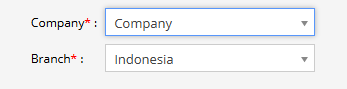
- Click the
 button.
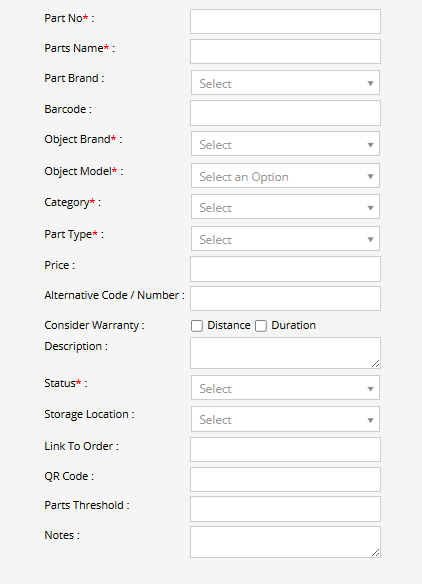
 - Fill in the required product details:
- Part No : Unique part number for the product
- Parts Name : Name of the product/part
- Part Brand : Brand of the part
- Barcode : Barcode number if available
- Object Brand : Vehicle/equipment brand associated with the part
- Object Model : Vehicle/equipment model
- Category : Select product category
- Part Type : Select product type
- Price : Product price
- Alternative Code / Number : Alternate identification number
- Consider Warranty : Select Distance and/or Duration warranty
- Description : Additional details about the product
- Status : Active/Inactive status
- Storage Location : Location where part is stored
- Link To Order : Link part with purchase/order process
- QR Code : QR code value for the product
- Parts Threshold : Minimum stock threshold value
- Notes : Additional remarks
- Click on the Save 💾 icon to save the product details.
- Select the following:
To edit an existing product
- Open the Product Master page.
- Locate the required product from the list.
- Click on the Edit option available against the product.
- Update the required details.
- Click on the Save 💾 icon.
To bulk upload products/parts
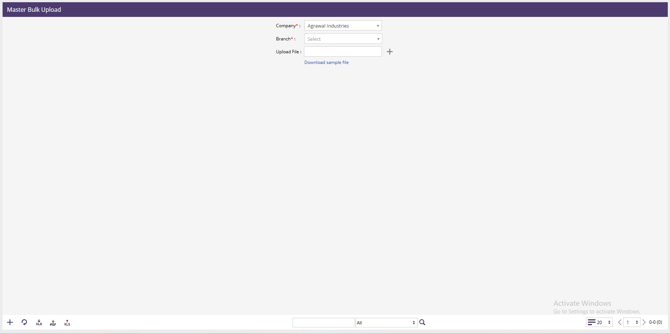
Click on the Upload button available on the taskbar.
The Master Bulk Upload window opens.
- Select:
- Company
- Branch
- Click on Download sample file.
- Fill in the product details in the sample Excel file using the provided format.
- Click on Choose File and upload the completed file.
- Click on the Save 💾 icon to upload the records successfully.