
In the Parts Cateories module, the user can define the categories of the parts they have at their service stations and also define their types.
For example, categories like Bulb, Oil, etc. can be defined based on the use case.
Further, the types for the Bulb category can be defined as LED bulb, Orange bulb, etc.
The Part Categories can be configured in two ways, namely - manual configuration and bulk upload.
To get started
- Login to your account
- Go to Settings > Service > Parts Categories
The page you land on is the parts categories overview page where you can have a look at all the part categories defined.
To add parts category manually
- Click on the ➕ button on the taskbar.

- Select the Companies under which you would like to define the categories and types.
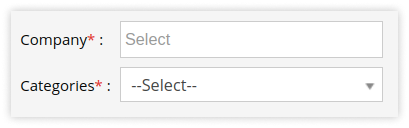
- In the Categories field, select a category from the dropdown list or click on Add New to add a new category.
- Click on Add Type + button to add new types under the Category selected.
- Enter the Type name and a Description of that type.

- Click on the save 💾 icon to pair the devices.
- Select the Companies under which you would like to define the categories and types.
Multiple types can be added under a single Category by clicking on the Add Type + button.
To bulk upload categories
- Click on the upload button on the taskbar. A new parts categories bulk upload window opens.
-png.png?width=268&height=69&name=Frame%2012493%20(1)-png.png)
- Select the Company under which you would like to define the categories and types.
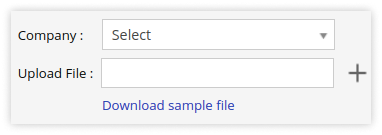
- Download the sample file from the link given. Fill in the details of parts categories and types in the given format and then Upload file by clicking on Choose file.
- Click on the save 💾 icon.
- Select the Company under which you would like to define the categories and types.
To download parts categories details
- Click on the download button on the taskbar.
-png.png?width=268&height=69&name=Frame%2012493%20(2)-png.png)
- A file with XLS/PDF extension gets downloaded based on selection.


- You can share this file with anyone or can make use of it as per your needs.