
The Edit Dashboard feature allows users to customize their dashboard view according to their preferences and operational needs. With this option, users can modify the layout, add or remove widgets, and rearrange components to display the most relevant information in a structured manner. This helps in improving visibility, enhancing user experience, and ensuring quick access to key performance data.
Before You Get Started
- You need to assign dashboard screen rights to the specific user to grant them access to the feature.
To Get Started
- Log in to your account.
- Go to Dasboard.

- When you are on the Dashboard screen, the following interface will be displayed.
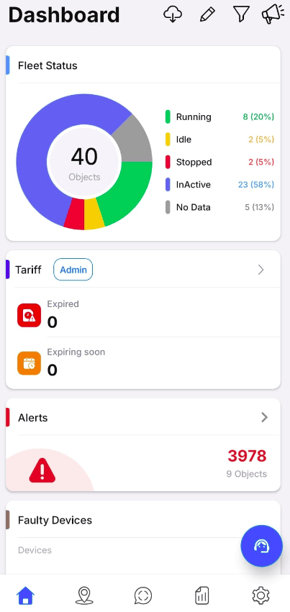
- Click on the pencil icon to edit the dashboard.

- Once you click on the icon th following interface will appear.
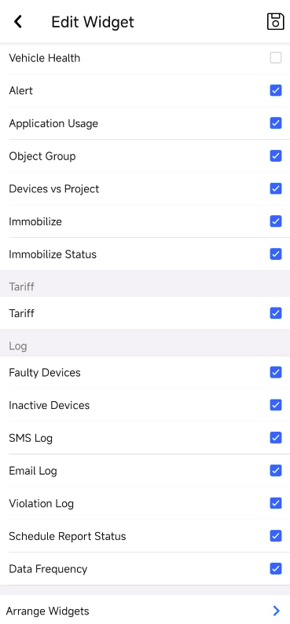
- Users can select the checkbox to display a widget on the dashboard and uncheck it to remove the widget from the dashboard screen.
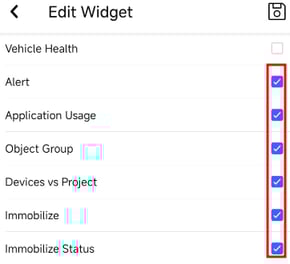
- Click on the save icon on the top right to save the changes.
To Rearrange the Widget order.
- Click on the pencil icon to edit the dashboard.
- Click on Arrange widget option.
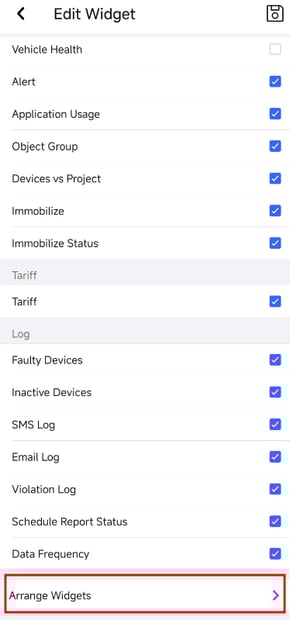
- Tap & Hold on the line and drag the selection up or Down to change the order.
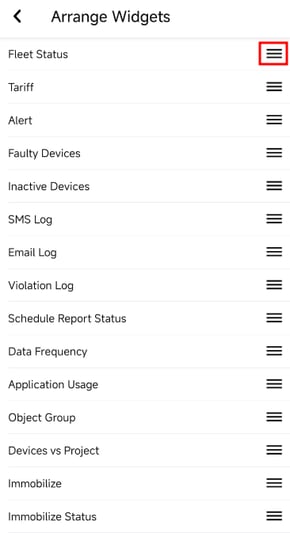
- Once rearranged go back & click on the save icon on the to right.