
A depth sensor plays a crucial role in monitoring and measuring depth levels accurately. This helps ensure smooth operations and enables users to track depth-related data effectively.
The system enables precise calibration of the depth sensor and provides analytics through interactive widgets, graphs, and reports to help users monitor depth variations in real time. It allows quick identification of normal or critical depth levels, enabling timely action and better operational management.
To Get Started
- Login to your account
- Go to Settings > General > Object
- Double-click on the object record for which you want to calibrate the sensor.
- Navigate to Sensor.

To Calibrate Sensor
- Activate the connection type by clicking on the checkbox given in the Active column.
- User can select the Analog Input port in the list or user can connect it on dedicated depth port if available on selected device.
Please Note: Select the same port in the software to which the sensor is connected on the device.
- Click on the drop-down of Connected Sensor and select Depth Sensor.

- Click on the Calibration
 button. A new window will appear.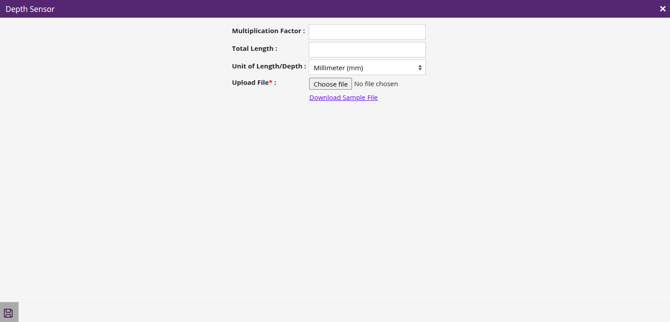
- Enter the Multiplication Factor, a unit correction value that adjusts raw data by multiplying it. This factor is determined based on the specific behavior of the device.
- Generally Multiplication Factor is kept as 1 or you can use the mentioned value in user manual or protocol.
- Enter the Total Length, Specify the Total Length of the Rod used for depth measurement.
- Select the appropriate Unit of Length/Depth from the dropdown list.
- Upload File, Upload the calibration file by clicking on the Choose File button.
- Click on Download Sample File to download the sample calibration format. Enter the calibration data in the file and upload it using the Upload File option.
- Enter the Multiplication Factor, a unit correction value that adjusts raw data by multiplying it. This factor is determined based on the specific behavior of the device.
- Save the configuration by clicking on the Save 💾 icon.
Tips:
-
Users can view the depth data in the Depth Widget available in the Tooltip.
- Users can view the data report by navigating to Reports > Depth.
- Users can view the graphical representation of the data by navigating to Charts > Depth.