
Definition / Description
The BLE Battery Voltage Alert is triggered when the battery voltage of the connected BLE Fuel Sensor falls below the defined threshold value. This alert helps fleet managers monitor the battery status of the BLE Fuel Sensor and take timely action before the sensor battery is completely drained. This ensures uninterrupted fuel monitoring and reliable BLE sensor communication.
Parameters Considered (Prerequisites)
-
BLE Battery Sensor: BLE Battery Sensor and Fuel Sensor must be properly configured and connected with the device for this alert to function correctly.
To know about Fuel sensor configuration, Click here.
To know about BLE Battery sensor configuration, Click here.
How to Configure
-
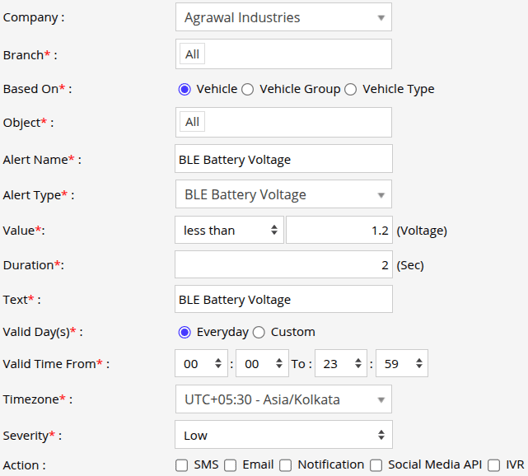
Select the correct Company and Branch for whom the alert is to be configured.
-
Based On: Choose on what you want to base the alert configuration (Object, Object Group, Object Type).
- Object: Select individual vehicles for whom you want the alert to generate.
- Object Group: Select a group of vehicles for whom you want the alert to generate.
- Object Type: Select vehicle or object type for whom you want the alert to generate.
-
Select the Object based on the previous step selection.
-
Set an Alert Name for identification of the alert.
-
Select the Alert Type as BLE Battery Voltage.
- In Value, the alert will trigger when the BLE Battery Voltage falls below the specified threshold value. Specify the voltage value in the available field.
- In Duration, specify the time period for which the Battery Battery voltage condition must remain valid before the alert is triggered.
-
In the Text field, enter the message that will be displayed when the alert is triggered.
- Select the Valid Days, Everyday or Custom.
- Everyday: This alert will be triggered, everyday in case of a violation in accordance to these parameters set.
- Custom: Mark the checkboxes of the days, when you want this alert to be triggered for. (eg., Sun, Mon and Sat)

- Enter the Valid Time From and To. The alert will be generated inside the time range that you have selected.
- Select the Timezone.
- Select the Severity of the alert (Low, Medium, or High).
- Mark the checkboxes of the medium via which you want the Action or Notification to be sent. (eg., SMS, Email or Notification)
- SMS: To receive an alert by SMS, enable the checkbox, enter the phone numbers.
- Email: To receive an alert by Email, enable the checkbox, enter the recipients of the email.
- Notification: To receive an alert on the system Push Notification, enable checkbox.
- From Users, select the users that will receive the notification.
- From Notification Sound. Select the sound from the drop-down that will be played for this notification.
- Social Media API: To receive an alert on Whatsapp or Telegram, enable this checkbox
- From Gateway, select Whatsapp or Telegram on which the notification is to be send.
- In Recipient Number, enter the phone numbers, use the country code.
- IVR: To receive alerts through IVR ( automated voice call ), enable the checkbox.
- In To Numbers, enter the phone numbers.
- Click Save 💾 icon. to save the alert configuration.
Please Note: To Receive the alert on SMS, Email, Whatsapp, Telegram & IVR the api should be configured either on Admin, Reseller or Company.
Example
The BLE Battery Voltage Alert is triggered when the BLE Fuel Sensor battery voltage drops below the configured threshold value. Notifications are sent based on the alert configuration, allowing fleet managers to replace or recharge the BLE sensor battery to maintain continuous fuel monitoring operations.
For example:
- If the value is set to 2.5V, the alert will trigger when the BLE Fuel Sensor battery voltage falls below 2.5V.