
The RPM Low alert is used to notify users when the vehicle's engine RPM falls below the configured operating condition for the specified duration. This alert helps fleet operators monitor engine performance, identify unusually low engine speed, and take timely action when the engine operates outside the expected RPM range. 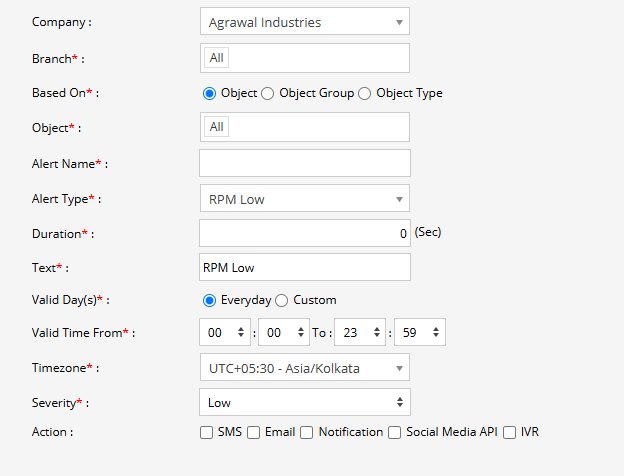
Parameters Considered (Prerequisites)
- Engine RPM Data: The selected vehicle must provide engine RPM data through the connected GPS tracking device, CAN bus, or vehicle system.
- RPM Reading: The system must receive valid RPM values to detect when the RPM reaches the low condition.
- Duration: The configured duration determines how long the low RPM condition must persist before the alert is triggered.
How to Configure
- Select the correct Company and Branch for whom the alert is to be configured.
- Based On: Choose what you want to base the alert configuration on (Object, Object Group, Object Type).
- Object: Select individual vehicles/objects for whom you want the alert to generate.
- Object Group: Select a group of vehicles/objects for whom you want the alert to generate.
- Object Type: Select a vehicle or object type for whom you want the alert to generate.
- Select the Object based on the previous step selection.
- Set an Alert Name for identification of the alert.
- Select the Alert Type as RPM Low.
- Enter the Duration in seconds. The alert will be triggered when the low RPM condition is detected for the configured duration.
- In the Text field, enter the message that will be displayed when the RPM Low alert is triggered.
- Select the Valid Day(s) as Everyday or Custom.
- Everyday: The alert will be triggered every day when the RPM Low condition is detected.
- Custom: Select the specific days on which you want this alert to be triggered.
- Enter the Valid Time From and To. The alert will be generated only within the selected time range.
- Select the required Timezone.
- Select the Severity of the alert (Low, Medium, or High).
- Under Action, select the medium through which the alert or notification should be sent (SMS, Email, Notification, Social Media API, or IVR).
- SMS: To receive the alert by SMS, enable the checkbox and enter the required phone numbers.
- Email: To receive the alert by email, enable the checkbox and enter the email recipients.
- Notification: To receive the alert as a system push notification, enable the checkbox and select the users who should receive it.
- Social Media API: To receive the alert through WhatsApp or Telegram, enable the checkbox and configure the required gateway and recipient details.
- IVR: To receive the alert through an automated voice call, enable the checkbox and enter the required phone numbers.
- Click the Save 💾 icon to save the alert configuration.
Please Note: To receive alerts through SMS, Email, Social Media API, or IVR, the respective API/gateway must be configured at the Admin, Reseller, or Company level.
Example
If the vehicle's RPM falls below the configured low-RPM condition and remains in that condition for the specified duration, the RPM Low alert is triggered. The selected users receive a notification, allowing the fleet operator to investigate the vehicle's engine operation and take appropriate action.