
The Fuel Sensor Abnormal Alert is triggered when abnormal or inconsistent fuel sensor data is detected based on the configured distance or duration criteria. This alert helps fleet managers identify possible sensor malfunction, calibration issues, or irregular fuel readings that may affect fuel accuracy.
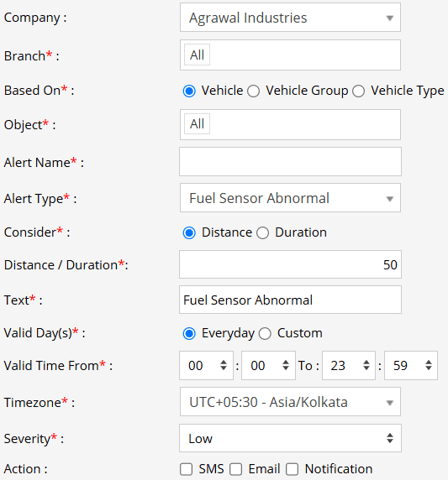
Parameters Considered (Prerequisites)
- Fuel sensor configuration: Fuel sensor needs to be configured.
Please Note: To configure the fuel sensor click here.
How to Configure
-
Select the correct Company and Branch for whom the alert is to be configured.
-
Based On: Choose on what you want to base the alert configuration (Object, Object Group, Object Type).
- Object: Select individual vehicles for whom you want the alert to generate.
- Object Group: Select a group of vehicles for whom you want the alert to generate.
- Object Type: Select vehicle or object type for whom you want the alert to generate.
-
Select the Object based on the previous step selection.
-
Set an Alert Name for identification of the alert.
-
Select the Alert Type as Fuel Sensor Abnormal.
-
In Consider, Select Distance or Duration.
- Select Distance, to trigger the alert after the vehicle travels a specified distance.
- Select Duration, to trigger the alert after a specified time period.
- In Distance/Duration, Enter the distance or time after which the alert should be triggered.
( Alert is triggered when the fuel level stays the same for specific Distance or Duration when the ignition is turned ON. ) -
In the Text field, enter the message that will be displayed when the alert is triggered.
- Select the Valid Days, Everyday or Custom.
- Everyday: This alert will be triggered, everyday in case of a violation in accordance to these parameters set.
- Custom: Mark the checkboxes of the days, when you want this alert to be triggered for. (eg., Sun, Mon and Sat)

- Enter the Valid Time From and To. The alert will be generated inside the time range that you have selected.
- Select the Timezone.
- Select the Severity of the alert (Low, Medium, or High).
- Mark the checkboxes of the medium via which you want the Action or Notification to be sent. (eg., SMS, Email or Notification)
- SMS: To receive an alert by SMS, enable the checkbox, enter the phone numbers.
- Email: To receive an alert by Email, enable the checkbox, enter the recipients of the email.
- Notification: To receive an alert on the system Push Notification, enable checkbox.
- From Users, select the users that will receive the notification.
- From Notification Sound. Select the sound from the drop-down that will be played for this notification.
- Click Save 💾 icon. to save the alert configuration.
Please Note: To Receive the alert on SMS & Email, the api should be configured either on Admin, Reseller or Company.
Example
A Fuel Sensor Abnormal Alert is triggered when fuel sensor readings behave abnormally for the configured distance or duration. Notifications are sent via SMS, Email, or In-App Notification, enabling fleet managers to promptly investigate the sensor status and take corrective action to ensure reliable fuel monitoring.