
Definition / Description
The Overweight alert is triggered when a vehicle’s load exceeds the predefined or permissible weight limit. This alert helps monitor load capacity compliance, ensuring vehicle safety, regulatory adherence, and preventing damage caused by excessive weight during operations.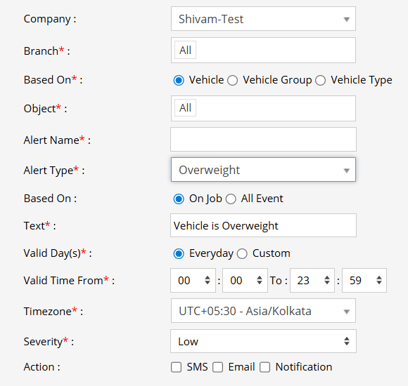
Parameters Considered (Prerequisites)
- Overweight Tolerance: Overweight tolerance must be added while adding an object.
- Weight Sensor Checkbox: Enable this checkbox, in order to enter the overweight tolerance.
Note: To add an object/vehicle and enable Weight Sensor, you can do so through Settings > General > Object > Profile > Weight Sensor
How to Configure
- Navigate to the Alert Configuration section in the platform.
- Select Overweight from the list of available alert type
- Define whether it should be triggered On Job or for All Events.
- Choose Object, Object Grp, or Object Type as applicable.
- Enter a suitable Alert Name,
- Provide the Text that will appear when the alert is triggered.
- Set the Valid Days, Time Range, and TimeZone.
- Choose the Severity Level (Low, Medium, or High).
- Configure the Action type(s) — SMS, Email, or Notification.
- Save the configuration to activate the alert.
Example / Use Case
The Overweight alert is triggered when a vehicle’s load sensor detects that the total cargo weight exceeds the configured safe limit. For instance, if a truck surpasses its load threshold during a delivery operation, the system immediately generates an alert. Notifications are sent via SMS, Email, or In-App Notification to the fleet manager, allowing timely action to redistribute or offload the excess weight and ensure compliance with transport regulations.
Based On: Job or Events
Job: When an object is on a job, and only then you want the overweight alert to be triggered.
Note: To add trigger this alert based on a job; it is important for a job to be configured, you can configure a job through Settings > Master > Job
All Events: You want the overweight alert to be triggered throughout all the events, then select this,
When Based On: Object, Object Group or Object Type
- When you select Object only a dropdown with all the objects will appear. You can select specific vehicles if you want to create the alert specifically for them.
- When you select Object Group, a dropdown with a list of all Object groups will appear. When you select a specific Object Group , a list of Objects present in that object group will appear below it. If you want the alert to be triggered for specific objects of that specific Object group. (e.g., Object Group and Object)
- When you select Object Type, a dropdown with a list of all Object groups will appear. When you select a specific Object Type , a list of Objects present in that object type will appear below it. If you want the alert to be triggered for specific objects of that specific Object type. (e.g., Object type and Object)