
Definition / Description
The Authorized Break alert is triggered when an object is required to take a minimum break during its operation but fails to do so within the allowed duration.
This alert helps fleet managers ensure vehicles take mandated breaks, improving safety and compliance with labor regulations. 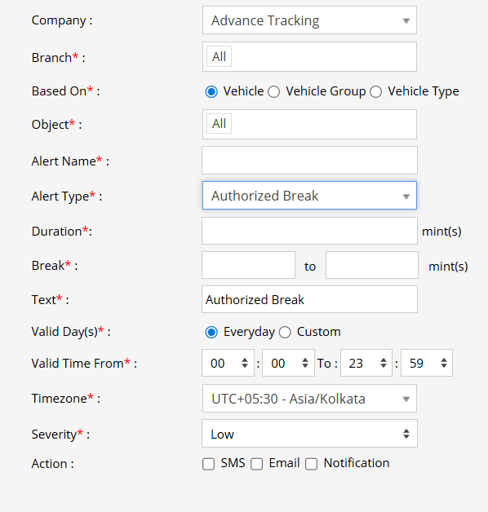
How to Configure
- Select the correct Company and Branch for whom the alert is to be configured.
- Choose on what you want to base the alert configuration (Based On: Object, Object Group, Object Type).
- Set an Alert Name for identification of the alert.
- Select the Alert Type as Authorized Break.
- In the Duration field, enter the duration after which the alert should be triggered (in minutes).
- Enter the Break allowed range (e.g., 5 to 10 minutes).
- In the Text field, enter the message that will be displayed when the alert is triggered.
- Select the Valid Days: Everyday or Custom.
- If Custom, mark the checkboxes for the days when you want the alert to be triggered.
- Enter the Valid Time From and To.
- Select the Timezone.
- Select the Severity of the alert (Low, Medium, or High).
- Mark the checkboxes of the medium via which you want the action or notification to be sent (SMS, Email, Notification).
- Click Save to save the alert configuration.
Example / Use Case
If an object is supposed to take a 10-minute break after 4 hours of continuous operation, but the driver does not stop within that time, the Authorized Break alert is triggered.
Configured recipients are notified via SMS, Email, or App Notification, allowing the fleet manager to intervene and ensure compliance.
SMS: To receive an alert by SMS, enable the checkbox, enter the phone numbers and it is supposed to be configured when creating a reseller account, a company account or an admin account.
Email: To receive an alert by Email, enable the checkbox, enter the recipients of the email, and it is supposed to be configured when creating a reseller account, a company account or an admin account and verified while configuring the Alert.
In-App: Enable the checkbox and you’ll receive notifications according to the Severity Set i.e Low, Medium or High.
When Based On: Object, Object Group, or Object Type
- Object: Select individual vehicles for whom you want the alert to generate.
- Object Group: Select a group of vehicles for whom you want the alert to generate.
- Object Type: Select vehicle or object type for whom you want the alert to generate.