
Definition / Description
The AC alert is triggered whenever the air conditioner of an object is turned ON, OFF, or both, depending on configuration.
This alert helps fleet managers monitor AC usage, reduce unnecessary fuel consumption, and maintain operational efficiency.
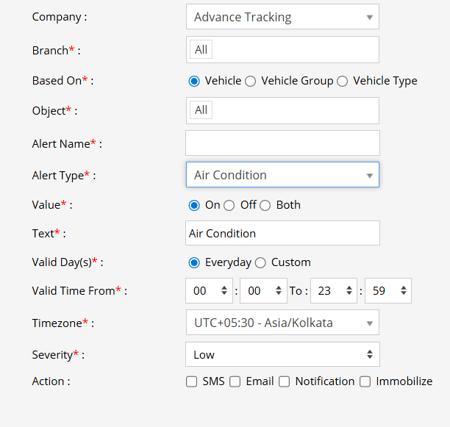
Parameters Considered (Prerequisites)
AC Sensor:The Air Condition sensor must be connected to the device to detect AC ON/OFF status accurately.
How to Configure
- Select the Company and Branch for which the alert is to be configured.
- Choose the configuration base: Object, Object Group, or Object Type.
- Enter an Alert Name (e.g., AC ON/OFF Alert).
- Select Alert Type: Air Condition (AC Alert).
- In the Value field, choose ON, OFF, or Both.
- In the Text field, enter the message displayed when the alert is triggered (e.g., AC Turned ON).
- Select Valid Days:
- Everyday – applies daily.
-
- Custom – select specific days.
- Enter Valid Time From and To.
- Select the Timezone.
- Choose Severity: Low, Medium, or High.
- Select Action / Notification: SMS, Email, Notification, or Immobilized
- Click Save to complete the configuration.
Example / Use Case
If an object’s AC is turned ON while idling or turned OFF unexpectedly, the AC alert is triggered.
Configured recipients are notified via SMS, Email, In-App Notification, or the object can be immobilized if configured.
SMS: To receive an alert by SMS, enable the checkbox, enter the phone numbers and it is supposed to be configured when creating a reseller account, a company account or an admin account.
Email: To receive an alert by Email, enable the checkbox, enter the recipients of the email, and it is supposed to be configured when creating a reseller account, a company account or an admin account and verified while configuring the Alert.
In-App: Enable the checkbox and you’ll receive notifications according to the Severity Set i.e Low, Medium or High.
Immobilize: To immobilize a vehicle, enable the checkbox, enter the queue duration, make sure the sensor attachment is done with connection type Digital Output or Specific Immobilization ports and immobilization checkbox is enabled on the Admin account, Reseller Account and the Company Account.
When Based On: Object, Object Group, or Object Type
- Object: Select individual vehicles for whom you want the alert to generate.
- Object Group: Select a group of vehicles for whom you want the alert to generate.
- Object Type: Select vehicle or object type for whom you want the alert to generate.