
Definition / Description
The ADAS Traffic Sign Recognition Warning alert is triggered when the Advanced Driver Assistance System (ADAS) detects that the object is approaching or violating traffic rules, such as traffic lights, stop signs, or speed limits.
This alert helps drivers comply with traffic regulations and reduces the risk of accidents or violations.
Parameters Considered (Prerequisites)
- ADAS Device / Camera Installed:
An ADAS-enabled camera or device must be installed and configured to recognize traffic signs and signals.
How to Configure
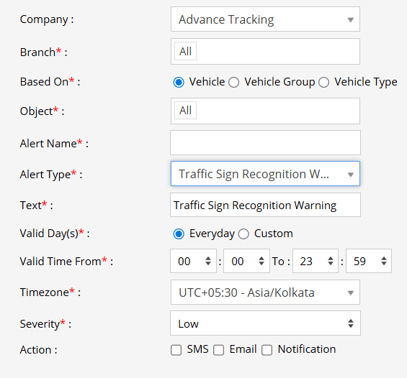
- Select the Company and Branch where the alert is to be configured.
- Choose the configuration base: Object, Object Group, or Object Type.
- Enter an Alert Name (e.g., Traffic Sign Violation Warning).
- Select Alert Type: ADAS Traffic Sign Recognition Warning.
- In the Text field, enter the message displayed when the alert triggers (e.g., Traffic Sign Violation Detected).
- Select Valid Days:
- Everyday – applies daily.
-
- Custom – choose specific days (e.g., Mon–Fri).
- Enter Valid Time From and To (e.g., 08:00 to 20:00).
- Select the Timezone.
- Choose Severity: Low, Medium, or High.
- Select Action / Notification: SMS, Email, In-App Notifications.
- Click Save to finalize the setup.
Example / Use Case
If the object approaches a stop sign without slowing down or exceeds a speed limit, the ADAS Traffic Sign Recognition Warning alert is triggered.
Configured users receive notifications via SMS, Email, or App, allowing immediate corrective action and ensuring traffic compliance.
SMS: To receive an alert by SMS, enable the checkbox, enter the phone numbers and it is supposed to be configured when creating a reseller account, a company account or an admin account.
Email: To receive an alert by Email, enable the checkbox, enter the recipients of the email, and it is supposed to be configured when creating a reseller account, a company account or an admin account and verified while configuring the Alert.
In-App: Enable the checkbox and you’ll receive notifications according to the Severity Set i.e Low, Medium or High.
When Based On: Object, Object Group, or Object Type
- Object: Select individual vehicles for whom you want the alert to be applied equipped with ADAS features.
- Object Group: Select a group of vehicles for whom you want the alert to be applied equipped with ADAS features.
- Object Type: Select vehicle or object type for whom you want the alert to be applied equipped with ADAS features.