
The Address Bulk Upload feature allows users to upload multiple addresses into the system using a predefined Excel template. Instead of adding addresses individually, users can import large datasets in a single operation, saving time and ensuring consistency. This feature is especially useful for organizations managing delivery locations, customer addresses, warehouses, branch offices, or frequently used destinations.
To Get Started
Users can easily add addresses in bulk using different options on the platform:
Watch: How to bulk upload Address.
To Create Addresses in Bulk
- Click on the Upload button on the taskbar.

-
- Select the Reseller, Company and Branch from the drop-down menu.
- Select the Country and State from the drop-down menu.

- Download the sample file from the given link. Fill in the details of the address, like the address category, place name, latitude, and longitude, in the given format, and then Upload the file by clicking on +.
- Click on the Save 💾 icon.
To Bulk Upload Address from the Live Tracking Screen
- Click on the Upload Addresses icon.
-png.png?width=300&height=216&name=add%20lts1%20(1)-png.png)
- Select the Reseller and Company from the drop-down menu.
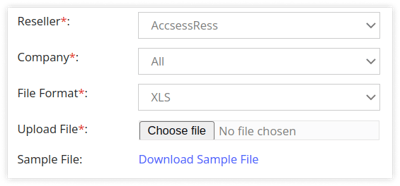
- Select the File Format from the drop-down menu.
- Download the sample file from the given link. Fill in the details of the address, like address category, place name, latitude, and longitude, in the given format, and then Upload the file by clicking on Choose File.
- Click on the Save 💾 icon.
- Select the Reseller and Company from the drop-down menu.
Users can also download address details as per requirements.