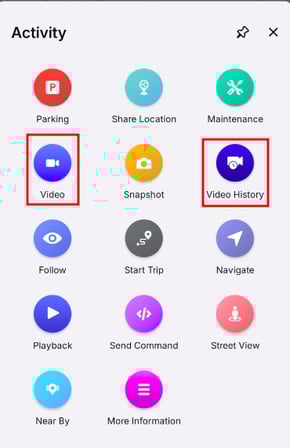
This section provides quick access to various actions that can be performed on the selected vehicle. Users can tap on these buttons to execute specific tasks such as playback, live streaming, or other available operations. These buttons are part of widget and can be enabled from widget configuration.
To Get Started
- Log in to your account.
- Go to Live Tracking > Select Vehicle > Activity Buttons

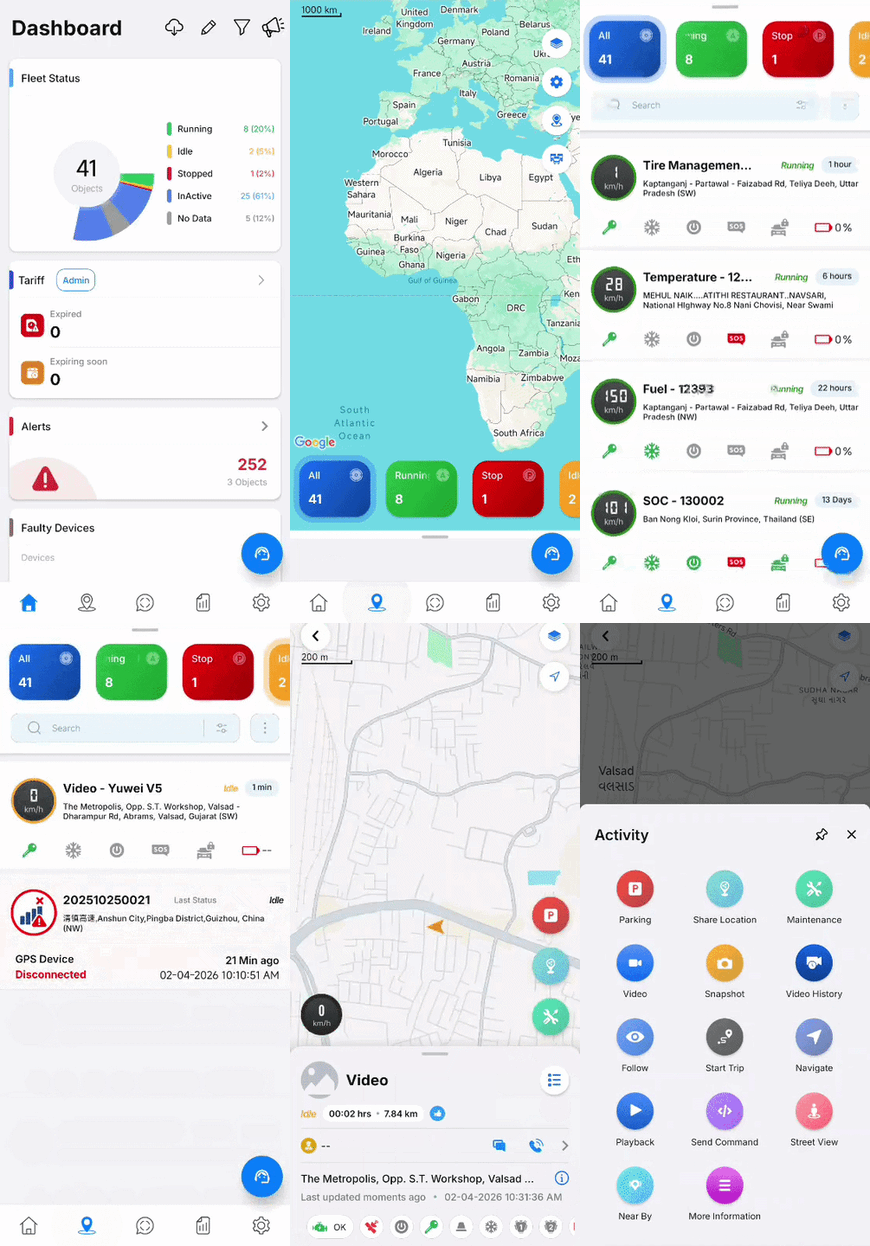
- User can Perform various action from the activity button secton.
Add activity button.
- Log in to your account.
- Go to Live Tracking > Select Vehicle > Tooltip > Edit.
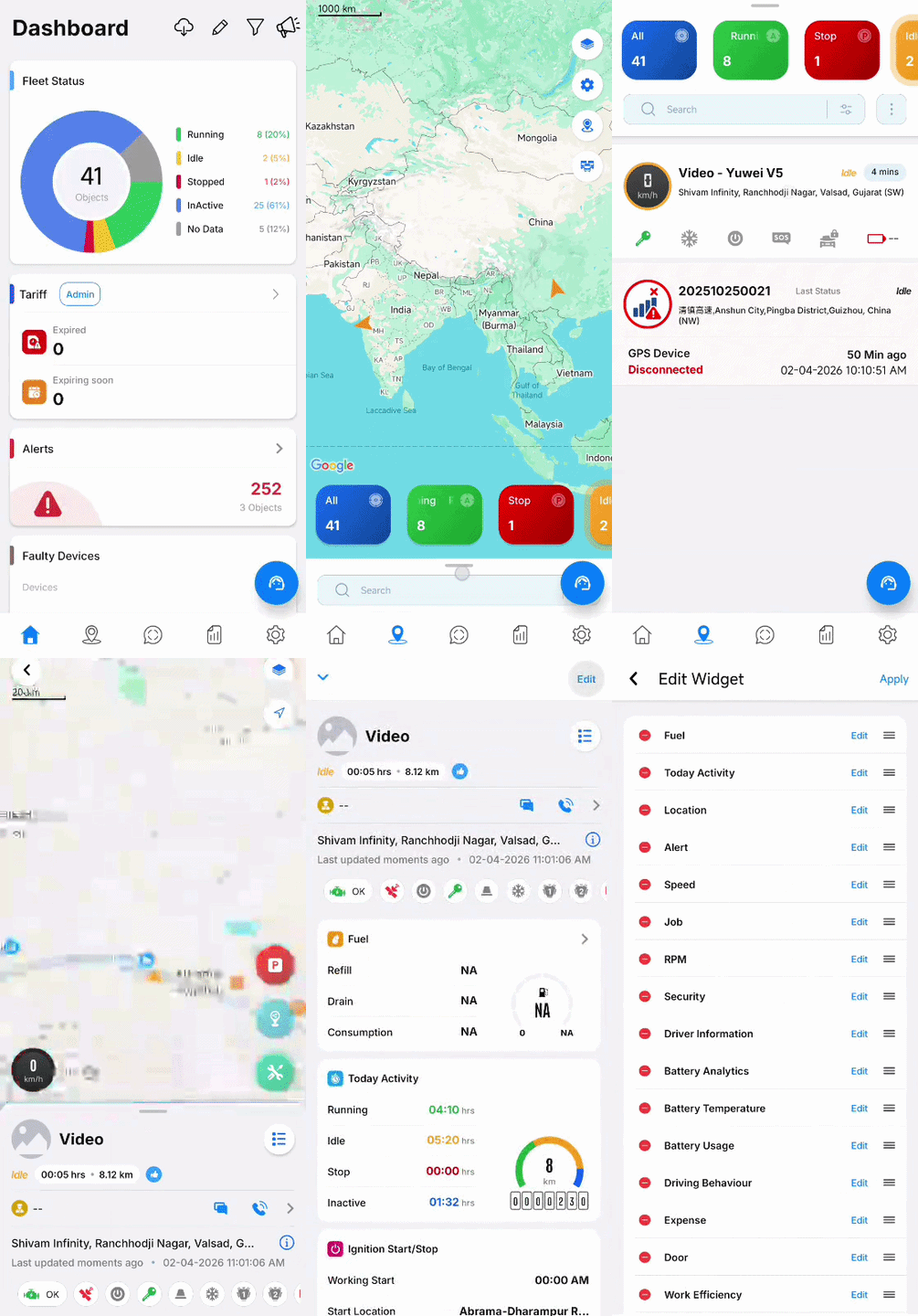
- Click on the edit button on the top right corner.
- The following screen will appear.
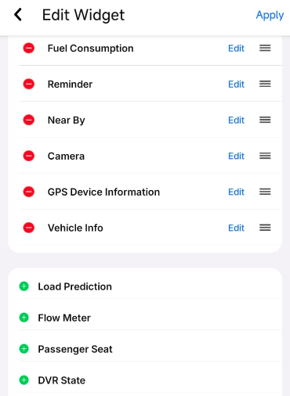
- To add widget click on the
 icon.
icon. - Widget with
 icon are already added in the list.
 - Users can click on the edit button of the widget to customize the information they want to view. Within this option, users can also enable or disable activity buttons for specific features as per their preference.
- Users can select the information they want to display, and the corresponding activity button (if available) will be enabled for that feature.
- Click on Apply on the top right corner to save the changes.
- To Remove the widget click on icon.
Please Note: The button will appear only if data is available for that particular feature. If no data is available, the button will remain hidden.
Example
- Eg: user can select camera Activity option from camera widget to enable the camera related activity button.
Camera Activity selection: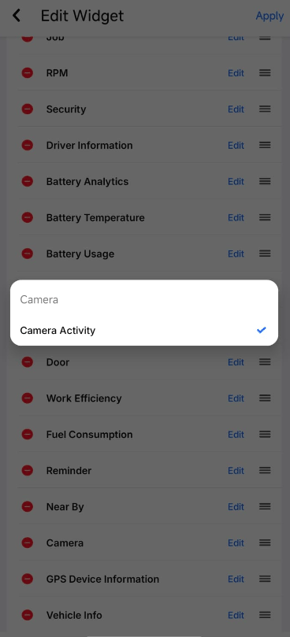
- Enabled Activity Button