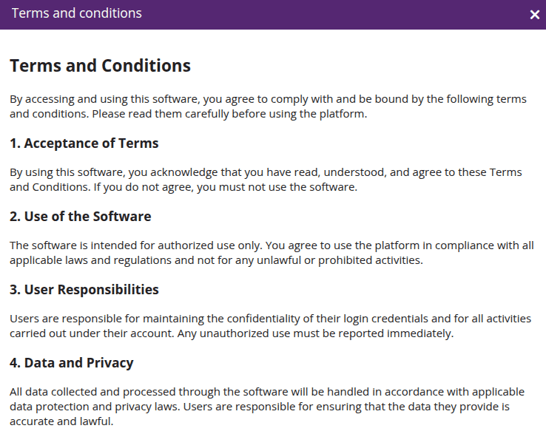
The Terms and conditions Management module centralizes the creation and management of terms and conditions within the GPS application, ensuring compliance, transparency, and a consistent user experience across all user levels.
To Get Started
- Log in to your account.
- Go to Settings > Master > Terms and conditions.
Please Note: User will be redirected to the overview screen where they can manage all the terms and conditions.
To Add Expenses individually
- Click on the ➕ icon on the taskbar below.

- The Following Screen will Appear.
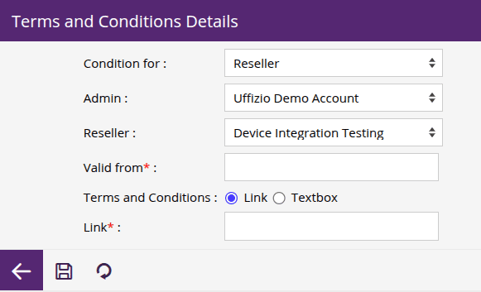
- In Condition for, select either Reseller or Company based on the user type for which you want to configure the terms and conditions.
- Select the Admin, Reseller & Company (if applicable).
- In Valid from, select the date from which the terms & conditions are applicable.
- In Terms and Condition, select from Link or Textbox.
- Select Link, if you want to add a redirect link for terms and conditions.
- Select Textbox, if you want to write the terms and conditions.
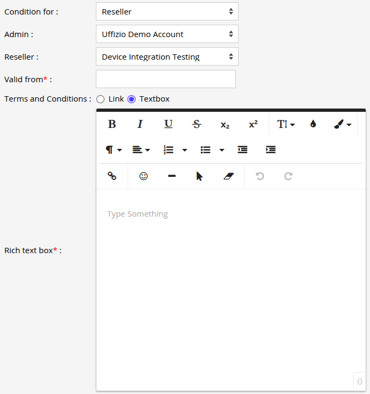
- Click on the Save 💾 icon to save the terms and conditions.
Please Note: Once the terms & condition is configured, user will get the pop up to accept or Decline the terms & Condition.
View Terms & Condition.
- Log in to your account.
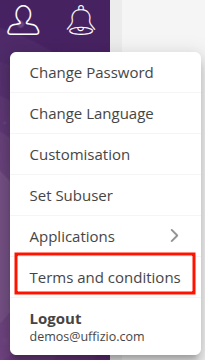
- Go to User icon > Terms and conditions.
-
The Terms & Condition pop up will appear.