
Object Tab on Live Tracking Screen
The object tab provides a comprehensive overview of all objects associated with the logged-in account, organized by their current status—such as Running, Stopped, Idle, and Inactive. This tab also presents essential details, including the object number, name, speed, driver information, the timestamp of the last data update, the status of connected ports, etc., all conveniently displayed in one location.
To view the object tab, go to Listing Panel > Object tab.
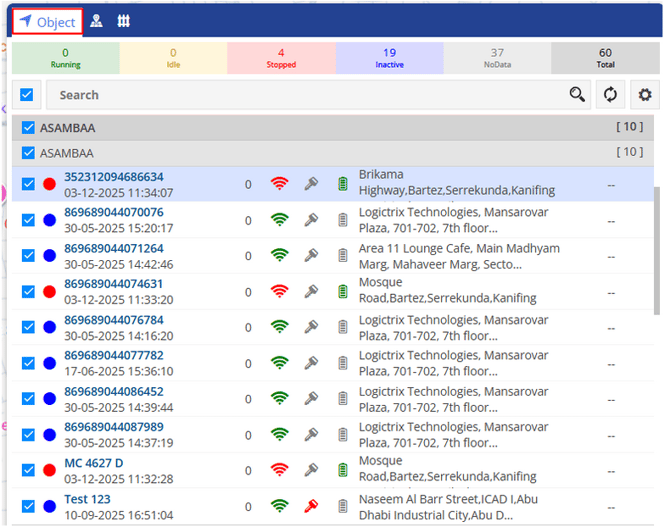
The object tab includes a variety of essential features and details:
Object Status
Object status is displayed in a color-coded form on the vehicle status bar. Below given is the image of the object status bar, which shows the number of vehicles in each category:

To refine the results displayed in the object list, users can simply click on the status indicator to filter and view vehicles that fall within that specific status category.
Search Object
From here, a user can perform actions on the objects.

Below given are the actions that can be performed:
- Select/Unselect all objects: By clicking on the checkbox, a user can select or unselect all the vehicles at once.
- Search Object: Using the search box, the user can easily search for specific objects by vehicle name.
- Refresh: You can refresh the whole data of objects
- Object List Setting:Users can customize the object listing by selecting which specific details they wish to display with this setting. This personalization enables them to adjust the parameters according to their individual needs and preferences.
Once you click on the Settings button, a window opens on the right side of the screen as below: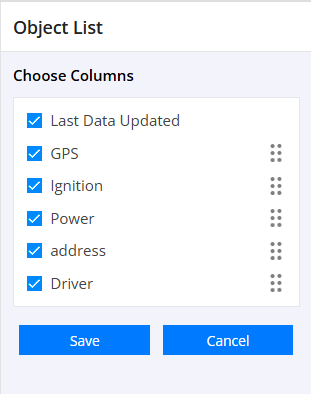
Select the preferred parameters, and then click on Save.
Object Information
Users can conveniently access comprehensive details about each object in a single location.
Upon selecting a specific vehicle, the relevant screen will be displayed as shown in the following image: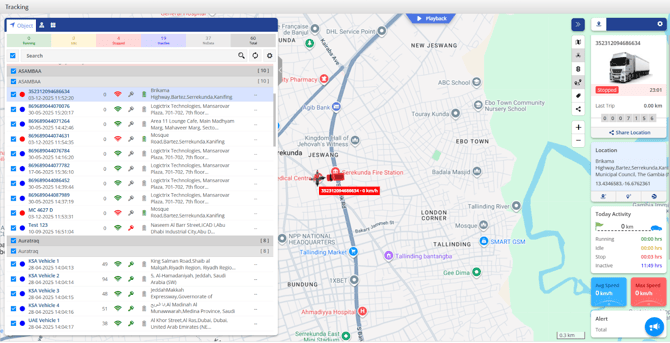
The following details can be accessed and viewed in the object information list.
These parameters will be shown according to the specific selections made by the user from the object list setting.

- Company Name: Displays the name of the company associated with the object.
- Branch Name: Displays the branch to which the object is assigned.
- Object List: The list of all the objects along with their details are displayed.
The object list displays the below-given details:
- Object Status: Below given is the color code that denotes the status of that object:


- Object Number: Displays the license plate number or the unique identification number assigned to the object.
- Last Data Updated: The timestamp indicating the latest data received from the device and updated on the server.
- Speed: This indicates the current speed of the vehicle.
- GPS: This indicates the current status of the GPS connectivity.
- Ignition: This indicates the current status of the ignition.
- Power: This indicates the current status of the Power
- Address: This displays the location at which the vehicle is currently available.
Note: Sensor like Ignition, Power and GPS display data with there status; Green when on, Red when off and Grey when not connected.
Tooltip
When a user clicks on an object from the list, a customizable tooltip will appear on the right side of the screen, displaying various widgets with details related to the object's parameters.
The tooltip is as shown in the below image: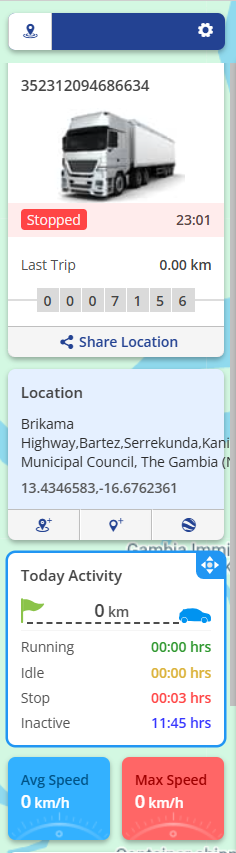
To know more about Tooltip, click here.
Playback
At the top center of the screen, there's a playback feature that lets users watch the selected object's movements or activities during a specific time period.
Playback is as shown in the below image:
To know more about Playback, click here.