
The Reseller module allows admin or authorized users to create and manage reseller accounts directly from the mobile application. Each reseller account acts as a sub-administrator that can manage its own companies, users, and objects within the platform.
To Access
- Menu→Reseller
Overview of Screen
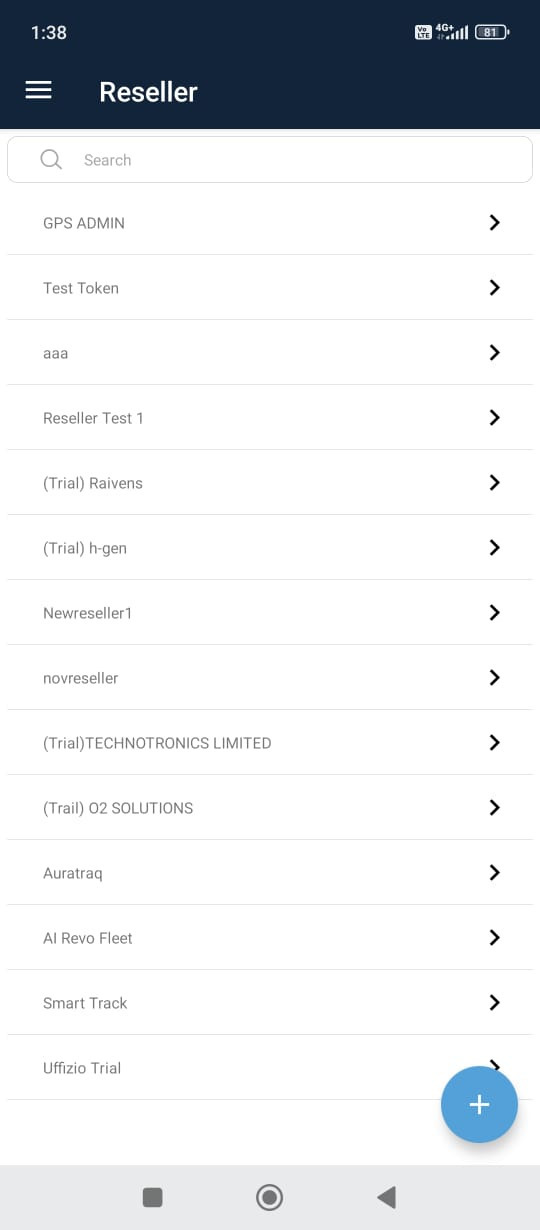
- You will see a list of existing resellers as shown in the first image.
- A Search bar is available at the top to quickly find a specific reseller.
Create a Reseller
- To add a new reseller, tap on the “+” (Add) icon at the bottom-right corner.
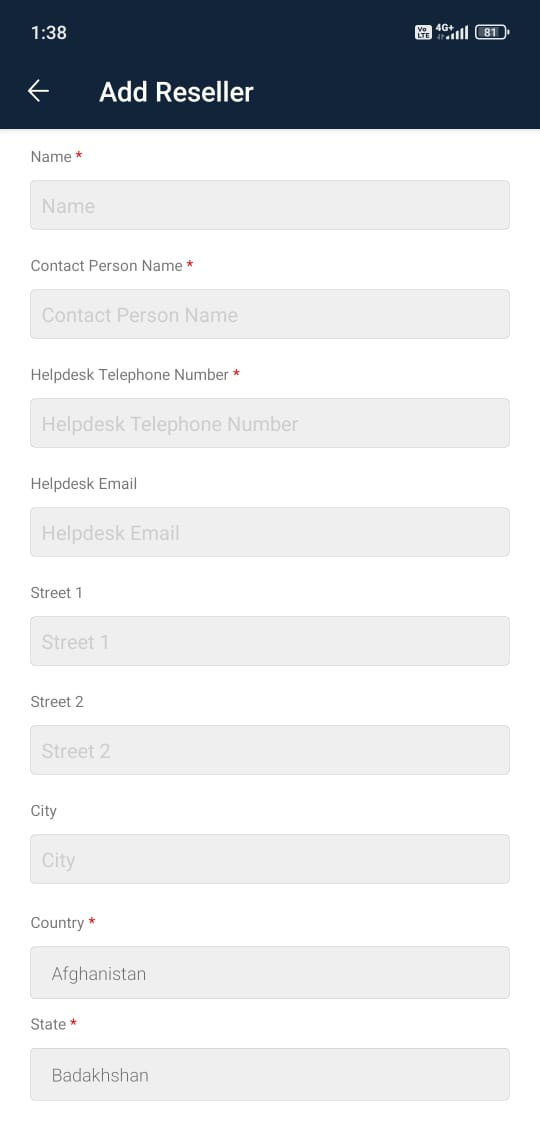
- Name* – Enter the reseller’s name or company name.
- Contact Person Name* – Enter the full name of the contact person.
- Helpdesk Telephone Number* – Provide a valid phone number for reseller support.
- Helpdesk Email – Enter the reseller’s support or official email ID.
- Street 1 / Street 2 – Mention the office address or business location.
- City – Enter the city name.
- Country* – Select the reseller’s country from the dropdown list.
- State* – Choose the corresponding state/province.
- After filling all the required information, click on SAVE to create the reseller.
- To discard the process, tap CANCEL.
Edit a Reseller
- Select Reseller from the list.
- You can make changes to the below details
- Name* – Enter the reseller’s name or company name.
- Contact Person Name* – Enter the full name of the contact person.
- Helpdesk Telephone Number* – Provide a valid phone number for reseller support.
- Helpdesk Email – Enter the reseller’s support or official email ID.
- Street 1 / Street 2 – Mention the office address or business location.
- City – Enter the city name.
- Country* – Select the reseller’s country from the dropdown list.
- State* – Choose the corresponding state/province.
- After filling all the required information, click on SAVE to create the reseller.
- To discard the process, tap CANCEL.