
The User Access Report provides a comprehensive audit trail of user login activities and application usage within the platform. It helps administrators monitor who accessed the system, when they logged in and logged out, the IP address used, session duration, and the actions performed during each session. This report is useful for security auditing, user activity tracking, compliance monitoring, and troubleshooting unauthorized or unusual access.
Note: Based on the filter selection of Access from - Web or Mobile. The details will be displayed.
Before you get started
Make sure the users you want to track have been created in the system and have logged in during the selected date range.
Note: If no additional users are created or have not accessed the platform, the report will only display access details for the administrator account. This may result in limited or incomplete user activity data.
To Open User Access report
- Login to your admin account
- Go to reports→Logs→User Access Report
Report Explaination
- Summary layer: The User Access Summary layer provides a consolidated view of user login activities within the selected date range. It displays key information such as the user name, reseller, company, access source, IP address, login/logout times, and total session count. This summary helps administrators quickly monitor platform usage, identify active users, review access patterns, and track login activity across different accounts and organizations.
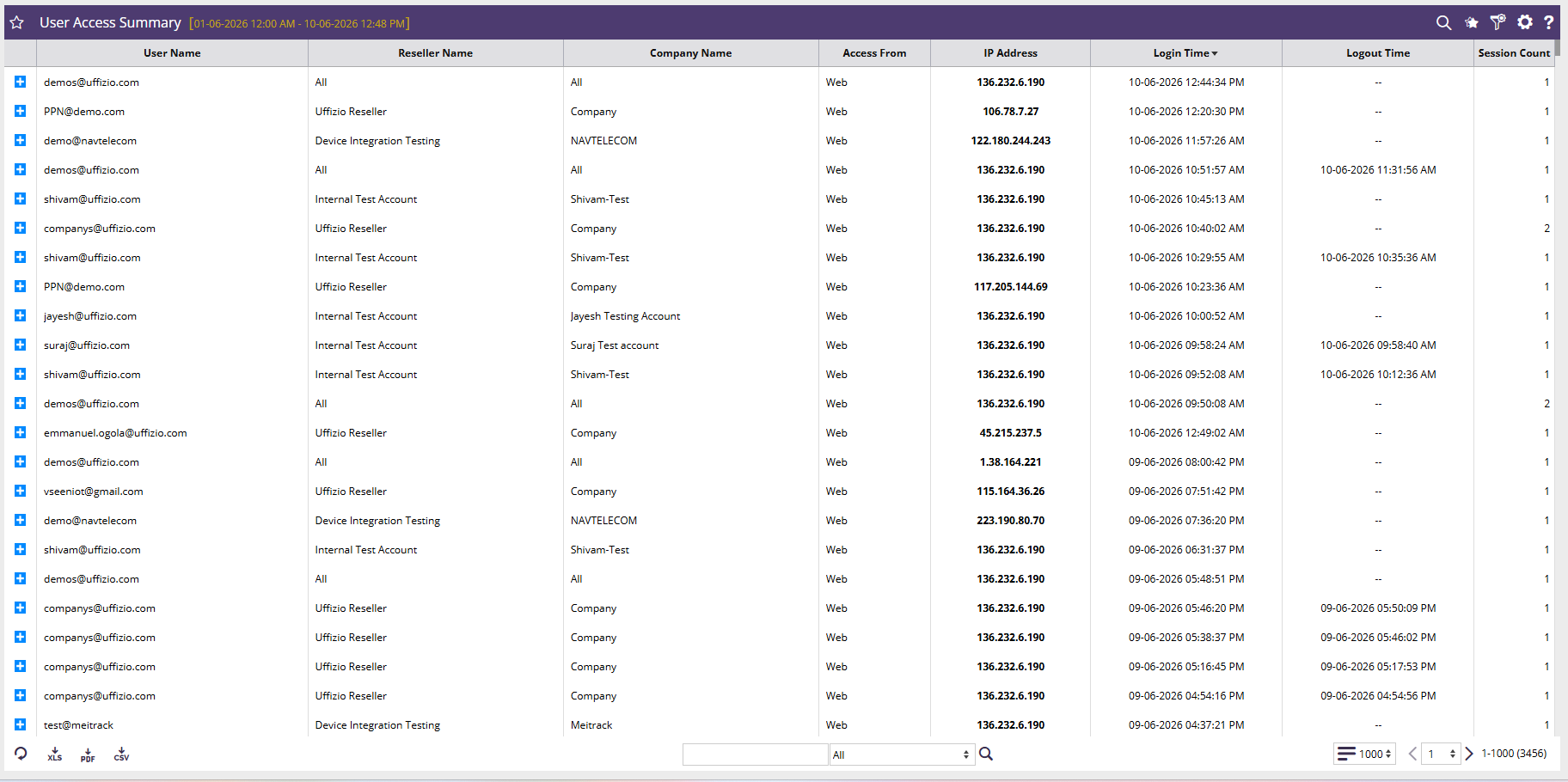
- User Name: Displays the username or email ID of the user who accessed the platform.
- Reseller Name: Shows the reseller account under which the user or company is registered.
- Company Name: Displays the company associated with the user account.
- Access From: Indicates the platform or medium used to access the system (e.g., Web, Mobile Application, API).
- IP Address: Shows the public(wifi) IP address from which the user logged into the platform. This helps in auditing and security monitoring.
- Login Time: Displays the date and time when the user successfully logged into the platform.
- Logout Time: Displays the date and time when the user logged out of the platform. If no logout is recorded, the session may still be active or may have ended unexpectedly.
- Session Count: Indicates the total number of login sessions created by the user during the selected date range.
- The User Access Detail layer provides a granular view of a user's activities performed during a specific login session. It records each action taken within the platform, including the time of activity, the screen accessed, screen type, action performed (such as Open or Filter), and any associated sub-actions. This detailed information helps administrators analyze user behavior, track navigation patterns, audit system usage, and investigate specific user activities within the application.
- Action Time: Displays the exact date and time when a user action was performed.
- Screen Name: Shows the name of the screen, module, or report accessed by the user.
- Screen Type: Represents the category or internal identifier of the screen being accessed.
- Action: Displays the activity performed by the user, such as Open, Filter, Create, Update, Delete, Export, etc.
- Sub-Action: Provides additional information about how the action was performed, such as navigation source (e.g., From Tree), filter application, or other related operation details.