
The Temperature Status Report provides the latest temperature and humidity readings received from temperature sensors connected to vehicles, cold storage units, refrigerated trucks, containers, warehouses, or other monitored assets.
This report displays the most recent sensor values along with the sensor port, location, and update time, allowing users to monitor environmental conditions in real time.
It is especially useful for businesses involved in:
- Cold chain logistics
- Food transportation
- Pharmaceutical distribution
- Dairy and beverage transport
- Warehouse monitoring
- Temperature-sensitive cargo management
This report is available in Trakzee Standard, Trakzee Premium and Smart Waste management
Before You Get Started
Before generating this report, ensure that:
- Temperature or temperature-humidity sensors are properly installed and configured.
- The tracking device is actively communicating with the server.
- Sensor data is being received from the configured analog or digital ports.
- Vehicles or assets are assigned correctly within the system.
- Users have permission to access temperature reports.
- Temperature monitoring rules are configured if alerts are required.
To Open Temperature Status Report
- Login in to your account
- Go to Reports → Temperature → Temperature Status
Filter Explanation
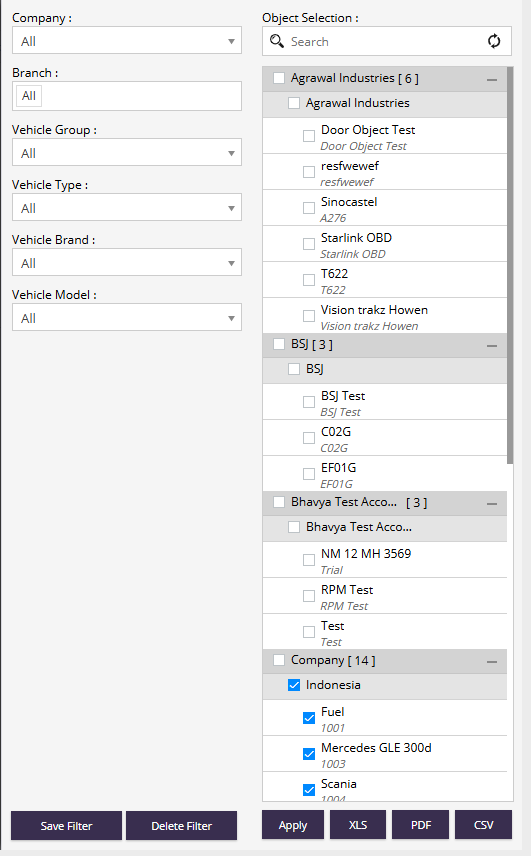
- Company : Select a specific company or choose All to view data across all companies.
- Branch : Filter records by a specific branch.
- Vehicle Group : Filter vehicles belonging to a particular vehicle group.
- Vehicle Type : Filter assets based on vehicle type.
- Vehicle Brand : Filter records based on vehicle manufacturer.
- Vehicle Model : Filter records based on the selected vehicle model.
- Object Selection : Allows users to
- Search for specific vehicles or assets.
- Select one or multiple objects.
- Expand company hierarchies.
- Refresh the object list.
- Apply : Generates the report using the selected filters.
- Save Filter : Saves the current filter configuration for future use.
- Delete Filter : Removes a previously saved filter configuration.
- Export Options :
- XLS – Export report to Excel format.
- PDF – Export report to PDF format.
- CSV – Export report to CSV format.
Report Explanation
The report displays the latest temperature and humidity status of selected assets.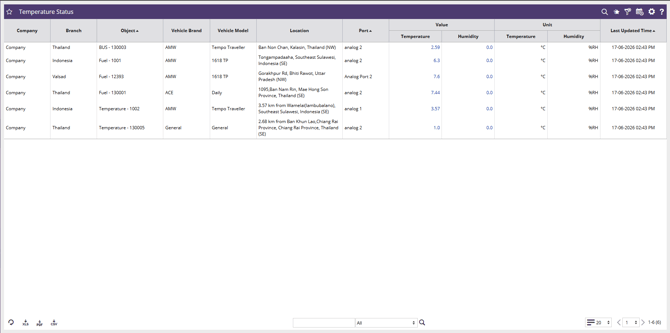
- Company : Displays the company associated with the object.
- Branch : Displays the branch associated with the object.
- Object : Displays the vehicle or asset name from which temperature data is being received.
- Vehicle Brand : Displays the manufacturer of the vehicle.
- Vehicle Model : Displays the model of the vehicle.
- Location : Shows the latest reported location of the vehicle or asset when the sensor reading was received.
- Port : Displays the sensor input port used for temperature monitoring.
- Examples:
- Analog 1
- Analog 2
- Analog Port 2
- Temperature : Displays the most recent temperature reading received from the sensor.
- Humidity : Displays the latest humidity value received from the sensor. If humidity monitoring is not configured, the value may appear as 0.0.
- Temperature Unit : Displays the unit used for temperature measurement, typically °C (Degrees Celsius).
- Humidity Unit : Displays the unit used for humidity measurement, typically %RH (Relative Humidity).
- Last Updated Time : Displays the date and time when the latest sensor data was received from the device.
- This helps users verify:
- Sensor communication status.
- Device connectivity.
- Data freshness.