
The SMS - Email Summary report provides a consolidated view of SMS and email notifications generated for alerts associated with selected objects (vehicles/assets) during a specified period.
The report helps administrators monitor alert notification activity, verify notification delivery, and analyze whether SMS and email alerts are being triggered for specific objects. Users can drill down into individual records to view detailed alert information, notification timestamps, and communication status.
This report is useful for auditing alert notifications, troubleshooting notification issues, and ensuring that alert communication mechanisms are functioning correctly.
This report is available in Trakzee Standard, Trakzee Premium and Smart Waste management
Before You Get Started
Before using this report, ensure that:
- Objects (vehicles/assets) are configured in the system.
- Alert notifications are enabled.
- SMS gateway and email server configurations are properly set up.
- Alerts are being generated by the selected objects.
- Contact information for notification recipients is configured.
- You have permission to access notification reports.
To Open SMS - Email Summary
- Log in to your account
- Go to Reports→Alert→SMS -Email Status
Filter Explanation
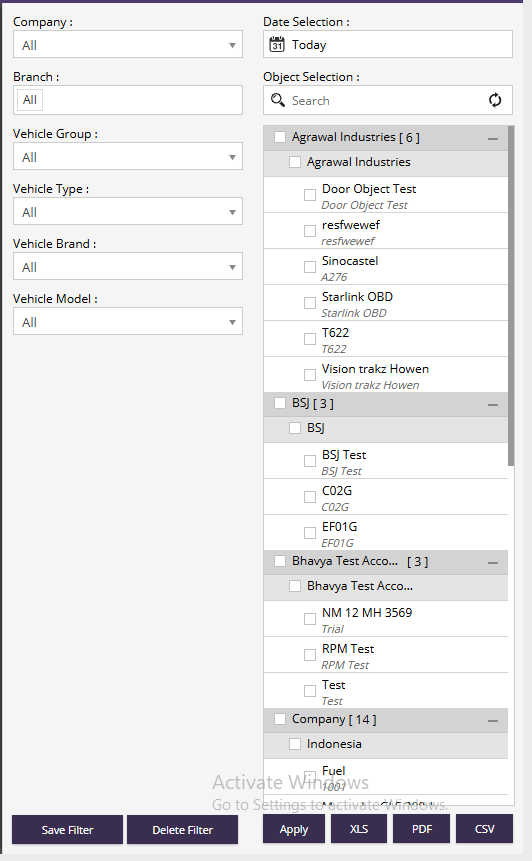
- Company : Select a specific company or choose All to display notification information for all companies.
- Branch : Allows users to filter records by branch.
- Date Selection : Select the reporting period for which SMS and email notification data should be displayed.
- Examples:
- Today
- Yesterday
- This Month
- Last Month
- Custom Date Range
- Vehicle Group : Filters records based on vehicle groups configured in the system.
- Vehicle Type : Allows users to display records for specific vehicle types.
- Vehicle Brand : Filters records based on vehicle manufacturers or brands.
- Examples:
- Mercedes Benz
- Ashok Leyland
- AMW
- CASE
- Vehicle Model : Allows users to filter records by vehicle model.
- Object Selection : Allows users to select one or multiple objects (vehicles/assets) for which notification information should be displayed.
- Features:
- Search objects using the search box.
- Select individual objects.
- Select multiple objects simultaneously.
- Expand or collapse company groups.
- Refresh object lists when required.
- Apply : Generates the report using the selected filter criteria.
- Save Filter : Saves the current filter configuration for future use.
- Delete Filter : Removes a previously saved filter configuration.
- Export Options :
- XLS – Export report data to Excel format.
- PDF – Export report data to PDF format.
- CSV – Export report data to CSV format.
Report Explanation
Summary View
Displays object-wise SMS and email notification statistics for alerts generated during the selected period.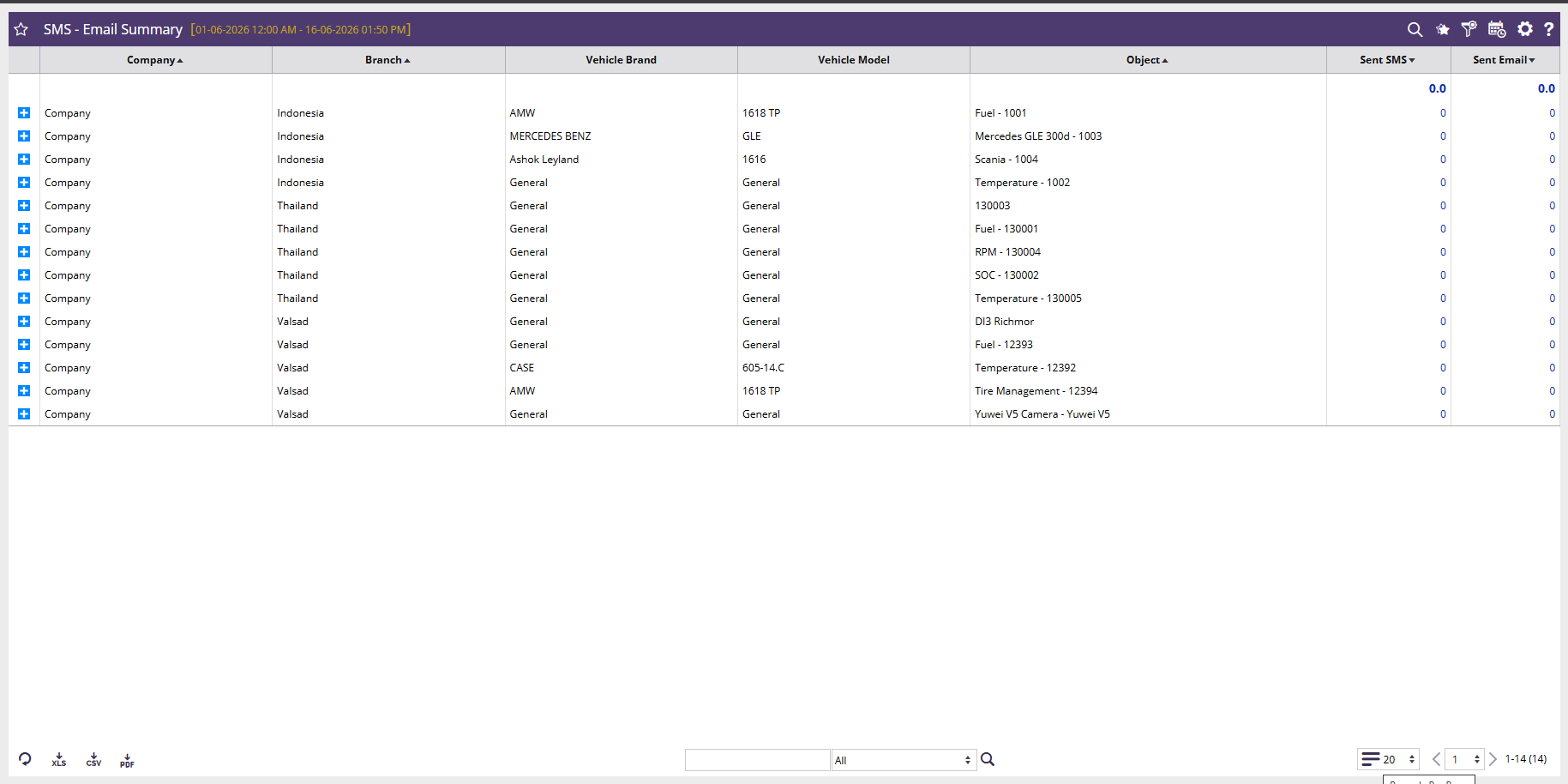
- Company : Displays the company associated with the object.
- Branch : Shows the branch to which the object belongs.
- Vehicle Brand : Displays the brand or manufacturer of the vehicle.
- Vehicle Model : Displays the vehicle model.
- Object : Shows the object (vehicle/asset) that generated the alert.
- Sent SMS : Displays the total number of SMS notifications sent for alerts generated by the object.
- Sent Email : Displays the total number of email notifications sent for alerts generated by the object.
Detail View
Displays individual alert notifications, alert generation times, and SMS/email delivery information.
- Alert Type : Displays the alert that triggered the notification.
- Examples:
- Over Speed
- Driverless Driving
- AC Misuse
- Fuel Alerts
- Geofence Alerts
- Temperature Alerts : The field may also include configured thresholds, limits, and event details.
- Alert Generation Time : Shows the exact date and time when the alert was generated.
- SMS : Indicates whether an SMS notification was sent for the alert.
- Possible values:
- ✓ Sent
- ✗ Not Sent
- Total SMS Send : Displays the number of SMS notifications sent for the specific alert event.
- Email : Indicates whether an email notification was sent for the alert.
- Possible values:
- ✓ Sent
- ✗ Not Sent