
The Alert Summary report provides a consolidated overview of alerts generated by selected objects (vehicles/assets) during a specified period. It summarizes the number of occurrences for each alert type and helps users identify objects that generate the highest number of alerts.
The report is useful for monitoring fleet performance, identifying recurring issues, analyzing alert trends, and prioritizing operational attention based on alert frequency.
This report is available in Trakzee Lite, Trakzee Standard, Trakzee Premium and Smart Waste management
Before You Get Started
Before using this report, ensure that:
- Vehicles/assets are properly configured in the system.
- Alert rules and thresholds are enabled.
- Devices are actively transmitting data.
- Objects have generated alert events during the selected period.
- You have permission to access Alert reports.
- Required alert categories are configured and active.
To Open Alert Summary
- Log in to your account
- Go to Reports→Alerts→Alert Summary
Filter Explanation
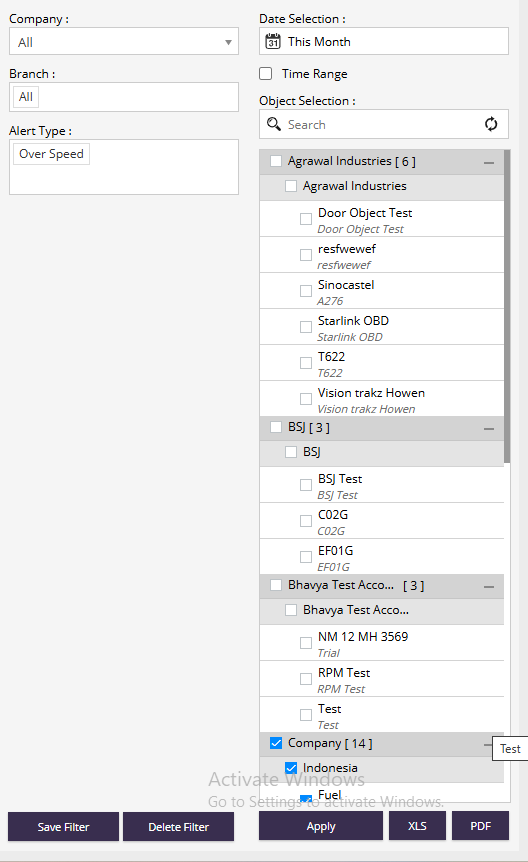
- Company : Select a specific company or choose All to display alert summaries from all companies.
- Branch : Allows users to filter records by branch.
- Date Selection : Select the reporting period for which alert data should be displayed.
- Examples:
- Today
- Yesterday
- Last 7 Days
- Last Month
- Custom Date Range
- Time Range : Enable this option to specify a custom time interval within the selected date range.
- Alert Type : Allows users to select the alert category to be included in the report.
- Examples:
- Over Speed
- RPM High
- RPM Low
- Fuel Refill
- Fuel Pilferage
- Temperature
- Geofence Alerts
- Driver Behavior Alerts
- Object Selection : Allows users to select one or multiple objects for which alert summaries should be generated.
- Features:
- Search objects using the search box.
- Select individual objects.
- Select multiple objects simultaneously.
- Expand or collapse company groups.
- Refresh object lists when required.
- Apply : Generates the report using the selected filter criteria.
- Save Filter : Saves the current filter configuration for future use.
- Delete Filter : Removes a previously saved filter configuration.
- Export Options :
- XLS – Export report data to Excel format.
- PDF – Export report data to PDF format.
Report Explanation
The Alert Summary report provides a count of alert occurrences grouped by company, branch, and object. Each alert type appears as a separate column, allowing users to quickly compare alert frequencies across multiple objects.
The report helps identify assets generating excessive alerts and supports proactive maintenance and operational decision-making.
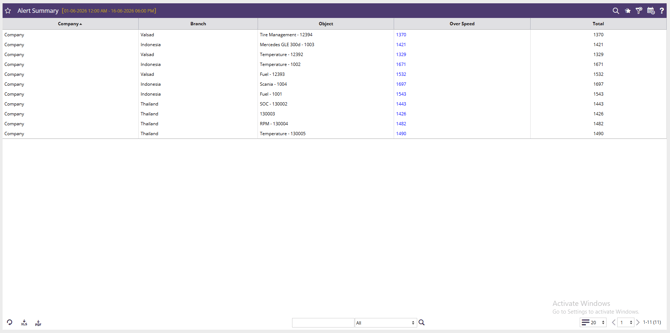
- Company : Displays the company associated with the object.
- Branch : Shows the branch to which the object belongs.
- Object : Displays the vehicle or asset that generated alerts.
- Alert Type Columns : Each alert type selected in the report appears as an individual column.
- Examples:
- Over Speed
- RPM High
- RPM Low
- Temperature
- Fuel Refill
- Fuel Pilferage
- Harsh Braking
- Harsh Acceleration
- Geofence Alerts
- The value displayed represents the total number of occurrences of that alert type for the object during the selected period.
- Total : Displays the total number of alerts generated by the object across all selected alert categories.