
The Live Matrix Report provides a real-time view of multiple vehicles in a single report. It allows users to monitor the current location, movement status, and operational details of multiple vehicles simultaneously, helping with efficient fleet monitoring and quick decision-making.
Users can track vehicle activity in real time without switching between individual vehicle views, making it easier to manage large fleets and monitor ongoing operations.
Please Note: This report is only available in Trakzee Premium.
Before You Get Started
- This report uses the Status of the Ignition sensor to determine running, idle & stop..
- To know more about ignition sensor configuration, Click here.
Please Note:
If ignition sensor is not configured than the speed condition will be used to determine Running, Idle & Stop status,
- Running: Speed > 5
- Idle: Speed = 0 ( will be displayed for 1 minute )
- Stop: Speed < 5 ( Default observation set to 1 min )
To configure reseller rule click here.
To configure company rule click here.
To Open Live Matrix Report.
- Log in to your account.
- Go to Reports > Activity > Live Matrix.
When the user clicks on the Live Matrix Report, the filter panel opens. The user must then select the vehicle & date range. to generate the report. Additional filter options are also available and are explained below
Please Note: Only 20 vehicle can be selected at a time.
Filter Explanation:
- The Live Matrix Report provides a range of filter options to help users generate a customized report based on their requirements. Once the desired filters are selected, click Apply to generate the report. The available filter options are explained below.
-
- Company: Select the company for which the report needs to be generated. Branch & vehicles associated with the selected company will be displayed in the list.
- Branch: Select a specific branch for which the report needs to be generated. vehicles associated with the selected branch & company will be displayed in the list.
- Vehicle Group: Filter vehicles based on the configured vehicle groups. Vehicle will be listed from the selected Group.
- Vehicle Type: Select the vehicle type (e.g., Car, Truck, Bus) vehicle will be listed based on selected type.
- Object Selection: Users can select the required object(s) from the list. Multiple vehicles/objects can be selected simultaneously for report generation.
- Search: Users can search for vehicles/objects from the available list using the search field.
- Click on Apply to generate the report.
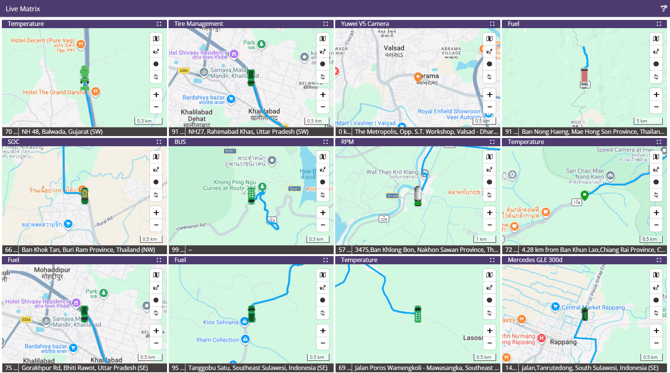
- The Live Matrix Report provides separate sections for each vehicle, allowing users to monitor and track multiple vehicles individually in a single view.
-
Users can open a specific vehicle in full-screen mode by clicking on the
 icon.
icon.
- Each vehicle section includes action icons that allow users to perform specific tasks related to that vehicle.
-
Map tools are as listed below:
.png?width=30&height=30&name=Vector%20(2).png)
Select Map
We provide OSM Map, but if the users have purchased any Map Keys then they can select other maps from here accordingly. Check how to configure Map.

Object with Path
By clicking on Object with Path, the user can view the route taken by the object on that day.

Data Points
clicking on Data Points, users can view the GPS data received from the device directly on the map.

Auto Refresh
Automatically updates the report with the latest vehicle data at regular intervals without requiring the user to manually refresh the page

Zoom In
User can zoom in on the map using Zoom In.

Zoom Out
User can zoom out on the map using Zoom Out.