
An Alert serves as a notification that is activated in response to a specific event or condition, such as when a vehicle exceeds the established speed limit or any other condition, facilitating prompt action on potential issues.
To efficiently add alert for Pet, please follow these outlined steps.
Upon clicking on the Alerts, users will be directed to the Alerts Overview page, where they can easily view and manage all Alerts records.
To Edit Alert.
- Tap on the alert to view.
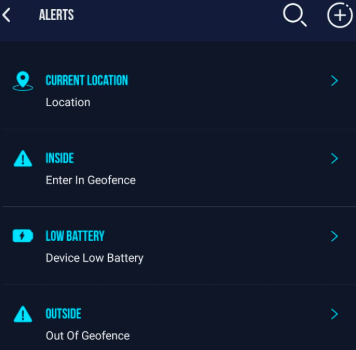
Please Note: The steps to edit all alert individually are outlined Below.
Edit Device Low Battery Alert
The Device Low Battery Alert notifies you when the tracking device’s battery level is running low. This helps you recharge or replace the battery on time, ensuring uninterrupted tracking and accurate updates.
- To edit Device Low battery alert follow the following Steps.
- Tap on the device low battery alert.
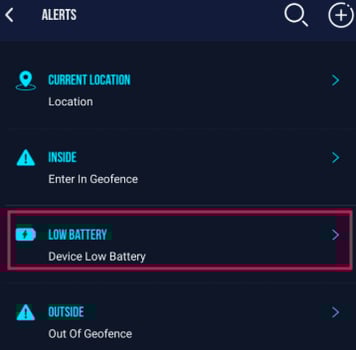
- The following edit screen will open.
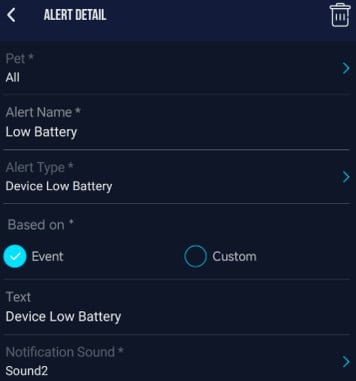
- Pet: Tap on Pet and update the pet selection if needed.
(You can select All to apply the alert to every pet.) -
Alert Name: Tap on Alert Name to modify the name of the alert (e.g., Low Battery).
-
Alert Type: Tap on Alert Type and ensure Device Low Battery is selected or update it if required.
- Pet: Tap on Pet and update the pet selection if needed.
Please Note: If you switch the alert type, follow the guide for the new alert type.
-
-
Based On : Choose how the alert should be triggered:
-
Event: When GPS device sends Low battery event.
-
Custom: You can enter the value, the alert will trigger when battery drops below the entered Value.
-
Set Value (If Custom)
If you selected Custom, enter the battery percentage value at which the alert should trigger.
-
-
-
Text: Edit the notification message that will appear when the alert is triggered (e.g., Device Low Battery).
-
Notification Sound: Tap on Notification Sound to change or update the alert tone.
-
Tap Save to apply and update the alert settings.
- Tap on the
 delete icon to remove the alert.
-
Edit Enter In Geofence Alert.
The Enter in Geofence alert notifies you when your pet enters a predefined geofence area. This ensures you stay informed whenever your pet moves into a specific safe zone or restricted zone you’ve created.
- To edit Enter In Geofence alert follow the following Steps.
- Tap on Enter in Geofence alert.
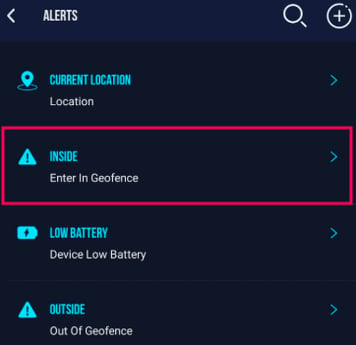
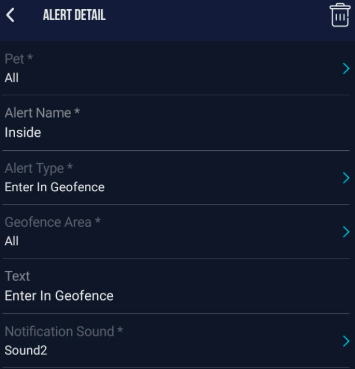
- The following screen will open.
-
- Pet: Tap on Pet and update the pet selection if needed.
(You can select All to apply the alert to every pet.) -
Alert Name: Tap on Alert Name to modify the name of the alert (e.g., Enter in Geofence).
-
Alert Type: Tap on Alert Type and ensure Enter in Geofence is selected or update it if required.
- Pet: Tap on Pet and update the pet selection if needed.
Please Note: If you switch the alert type, follow the guide for the new alert type.
-
- Geofence Area: Tap on Geofence Area to view and update the selected geofence for this alert.
-
Text: Edit the notification message that will appear when the alert is triggered (e.g., Entered in Park).
-
Notification Sound: Tap on Notification Sound to change or update the alert tone.
-
Tap Save to apply and update the alert settings.
- Tap on the delete icon to remove the alert.
Edit Location Alert.
The Location Alert sends you the updated location of the pet. it provides the pet’s current location whenever the alert is triggered.
- To Edit Location alert follow the following Steps.
- Tap on Location alert.
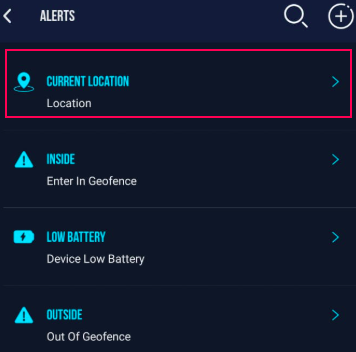
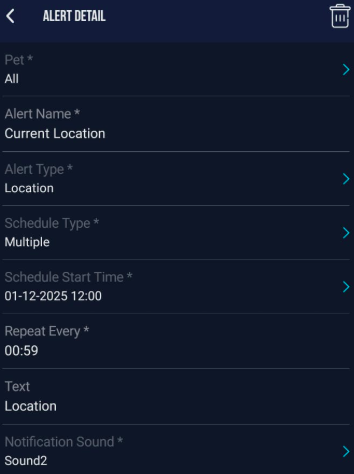
- The Following screen will open.
-
- Pet: Tap on Pet and update the pet selection if needed.
(You can select All to apply the alert to every pet.) -
Alert Name: Tap on Alert Name to modify the name of the alert (e.g., Current Location).
-
Alert Type: Tap on Alert Type and ensure Location is selected or update it if required.
- Pet: Tap on Pet and update the pet selection if needed.
Please Note: If you switch the alert type, follow the guide for the new alert type.
-
- Schedule Type: Tap on Schedule Type and update the alert type as needed:
-
Single – The alert will trigger once at the selected time.
- Schedule Time: Select the time at which the alert should be triggered.( only for Schedule type: Single)
-
Multiple – Allows you to set a repeating alert.
- Schedule Start Time: Tap on Schedule Start Time and select the time when the alert should start generating. (Only for Schedule type: Multiple)
- Repeat Every: Tap on Repeat Every and after how much interval (HH:MM) alert should itself (Only for Schedule type: Multiple)
-
- Schedule Type: Tap on Schedule Type and update the alert type as needed:
-
-
Text: Edit the notification message that will appear when the alert is triggered. (e.g., Entered in Park).
-
Notification Sound: Tap on Notification Sound to change or update the alert tone.
-
Tap Save to apply and update the alert settings.
- Tap on the delete icon to remove the alert.
-
Out of Geofence Alert.
The Out of Geofence alert notifies you when your pet exits a predefined geofence area. This ensures you stay informed whenever your pet moves out of a specific safe zone or restricted zone you’ve created.
- To edit Out of Geofence alert follow the following Steps.
- Tap on Out of Geofence alert.
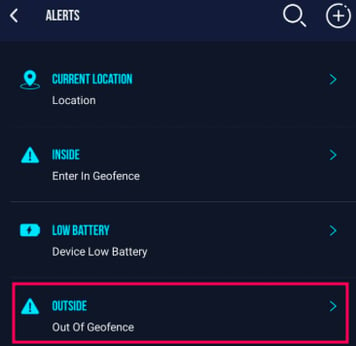
-
- Pet: Tap on Pet and update the pet selection if needed.
(You can select All to apply the alert to every pet.) -
Alert Name: Tap on Alert Name to modify the name of the alert (e.g., Enter in Geofence).
-
Alert Type: Tap on Alert Type and ensure out of Geofence is selected or update it if required.
- Pet: Tap on Pet and update the pet selection if needed.
Please Note: If you switch the alert type, follow the guide for the new alert type.
-
- Geofence Area: Tap on Geofence Area to view and update the selected geofence for this alert.
-
-
Text: Edit the notification message that will appear when the alert is triggered. (e.g., outside of Park).
-
Notification Sound: Tap on Notification Sound to change or update the alert tone.
-
Tap Save to apply and update the alert settings.
- Tap on the delete icon to remove the alert.
-
Learn How to Add Alert.