
The Trakzee Driver Application provides drivers with a streamlined interface to manage their daily tasks, trips, and vehicle-related duties. Depending on the organization’s configuration, different modules can be enabled or disabled for each driver.
This guide provides step-by-step instructions for using the driver mobile application. It covers everything from logging in, navigating main features, managing settings, and generating reports to help you use the application efficiently.
To get started
- Open the Driver Application: Launch the app on your mobile device.
- Server Name: Select the server name
- Enter Username: Input your username.
- Enter Password: Input your password. After verification, you'll be directed to the live tracking screen.
The page you land on is the driver application's overview page where you can have a look at all the modules.
Let's understand the Driver application's Interface.
-
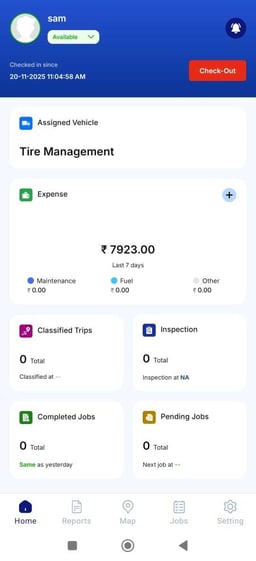
The Home screen of the Trakzee Driver Application provides a quick dashboard view showing the driver’s status, check-in time, assigned vehicle, and key modules such as Tire Management, Expenses, Classified Trips, Inspection, Completed Jobs, and Pending Jobs. Each card displays basic summaries, and tapping on any section redirects the driver to its detailed module for further actions.
- To read more about Dashboard, click here.
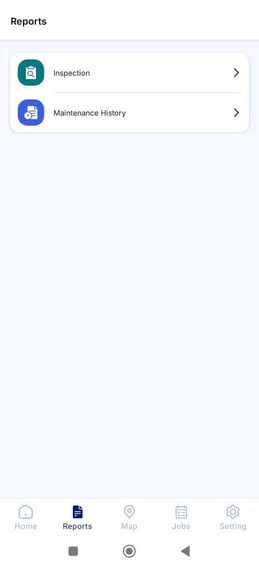
- Click on icon for accessing the Reports, where one would be able to view the Inspection and Maintenance History reports.
- To read more about Reports, click here.
.jpeg?width=271&height=592&name=WhatsApp%20Image%202025-11-25%20at%202.51.16%20PM%20(1).jpeg)
- Click on icon for accessing Live Tracking Screen, from where you'd be able to inspect the vehicle, add expense, navigate, Find Nearby vehicles, and add accident details.
- To read more about Live Tracking, click here.
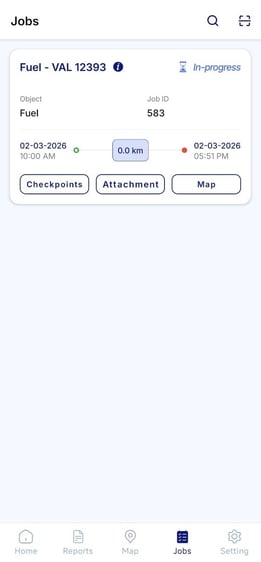
- Click on icon for viewing the jobs from the Job screen.
- To read more about Live Tracking, click here.
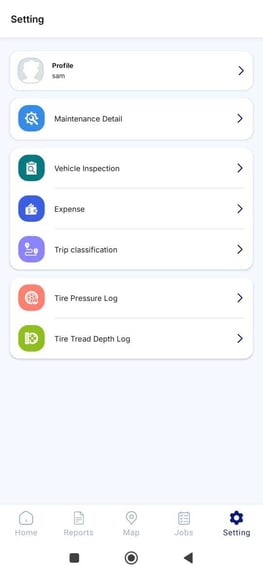
- Click on the icon for visting the Settings screen. It consists of options like Profile, Maintenance Details, Vehicle Inspection, Expense, Trip Classification and Tire.
- To read more about Settings, click here.