
The System Log Report provides a detailed record of all data packets received from devices during the selected time period. It helps users monitor device communication, verify data transmission status, analyze device parameters, identify connectivity issues, and troubleshoot discrepancies between the actual device data time and the server-received time.
Before you get started
Make sure your devices are properly configured and actively transmitting data to the platform. The report displays only the data received from devices during the selected date and time range.
Note: If a device is offline, not configured correctly, or has not transmitted any data within the selected period, it may not appear in the report or may show incomplete information.
To Open System Log
- Log in to your account
- Go to Reports→Logs→System Log
Note : When you open the System Log Report, the Filter Panel is displayed first. You must select the required filters and object(s) before generating the report. The report will only display data for the objects and criteria selected in the filter panel.
Filter Explaination
-
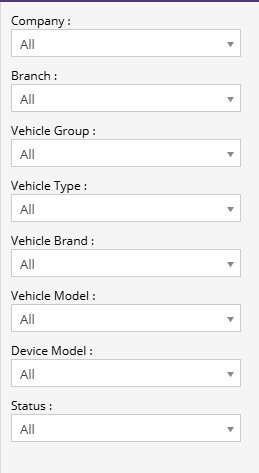
Filter Options
-
Company :Select the company whose device data you want to analyze.
-
Branch :Select a specific branch within the selected company. Leaving this field as All will include data from all branches.
-
Vehicle Group : Filter the report based on a predefined vehicle group.
-
Vehicle Type: Filter devices based on the type of vehicle or asset they are assigned to.
-
Vehicle Brand :Filter the report by vehicle manufacturer or brand.
-
Vehicle Model :Filter the report by a specific vehicle model.
-
Device Model:Filter the report based on the GPS tracking device model.
-
Status : Filter records based on device communication status.
-
All – Displays all devices regardless of status.
-
Other available statuses may vary depending on the platform configuration.
-
- Save Filter : You can save the filter you have made changes.
- Delete Filter : You can delete the filter you have made changes.

-
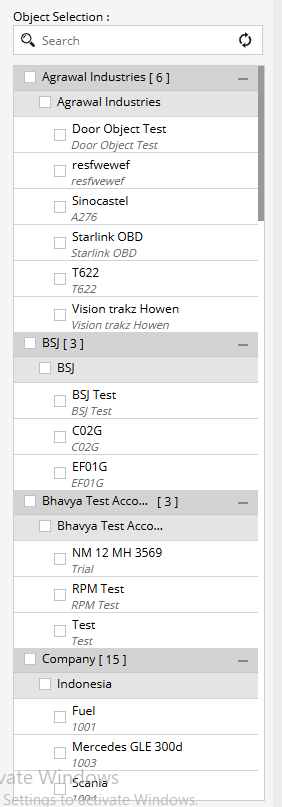
- Object Selection : The Object Selection panel allows you to choose the vehicles, assets, or devices that should be included in the report.
-
Search:Use the search box to quickly locate a specific object by name.
-
Object Tree :Displays all available companies, branches, and objects in a hierarchical structure.
-
Expand a company or branch to view its objects.
-
Select one or more objects by checking the corresponding checkboxes.
-
Multiple objects can be selected simultaneously.
-
-
Select All :Check the All option to include every available object in the report.
-
- Action Buttons
- Apply :Generates the report based on the selected filters and objects.
- Save Filter :Saves the current filter configuration for future use.
- Delete Filter:Removes a previously saved filter configuration.
- XLS:Exports the generated report in Microsoft Excel format.
- PDF :Exports the generated report in PDF format.
- CSV:Exports the generated report in CSV format.
Report Explaination
- Summary Layer Description: The System Log Summary layer provides a consolidated view of the latest data received from each device. It displays key device information such as company, branch, object name, device model, IMEI number, location, ignition status, power status, GPS status, speed, odometer reading, data timestamps, and device communication status. This view helps users quickly assess device health and communication performance across the fleet.
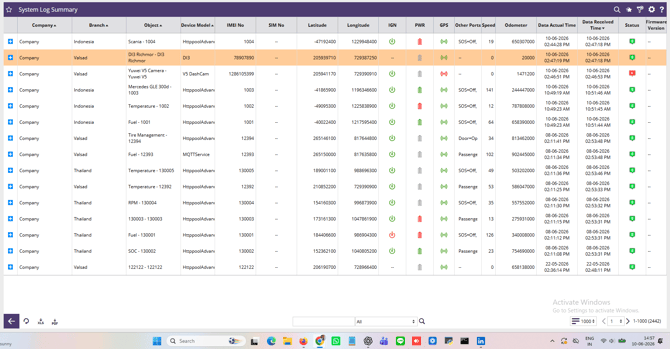
- Company: Displays the company to which the device is assigned.
- Branch: Shows the branch or location under which the device is registered.
- Object: Displays the object, vehicle, asset, or entity associated with the device.
- Device Model: Shows the model of the tracking device or hardware transmitting data.
- IMEI No: Displays the unique IMEI (International Mobile Equipment Identity) number of the device.
- SIM No: Shows the SIM card number configured in the device, if available.
- Latitude: Displays the latest latitude coordinate received from the device.
- Longitude: Displays the latest longitude coordinate received from the device.
- IGN: Indicates the ignition status received from the device.
- ON: Ignition is active.
- OFF: Ignition is inactive.
- --: Ignition information is unavailable.
- PWR: Indicates the external power status of the device.
- Green: Power connected.
- Red: Power disconnected or low.
- Gray: Power information unavailable.
- GPS: Displays the GPS connectivity status.
- Green: Valid GPS signal available.
- Red: GPS signal unavailable.
- Other Ports: Displays the status or value of additional configured inputs and outputs such as SOS, Door, Passenger Counter, Sensors, etc.
- Speed: Displays the speed reported by the device at the time of the latest data packet.
- Odometer: Shows the total distance travelled by the vehicle or asset.
- Data Actual Time: Displays the timestamp recorded by the device when the data was generated.
- Data Received Time: Displays the timestamp when the server received the data packet.
- Status: Indicates the communication status of the device. A non-zero value generally represents pending packets, communication issues, or device alerts requiring attention.
- Firmware Version: Displays the firmware version currently installed on the device, if supported.
- Detailed Layer Description: The System Log Detail layer provides a packet-by-packet breakdown of the data received from a selected device. It includes location coordinates, ignition and power status, GPS status, speed, odometer readings, actual device time, server receive time, communication delay, heartbeat data status, and history data indicators. This information is useful for troubleshooting device communication, validating data accuracy, and analyzing transmission patterns.
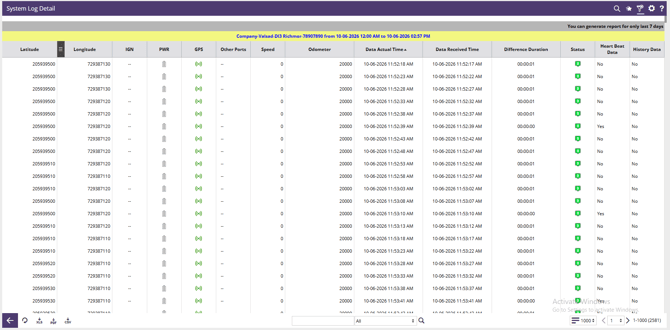
- Latitude: Displays the latitude coordinate received in each individual data packet.
- Longitude: Displays the longitude coordinate received in each individual data packet.
- IGN: Indicates the ignition status recorded in the data packet.
- PWR: Indicates the external power status recorded in the data packet.
- GPS: Shows whether a valid GPS fix was available when the packet was generated.
- Other Ports: Displays the values of additional configured ports, sensors, or inputs received in that packet.
- Speed: Displays the vehicle speed reported in the specific data packet.
- Odometer: Shows the odometer value reported in the specific data packet.
- Data Actual Time: Displays the time when the device generated the data packet.
- Data Received Time: Displays the time when the server received the data packet.
- Difference Duration: Shows the time difference between the device-generated timestamp and the server-received timestamp. This helps identify communication delays or buffered data transmission.
- Status: Indicates whether the data packet was successfully processed and stored.
- Heart Beat Data: Shows whether the packet is a heartbeat packet used by the device to confirm connectivity with the server.
- Yes: Heartbeat packet.
- No: Regular tracking data packet.
- History Data: Indicates whether the packet was sent as historical (buffered) data due to previous network unavailability.
- Yes: Historical data packet.
- No: Live data packet.