
Admins, Reseller & Company have the ability to customize and manage the screen access for Company Subusers, tailoring it to align with their specific requirements.
To Get Started
- Login to your account.
- Go to Settings > General > Company Subuser.
- Click on Add New or double-click on the existing record to Edit as per your requirement.
- Navigate to the Screen Access tab.

To Provide Screen Access
- You can use the Add New or Copy From Group from the drop-down list to set or copy screen rights.

The Copy from group feature enables you to replicate the configuration from previously created groups, simplifying the process of assigning the same access rights to the sub-user without the need to manually select each setting again.
Please Note: You will not be able to add new groups or copyrights from any existing groups if you are editing an existing account.
- Select the Project for which you want to provide rights.
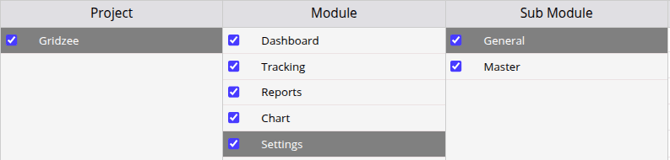
- Select the Module you wish the company to have access to.
- Based on the selected module, a corresponding list of sub-modules will appear. Please choose the Submodule to which you would like to grant access to the company user.
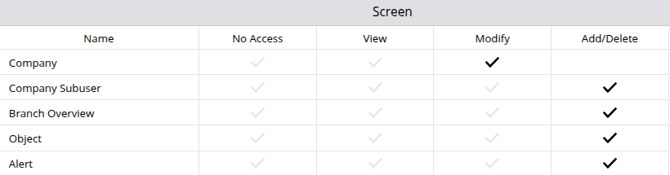
- On the Screen tab, specify the appropriate permissions for the company user, choosing from options such as No access, View, Modify, or Add/Delete, based on their role and responsibilities.
- Click on the Save 💾 icon.