
When the user clicks on a particular object from the object list, a playback option appears on the top center of the live tracking screen, which displays the playback of the object for the duration specified by the user.
Go to Object tab > Click on object > Hover on playback to select the desired duration for which to view the playback, as illustrated below:
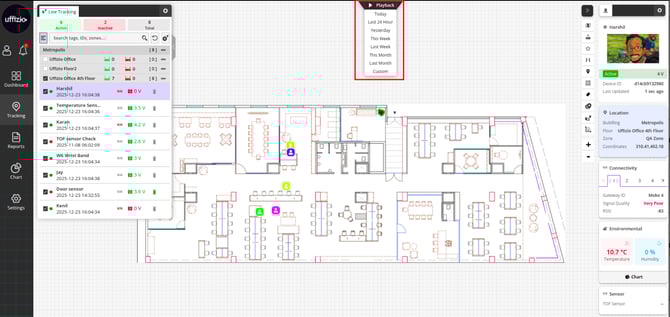
By clicking on the required timeframe, the playback screen will load, which will be as below:
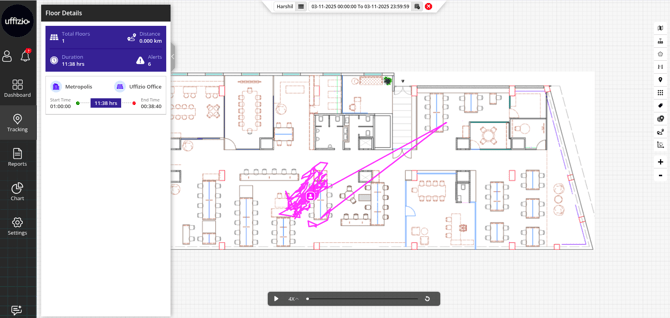
In the Playback section, users will encounter four distinct bars, tabs, or windows, each serving a specific function, as outlined below:
Settings Bar
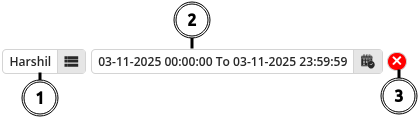
The Settings Bar lies in the top center of the playback screen. On this bar, users can find various settings options.
-
Object Name
When a user clicks on the object name from the settings bar, the object list appears on the left side of the screen, as shown below: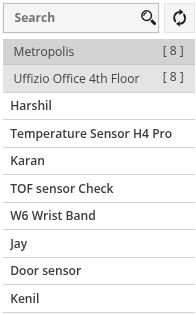
From this list, users can choose the object for which they wish to view the playback.
-
Time Range Selection
When a user clicks on the time range, the different time range options will appear as below:
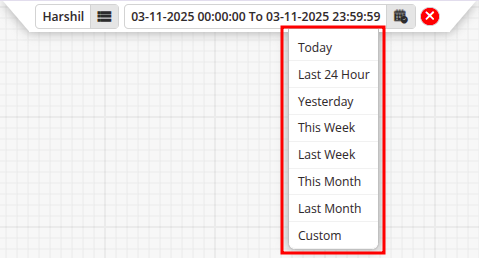
The playback will be displayed for the duration chosen from the available options.
- Close Button
When a user clicks on this button, they will exit the playback.
Map Tools
On the right side of the playback screen, we have Map tools, as shown in the image below:

Map tools are as listed below:
.png?width=30&height=30&name=Vector%20(2).png) |
Select Map We provide OSM Map, but if the users have purchased any Map Keys then they can select other maps from here accordingly. Check how to configure Map. |
 |
Show Transmitter This icon will show/hide the transmitter on the Floor Map. |
 |
Show Zone This icon will show/hide the zone on the Floor Map. |
 |
Show Barrier This icon will show/hide the barrier on the Floor Map. |
 |
Show POI This icon will show/hide the POI on the Floor Map. |
 |
Show Cluster The cluster option is used to view the number of object in a particular area on the map. |
.png?width=30&height=30&name=Vector%20(3).png) |
Show Label The user can click on Show Label to view the objects with their labels. |
.png?width=34&height=35&name=Frame%2010%20(1).png) |
Single Object Mode The user can view only the selected object on the map by clicking on Single Object Mode. |
 |
Object with Path By clicking on Object with Path, the user can view the route taken by the object for either last 15,30 or 60 minutes. |
 |
Heat Map Shows a heat Map for maximum number of a objects at a particular location on the Floor plan. |
 |
Zoom In User can zoom in on the map using Zoom In. |
 |
Zoom Out User can zoom out on the map using Zoom Out. |