
Transmitters are fixed devices placed at known locations inside the building to help track objects accurately. To determine the exact position, at least three transmitters must be placed in a triangular arrangement. This triangle formation allows the system to calculate the location precisely by measuring signals from each transmitter. Proper placement of transmitters ensures accurate indoor tracking and reliable movement detection.
To efficiently Add Transmitter on Layers, please follow these outlined steps.
To Get Started
- Log in to your account.
- Go to Settings > Master> Layers.
Please Note: Upon clicking on Layers, users will be directed to the Layers Overview page, where they can easily view and manage all Layers records.
To Add Layers
- Click on the ➕ button on the taskbar.
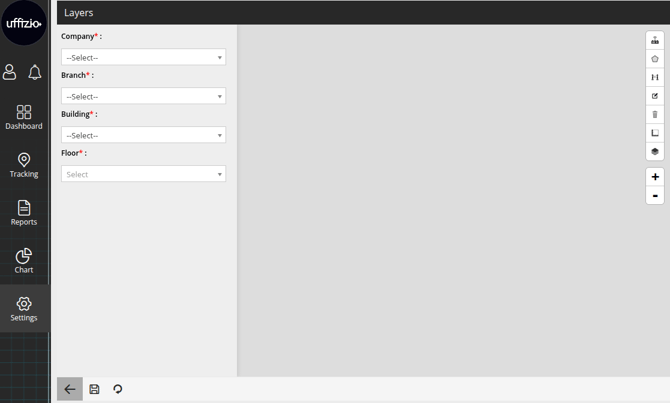
- Select the Company under which the floor plan is located.
- Select the Branch under which the floor plan is located.
- Select the Building under which the floor plan is located.
- Select the Floor of the building to load the floor plan.
Please Note: Once details are selected the floor plan will load up on the screen.
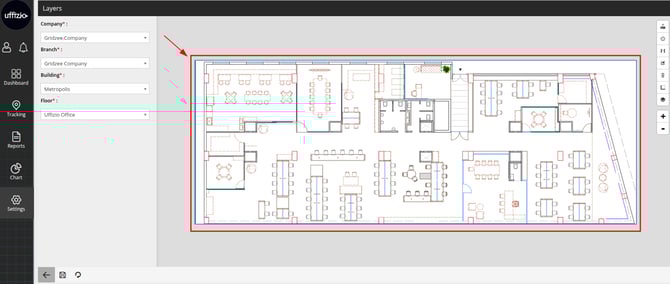
- Click on the Transmitter
 icon on the top right corner to add the transmitter location on the Floor map.
- Click on the location on floor map to add the transmitter, the following screen will open.
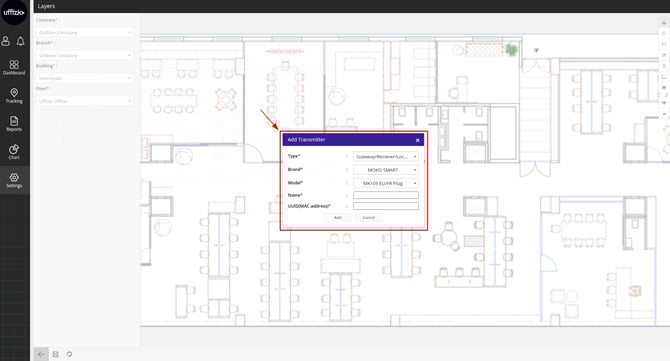
- Select Type, Brand & Model for the Transmitter device.
- Give the Name to the transmitter for identification.
- Enter the UUID(MAC-address) of the Transmitter.
- Click on Add to add the transmitter or click on cancel.
- Once done the Transmitter
 icon will appear on the Floor Map.
 - Click on the Save 💾 icon to save the configuration.
Please Note: You can repeat the process to add multiple transmitters for different locations.
To Edit the Transmitter details
- Click in the Transmitter icon and a floating popup will open.
- Click on the edit
 icon.
icon.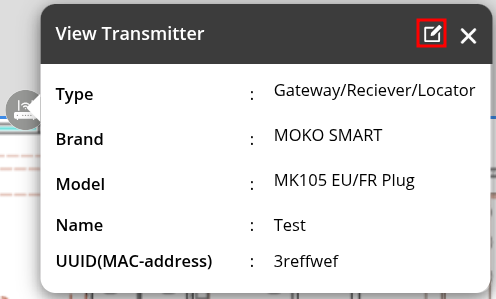
- You can Now edit the Type, Brand, Model, Name & UUID(MAC-address) of the transmitter.
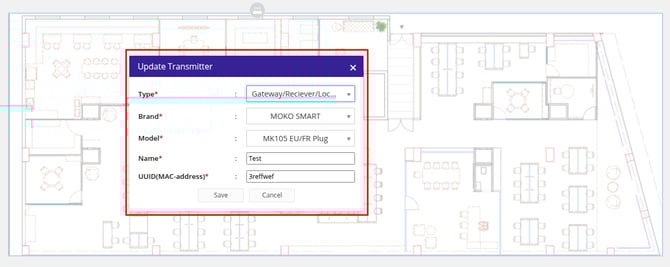
- Click on Save to save the changes or click on cancel.
- Click on the Save 💾 icon to save the configuration.