
This screen allows users to create and manage attendance rules for objects (employees) based on working days, time, and hours.
To efficiently configure Attendance, please follow these outlined steps.
To Get Started
- Log in to your account.
- Go to Settings > Master> Attendance.
Please Note: Upon clicking on Attendance, users will be directed to the Attendance Overview page, where they can easily view and manage all Attendance configuratons.
To Add Attendance
- Click on the ➕ button on the taskbar.

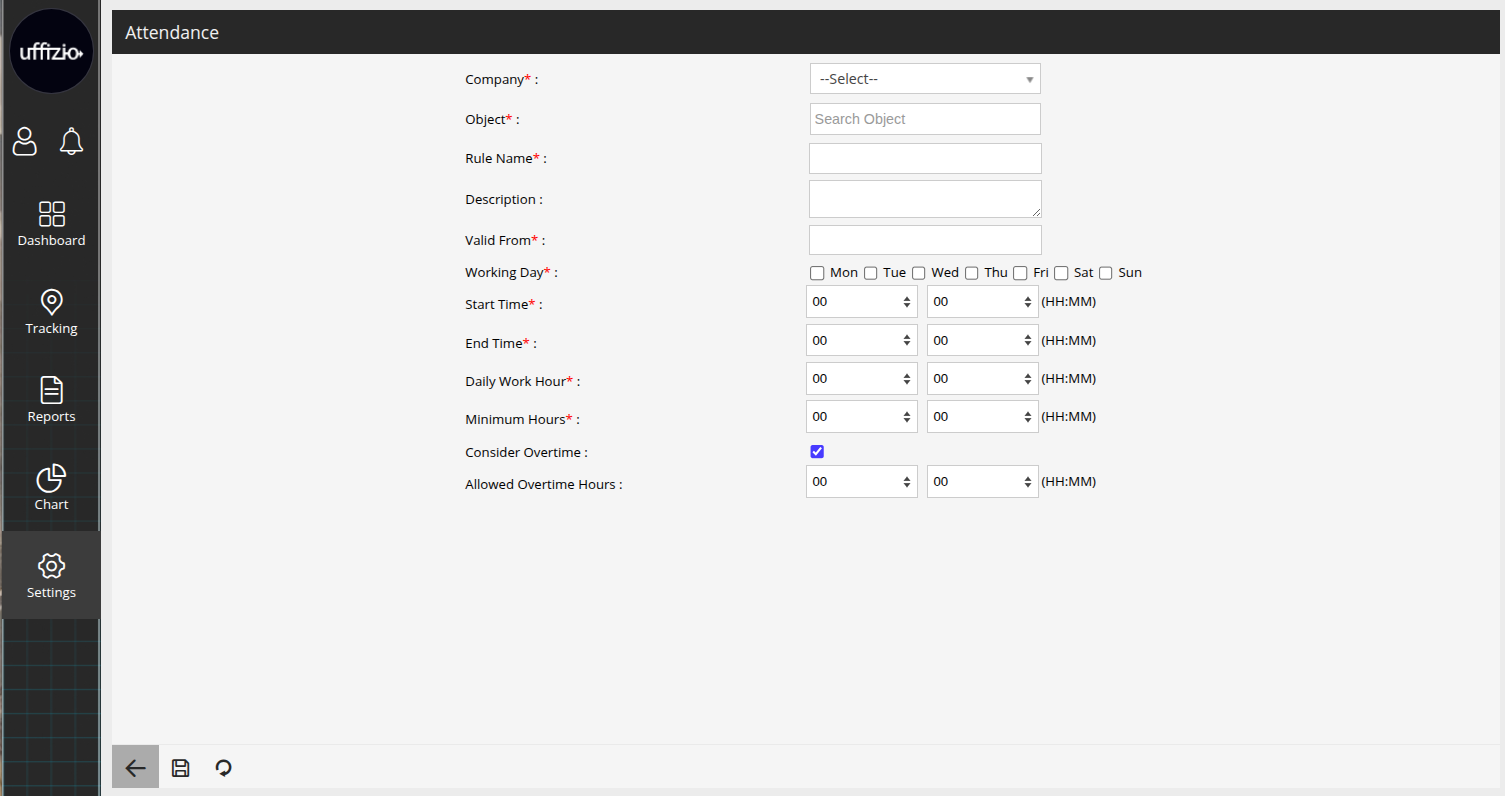
- Select the Company for which the attendance rule is being created.
- Select the Object to which this attendance rule will apply.
- Enter a Rule Name to identify the attendance rule.
- Add a Description explaining the purpose of the rule for your reference.
- In Valid From Select the date from which this attendance rule will become effective.
- Select the Working days applicable for this rule.
- From Start Time Define the expected start time of the working shift.
- From End Time Define the expected end time of the working shift.
- From Minimum ours Set the minimum number of hours that must be completed for the attendance to be considered valid.
Please Note: Completion of minimum working hours is mandatory for any object to be marked as present.
- From Consider Overtime Enable this option if extra working hours beyond the defined daily work hours should be counted as overtime.
- From Allowed Overtime Hours Define the maximum overtime hours that can be considered when overtime is enabled.
- Click on the Save 💾 icon to save the configuration.